
Cart page
The full page at /cart, with the shopper's items on the left and an order summary with the checkout button on the right.
Shoppers see their items on the left and an order summary with the checkout button on the right. They can change quantities and remove items without the page reloading, and Undo brings back a removed item.
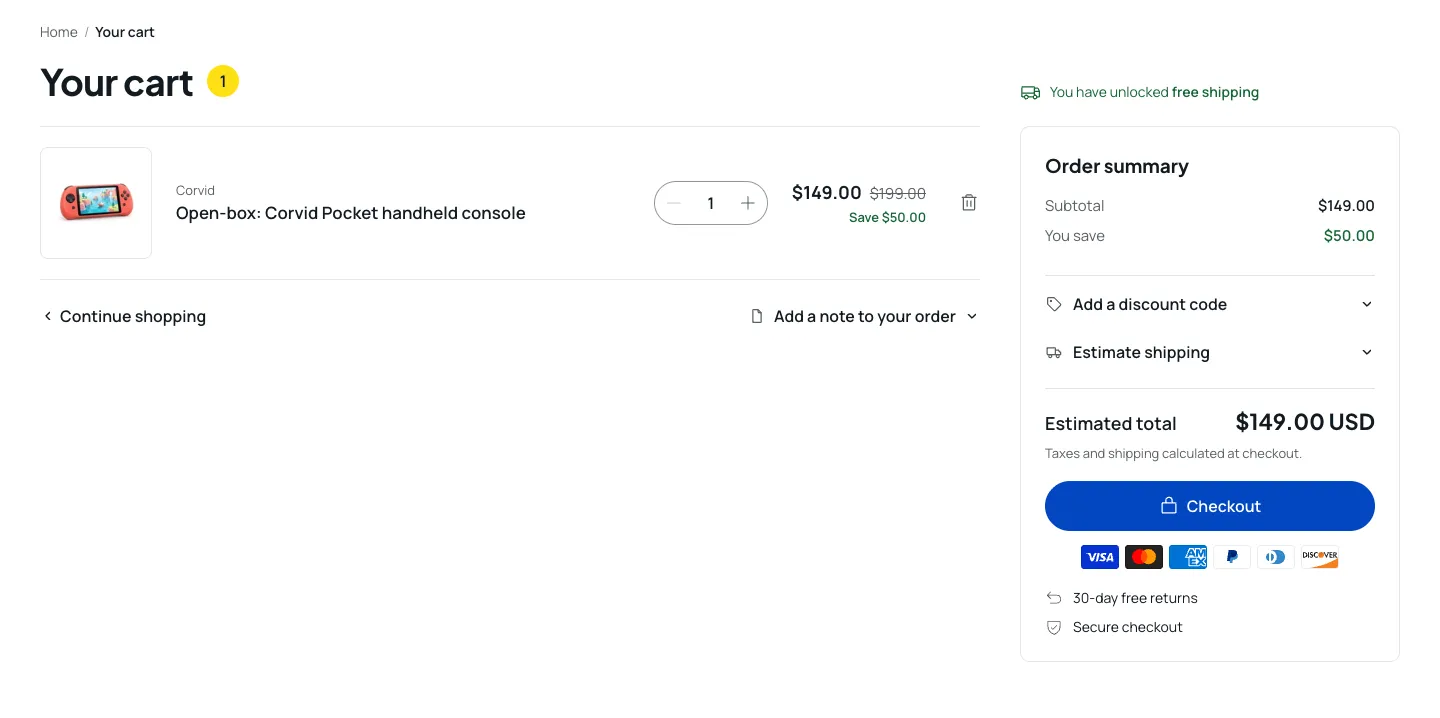
Shoppers reach this page through View cart in the cart drawer, or from the cart icon when Cart type is Page.
To open it in the theme editor, pick Cart in the page list at the top. It is easier to work on with an item in your cart.
What is set elsewhere
The order instructions box, the shipping estimate and the discount code are shared with the drawer. Turn them on or off in Theme settings > Cart. The free shipping bar is set there too.
Choose what the page shows
Show accelerated checkout buttons adds buttons for the wallets you have turned on in Settings > Payments, such as Shop Pay and Apple Pay. We recommend leaving it on. The cart drawer does not show these buttons, so this is the page where shoppers find them before checkout.
Show SKU and Show stock status add a line to each item. Both are off by default. They suit stores whose buyers order by part number or care about availability. A tracked product with no stock that still sells reads Available on backorder.
Continue shopping link goes to your all products page if you leave it empty.
Add trust lines
Under Cart, click Add block, then Trust line. These are short promises under the payment icons, and you can add up to 4. Keep them true and specific to your store. Sample lines about returns ship with the theme, so replace them with your own terms.
Set up the empty cart
A shopper with nothing in the cart sees your Heading and Text, up to 8 Collections as tiles, and a button. Pick your most popular collections. The button goes to all products if you leave Button link empty. The drawer has its own empty cart settings.
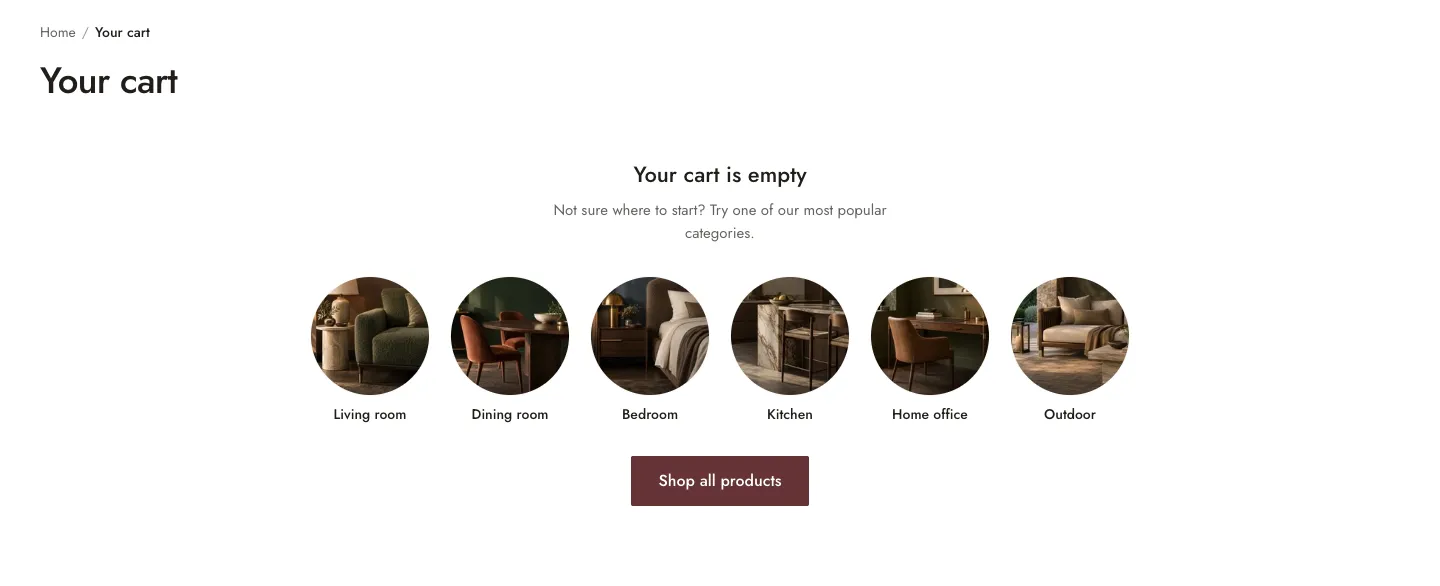
Seen in the Mantel demo
Suggest more products
A row of recommendations sits under the cart. It is a separate section on this page. See Cart recommendations.
Something not working?
No accelerated checkout buttons show. Check Settings > Payments. Shopify decides which buttons show, depending on the shopper's device and your payment setup.
A discount code says "This code cannot be used on your cart." Shopify has refused the code. Check its conditions under Discounts, such as the minimum order or the products it applies to.
A quantity changes by itself. The shopper asked for more than you have in stock. Shopify sets the line to what is available and the page shows its message.
The plus and minus buttons skip numbers, or stop. The buyer has a B2B catalog with quantity rules. The line steps by the increment and stops at the minimum and maximum.
The shipping estimate shows no options. Shopify has no rate for that address. Check Settings > Shipping and delivery. Estimates need a country, and usually a state and postal code.
All settings: Cart
| Setting | What it does |
|---|---|
| Heading | |
| Continue shopping link | Empty: the page of all products. |
| Lines | |
| Show SKU | |
| Show stock status | In stock, or Available on backorder for a tracked variant with none left that still sells. |
| Order summary | |
| Show accelerated checkout buttons | Shop Pay, Apple Pay, PayPal and the other wallets turned on in Settings > Payments. |
| Show payment icons | |
| Empty cart | |
| Heading | |
| Text | |
| Collections | |
| Button label | |
| Button link | |
| Color scheme | |
| Top padding | |
| Bottom padding | |