
Variants and swatches
Show your product options as color swatches, photo swatches, buttons, plain text or dropdowns with the Variant picker block.
The Variant picker block draws one group per option, such as Color or Size. When a shopper picks a value, the price, photo, stock and button all update without a page reload. A product with one variant shows nothing here.
Pick a style
Style sets the look of every option.
- Buttons is the best choice for most stores. Every value is visible and one click away.
- Text shows the values as plain words, with the picked one underlined. It suits a minimal design.
- Dropdown turns every option into a dropdown. Use it only when a product has many values, because shoppers have to open it to see them. Swatches do not apply here.
Button size sets the height to Small (36px) or Medium (44px).
Set up swatches
Swatches need data in Shopify as well as a setting in the theme.
Give the option values a color or image
In your admin, connect the option to a category metafield so each value carries a swatch color or image. An option without this data stays as buttons, whatever the theme setting says.
Choose what the swatch shows
In the Variant picker block, set Swatches.
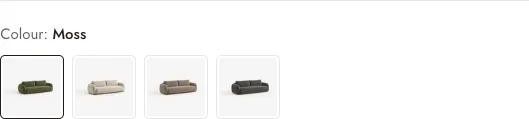
- Variant image shows the photo of each value's variant. It works best when your products look different in each color, as with sofas and backpacks. A value whose variant has no photo keeps its color.
- Color shows the swatch color or image from Shopify. It suits clothing and small swatches, as in Hanger.
- None shows buttons or text for every option.
Fine-tune
Swatch size is Small or Medium. With Color, Swatch shape is Circle or Square.
Product cards have swatch settings of their own, in Theme settings > Product cards.
Sold out values
A value that is sold out with the options chosen before it is struck through, and shoppers can still pick it to see the photo. The button then says Sold out. A combination you never created says Unavailable.
Products sold by size or weight
Turn on Show the unit price on each value to print each variant's unit price on its button, as Burrow does with its price per pound. Shoppers can then compare sizes at a glance. It needs unit prices on your variants. It does not apply to Dropdown.
Other settings
Option name style sets the option name as Body text, or as Label, which follows Theme settings > Typography > Labels and leaves out the colon.
Show a line above the options draws a thin line between the price and the first option.
To show only the picked color's photos, see Media gallery.
Something not working?
Swatches show as buttons. The option values have no swatch data in Shopify. Do the first step above. Variant image needs this too.
A photo swatch shows the wrong photo. It uses the image assigned to a variant with that value. Check the variant's image in your admin.
All settings: Variant picker
| Setting | What it does |
|---|---|
| Style | |
| Button size | |
| Show a line above the options | A thin line between the price and the first option, in the product info. |
| Option name style | Label takes the font, case and spacing of Theme settings > Typography > Labels, and leaves out the colon. |
| Swatches | For an option whose values have a swatch in Shopify (a color or an image on the option value). Other options stay buttons or text. |
| Swatch shape | |
| Swatch size | |
| Show the unit price on each value | For products sold by size or weight whose variants have a unit price. |