
Cart settings
Choose a drawer or a full page for your cart, set the free shipping goal, and decide which extras shoppers see.
These settings apply to both the cart drawer and the cart page. Pick where the cart opens, then choose what it offers.
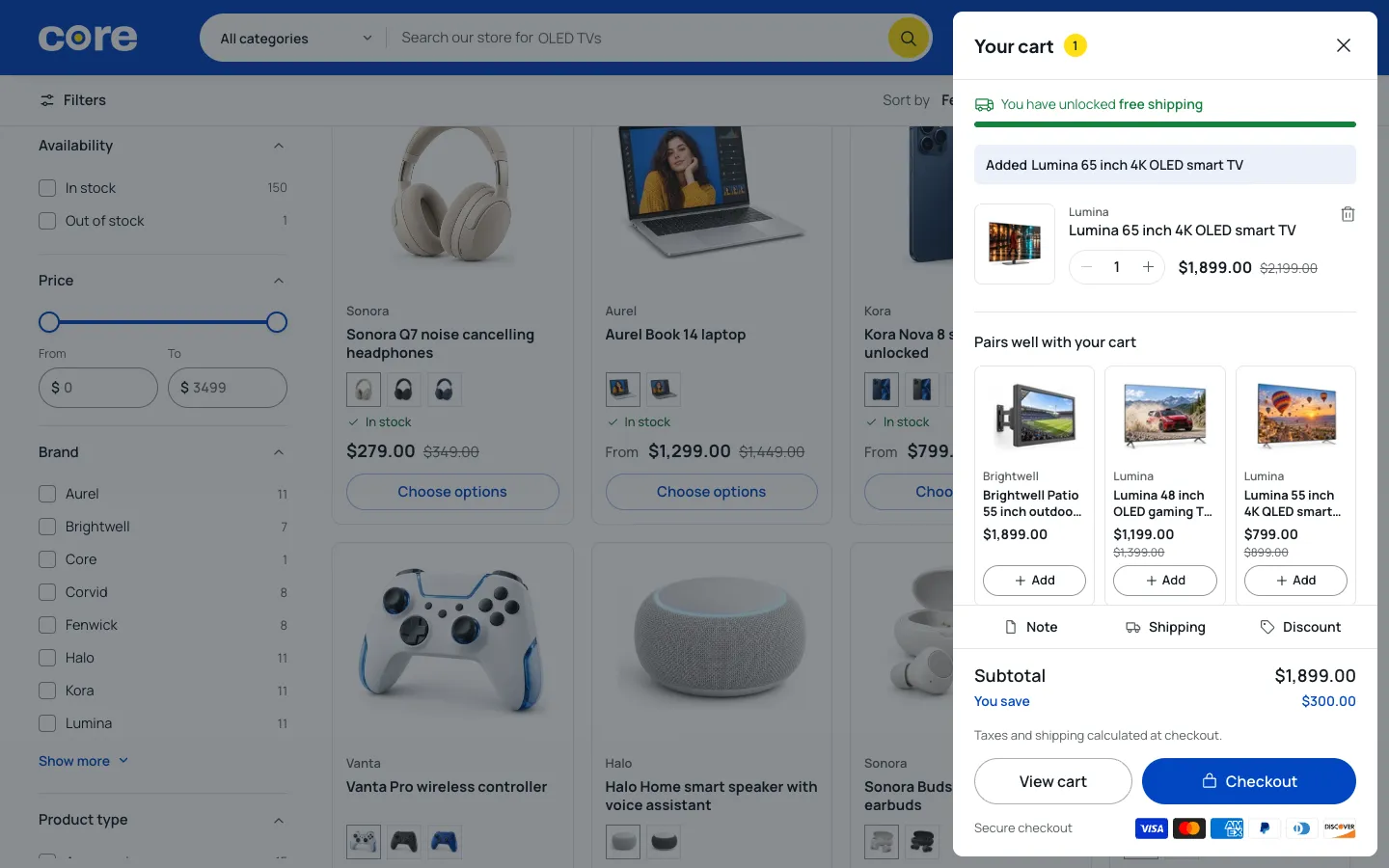
Seen in the Core demo
Drawer or page
Cart type decides what the header's cart icon does.
| Option | What shoppers get | Use it when |
|---|---|---|
| Drawer | A panel slides in when they add a product or click the icon. They stay on the page. | Most stores. We recommend it. |
| Page | The icon goes to the cart page. Adding a product updates the count in the header, and they stay where they are. | Buyers review large orders before checking out. |
With Drawer, the cart page still exists, and shoppers reach it through View cart. Accelerated checkout buttons such as Shop Pay show only on the cart page. The cart drawer and cart page articles cover the rest of their settings.
Free shipping goal
Free shipping from adds a bar to the drawer and the cart page, showing how much is left to spend. Type the amount with no currency sign, such as 50. Leave it empty for no bar.
Replace the sample amount
A new store carries the demo's amount: 35 in Core and Burrow, 75 in Ridge and 2000 in Mantel. Hanger leaves it empty. The bar only displays your promise. Shopify charges shipping from Settings > Shipping and delivery, so the rate there must match.
A plain amount applies only to your store's main currency. If you sell in several, list each one: USD:50, EUR:45. A currency you do not list shows no bar. Free shipping bar has more detail.
Text elsewhere in the theme that says [free_shipping] shows the same amount. If this setting is empty, it reads "a set amount". See Store words.
Extras in the cart
Three options apply to both carts, and each can be switched off. In the drawer, they sit in a row above the subtotal.
| Option | What it does |
|---|---|
| The order instructions box | Shoppers type a message for you, such as delivery directions. |
| Show shipping estimate | Shoppers enter a country and postal code and see your rates before checkout. It shows only when something in the cart needs shipping. |
| The discount code box | Shoppers apply a code in the cart. It suits stores that promote codes. |
Fewer options make for a shorter route to checkout. Hanger turns all three off. Keep the discount box if you run campaigns with codes.
Cart icon
Cart icon can be a Cart, Bag or Basket. It shows on the header's cart item and on the cart button of product cards. Hanger uses Bag.
To use your own, add a single-color SVG or PNG with a transparent background under Custom icon. It takes the text color of its row and replaces the icon you chose above.
All settings: Cart
| Setting | What it does |
|---|---|
| Cart icon | Shown on the header's Cart item and on the cart button of product cards. |
| Custom icon | Optional. Upload a single-color .svg or .png with a transparent background. It takes the text color of the row and replaces the icon above. |
| Cart type | |
| Free shipping from | A bar in the cart drawer and on the cart page shows how much is left. Order amount without a currency sign, for example 50; it must match the free shipping rate in Settings > Shipping and delivery. Several currencies: USD:50, EUR:45 (no bar for a currency that is not listed). Empty: no bar. Texts that say [free_shipping] show this amount (empty: "a set amount"). |
| Show order note | |
| Show shipping estimate | Customers enter their country and postal code and see your shipping rates before checkout. |
| Show discount code field |