
Collection tabs
Show several collections in one spot on the page. Shoppers switch between them with tabs above a row of products.
Collection tabs shows one row of products with a tab for each collection above it. Shoppers click a tab and the products change, while the page stays the same length.
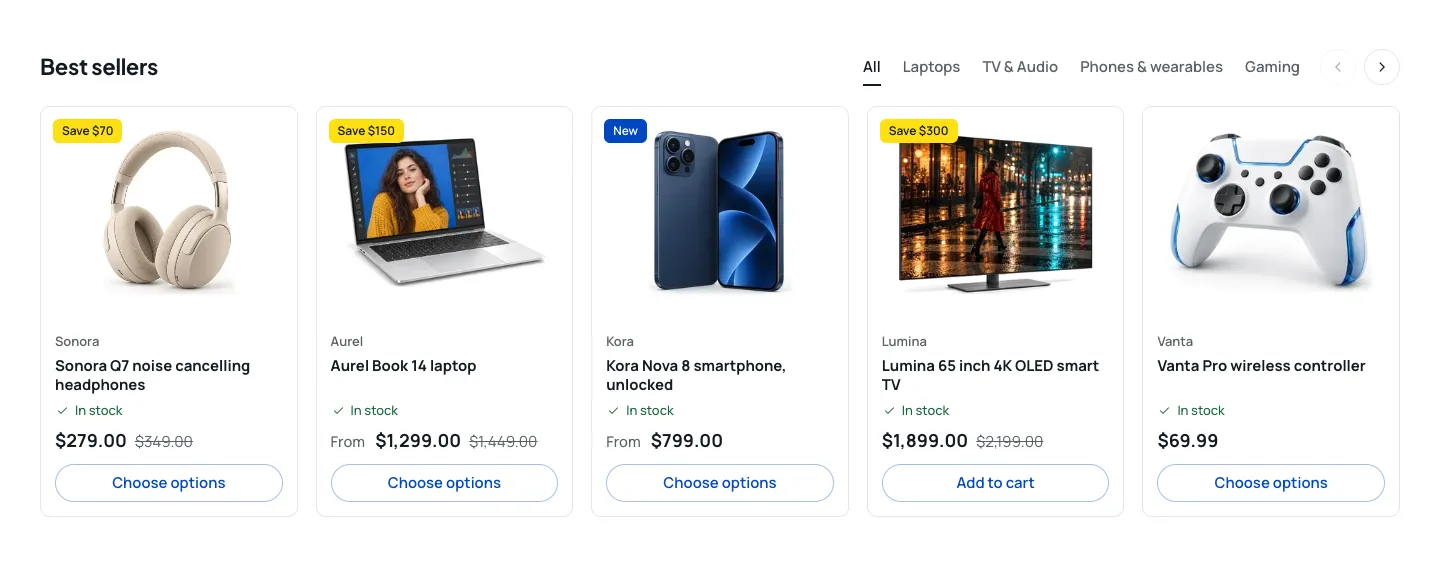
Use it when the same idea applies across departments, such as best sellers by room or by pet. It keeps the homepage short and lets shoppers go straight to what they care about.
It differs from its neighbors like this:
- With one collection, use Featured collection. That is also the section to use if you want a promo card, because tabs have none.
- If each collection deserves its own logo and large photo, use Collection spotlight. It suits brands.
Add your tabs
Under the section, click Add block and choose Tab. Pick a Collection for each one, up to eight. Keep the first tab the broadest, because that is what shoppers see first. All five presets start with a tab named All.
Label replaces the collection's name on the tab. Short labels work better, since a long collection name takes up room in the row.
With one tab, the tab list disappears and the products sit under the heading.
Products to show applies to every tab, and each tab follows the sort order of its collection in the Shopify admin.
On a collection page
The Sub collections block builds tabs by itself. It makes one tab for each collection nested under the current collection in a menu, so one template works for every department. The department template of Burrow, Hanger and Ridge uses it this way.
Set Menu to the menu that nests your collections, and Most tabs to limit how many appear. Start with this collection adds a first tab with all of the page's products, named by Label of the first tab.
This block adds no tab on other pages, such as the homepage. See Sub collections for how the nesting works.
Layout
Layout, Cards per row and Progress bar work as in Featured collection. The cards follow Product cards.
Something not working?
The products in a tab are in the wrong order. They follow the collection's sort order. Change it in the Shopify admin.
A Sub collections block shows no tabs. The collection has nothing nested under it in the block's Menu, or the section is on a page that is not a collection page. If the collection has products, they still show under the heading.
All settings: Collection tabs
| Setting | What it does |
|---|---|
| Heading | |
| Description | |
| Heading size | |
| Products | |
| Products to show | In each tab, in the order the collection is sorted in the Shopify admin. |
| Show badges from product tags | Tags are set in Theme settings > Product cards. Sold out and sale badges always show. |
| Show color swatches | Only when Theme settings > Product cards show swatches. Off: the cards of this row keep one height, without a swatch row under some names. |
| Layout | |
| Layout | |
| Cards per row | On desktop. Tablets show fewer. |
| Space between products | Theme settings > Product cards sets it for the whole store. |
| Cards per row on mobile | A carousel also shows part of the next card. |
| Progress bar | A thin bar under the row that shows how far it has scrolled; shoppers can drag it. Mobile: the full width; desktop: 75% of it, centered. |
| Section | |
| Color scheme | |
| Top padding | |
| Bottom padding | |