
Promo strip
Add a band of short offers near the header, with discount codes shoppers can copy and links to learn more.
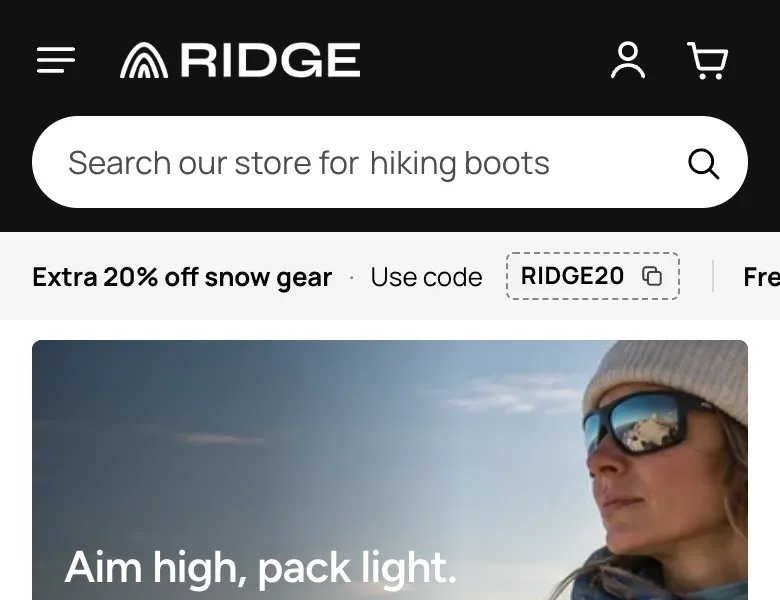
A thin band shows your short offers side by side, usually under the header. Each one can hold a discount code to copy and a link.

Seen in the Ridge demo
Use it for standing offers you want on every page, such as free delivery, a welcome code or free repairs. Ridge is the only preset that ships with one.
| To show | Use |
|---|---|
| Up to six standing offers, with codes, that stay still | Promo strip |
| A line or a few rotating lines in the header | Announcements |
| A sale with a real end date and a timer | Countdown bar |
| Many short items that move, or logos | Marquee |
Add it to the header area
Add the section
In the section list of the theme editor, click Add section in the Header area and choose Promo strip. Drag it above or below the header. You can also add it to one template instead.
Add your offers
Click Add block and choose Offer. You can add up to 6. Three fits most screens on one line.
Choose where it shows
Show on is All pages or Home page only. With Home page only, the strip does not load on other pages at all.
Write an offer
Keep each offer to a few words, because they share one line.
- Heading is the offer itself. Text adds a short line after it.
- Write
[free_shipping]in either one to show the amount from Theme settings > Cart > Free shipping from. The strip then stays correct when you change it. See Cart. - Discount code copies with one click. Create the code first in Shopify's Discounts.
- Link with Link label adds a short link with an arrow. Empty the label, and the whole offer becomes the link.
Choose the layout
Desktop layout set to Flat shows every offer side by side, and is usually right. When they do not fit, as on a tablet, shoppers swipe the line sideways. Slideshow shows one offer at a time, with previous and next buttons.
Size set to Regular is a thin band. Large is taller, with the heading in your heading font and the code in a box with a copy label. Use it when the strip sits in the page, away from the header.
Rotate offers moves through a slideshow on a timer. It pauses when shoppers point at it, and stops for good once they click previous or next.
On phones
Mobile layout set to Scroll keeps the offers on one line that shoppers swipe. Slideshow shows one at a time, which helps when your offers are long, because a swiped line hides the later ones until someone swipes. Link label is hidden on phones.
Something not working?
Offers do not rotate. Rotate offers only applies to a Slideshow layout. It has no effect on Flat or Scroll.
There is no setting for lines between offers. Show lines between offers only appears when one of the layouts is Flat or Scroll.
The code does not work at checkout. The strip only copies the code. Check it in your admin under Discounts.
All settings: Promo strip
| Setting | What it does |
|---|---|
| Show on | |
| Desktop layout | Flat: the offers side by side; when they do not fit (a tablet) the line can be swiped sideways. |
| Mobile layout | Scroll: the offers on one line, swiped sideways. Slideshow: one offer at a time, with previous and next. |
| Show lines between offers | |
| Rotate offers | |
| Change every | |
| Size | |
| Width | |
| Color scheme |