
Translate your store
Sell in more than one language with Shopify's languages and the Translate & Adapt app, and how the theme handles each language.
Shoppers pick their language from a list, and your pages, products and buttons switch to it. Shopify holds the translations. The theme shows them and gives people the selector.
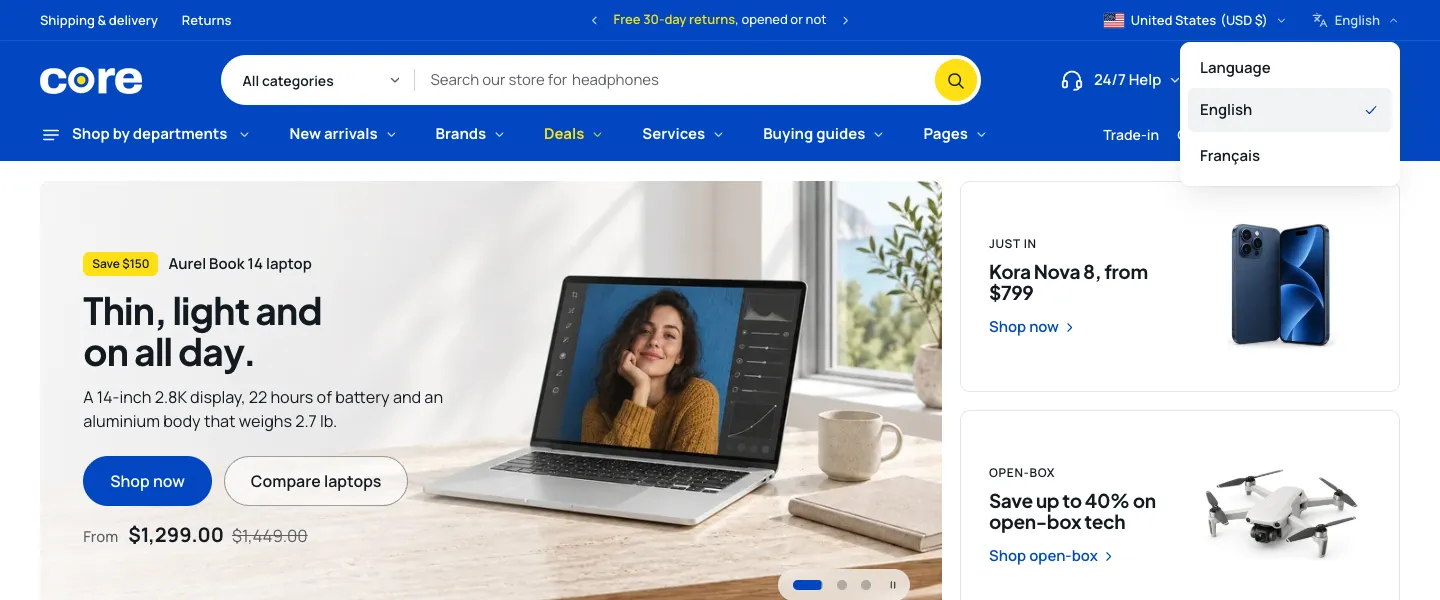
Seen in the Core demo
What to prepare
Core is in English for now, and other languages are planned. Until then, every word the theme prints by itself, such as "Add to cart", is yours to translate, along with your own content. Allow time for a read-through, even if you use automatic translation.
Shopify allows up to 20 languages on most plans, and 30 on Plus. See Shopify's requirements. Each language gets its own web address, such as a /fr path.
Set it up
Add the language
Go to Settings > Languages and add it. Shopify installs the Translate & Adapt app when you do. See Managing languages.
Translate
Open Translate & Adapt and translate by hand, or use Shopify's automatic translation and then correct it. Cover your products, collections, pages, menus and theme content. Text you typed into sections and blocks is part of the theme content.
Publish it
In Settings > Languages, open the menu beside the language and click Publish. Until then, shoppers cannot reach it.
Check the selector
The Language selector appears by itself once there is a second published language. See Country and language for where it sits.
Text without a translation falls back to your default language. Shopify translates checkout into many languages for you.
Things to check in the theme
A few theme settings match by words, so they need care in each language.
- Mega menu titles. A mega menu block finds its menu item by the title you typed in Menu item. Translate this setting to match the translated menu title, or the panel falls back to a simple dropdown in that language. Highlighted menu item works the same way.
- Mobile menu icons and cards. Menu item icon and Custom card match the same way, and so does Hide menu item.
- Category select in the search box. With Menu, the list uses menu titles to find product tags. A translated title will not match an English tag. Test it, and set Category select to None if it finds nothing.
- Rotating words and popular searches. Translate these with care, as they should be terms people type in that language.
- Search suggestions. Which suggested searches appear depends on Shopify and the language, so try a few words in each language. Products, collections and pages appear in every language.
Long words can also take more room. Check your header rows, buttons and product cards in the new language at phone size.
Core does not support right-to-left languages such as Arabic or Hebrew yet. The text translates, but the page layout stays left to right.
Something not working?
A word is still in English. Search for it under theme content in Translate & Adapt. If it is your own content, look under its product, collection or page.
The selector does not show. The language is added but not published.
A menu lost its panel in one language. Check the block's Menu item in that language.