
Theme editor basics
Find your way around the theme editor, change any page, and move sections and blocks without touching code.
The theme editor is where you build your store. Your pages show on the right, and everything you can change is on the left. Nothing reaches your customers until you click Save on a published theme, and a draft stays private until you publish it.
To open it, go to Online Store in your admin, find the theme and click Edit theme.
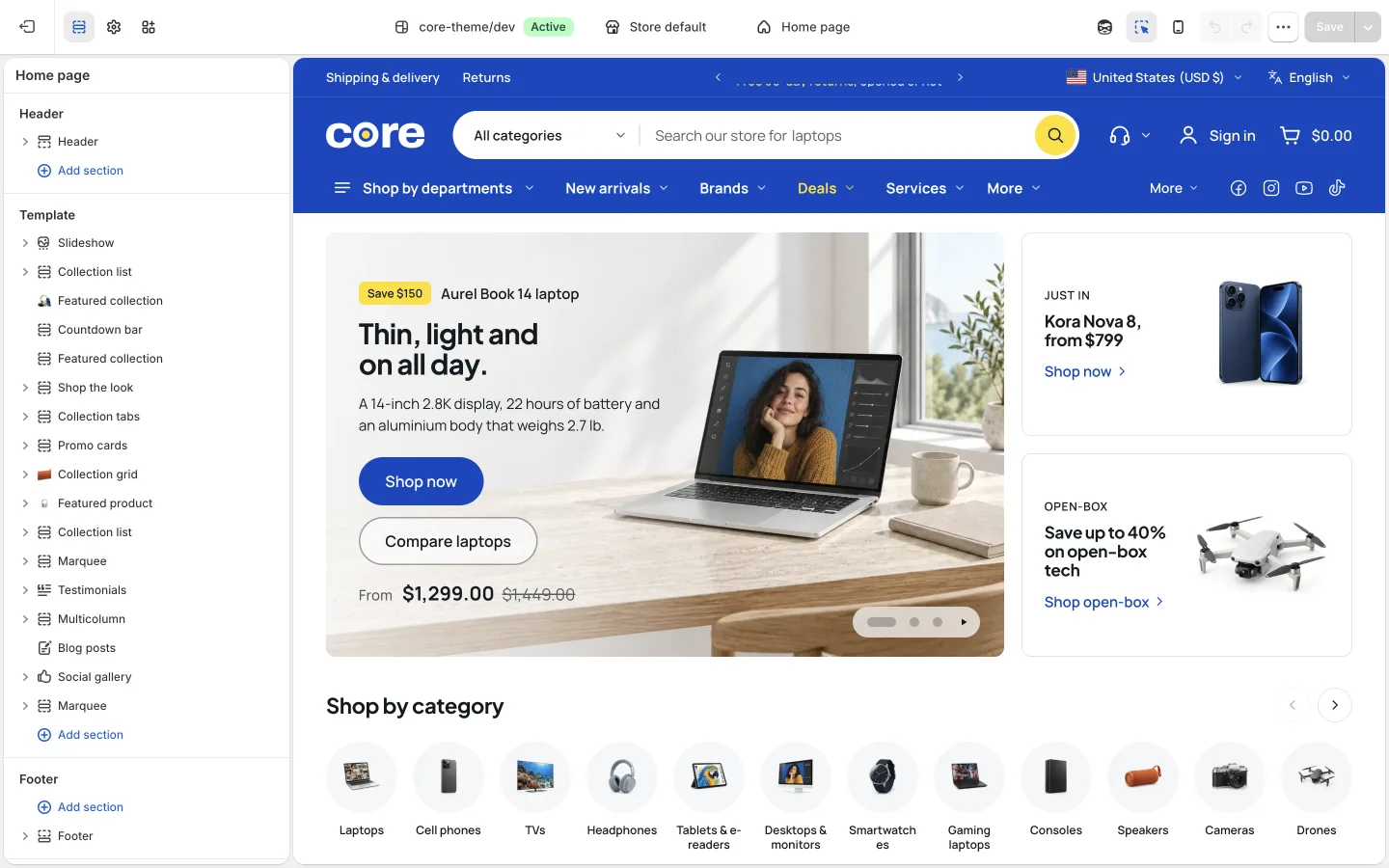
What is where
| Where | What it does |
|---|---|
| Icons at the top left | Switch the left side between Sections, Theme settings (the gear) and App embeds. |
| Page name at the top center | Changes which page you are editing. It reads Home page when you open the editor. |
| Phone icon at the top right | Previews the page at phone size. Check every page this way. |
| Undo and redo arrows | Step back through changes you have not saved. |
| Save | Keeps your changes. On a published theme, they go live at this point. |
Sections, blocks and settings
These three words appear all through these docs.
- A section is one full-width band of a page, such as a Slideshow or a Featured collection.
- A block is a part inside a section, such as one slide or one column. Not every section has them.
- A setting is one choice in the panel: a heading, an image, a size.
Click a section in the list or in the preview to open its settings. Click the arrow beside its name to see its blocks.
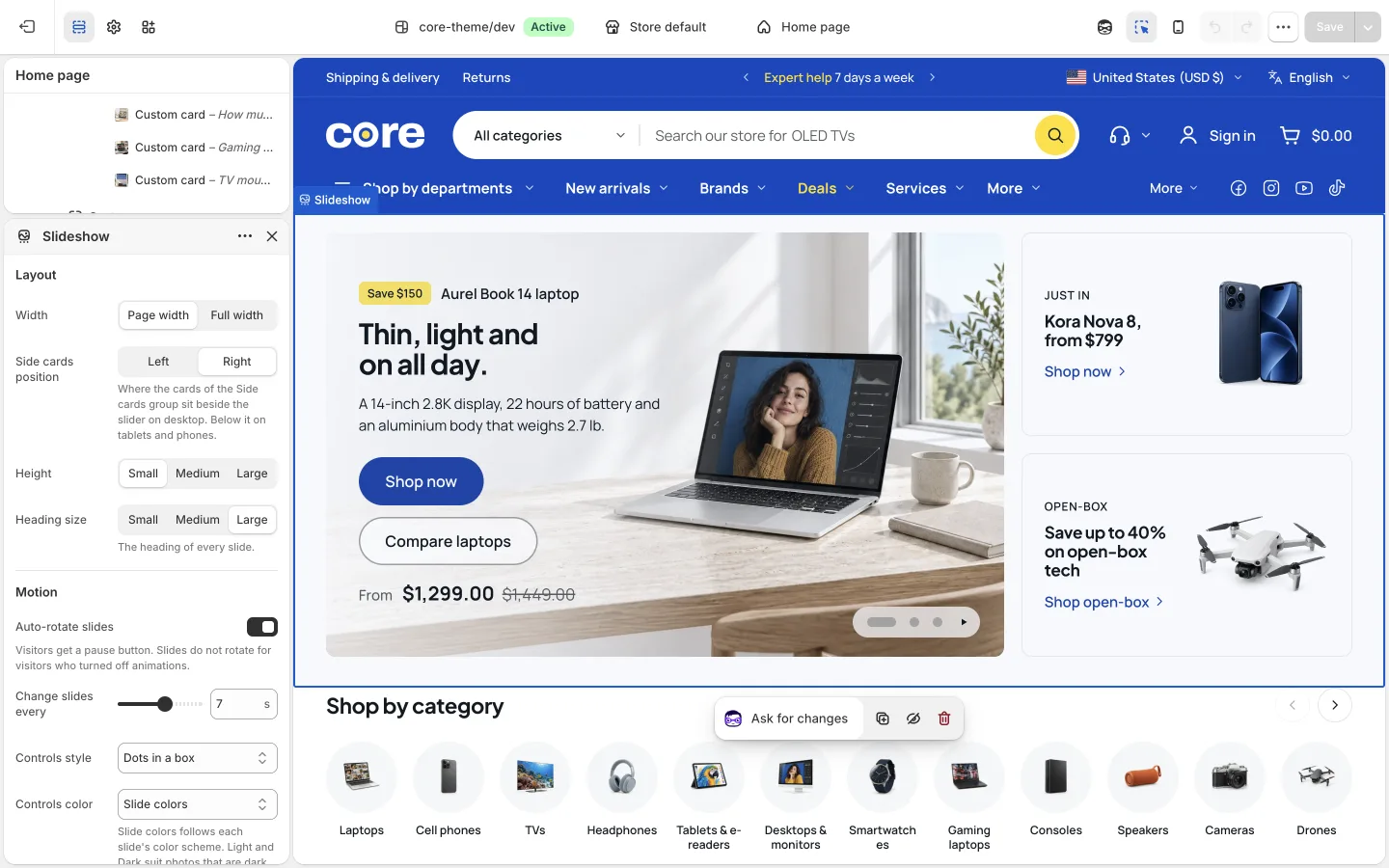
Work with sections
- Add: click Add section under Template, Header or Footer, then pick one. To add a block, open its section and click Add block.
- Move: drag a section or block by its handle. If it springs back, that spot does not accept it.
- Hide: click the eye icon. Hide first and delete later, because a hidden section keeps its content.
- Remove: click the section, then Remove section.
A template can hold up to 25 sections, and a section up to 50 blocks. Shopify sets these limits. Some sections in this theme set a lower limit for their own blocks.
Shopify's guide to sections covers these actions in more detail.
What a change reaches
| You change | It applies to |
|---|---|
| A section under Header or Footer | Every page of the store |
| A section under Overlays, such as the Cart drawer | Every page that opens it |
| A section under Template | Every page that uses that template |
| Theme settings | The whole store |
The third row surprises most people. All your products share the product template, so a section you add to one product page appears on all of them. To treat a group differently, create another template and assign it to those products. The pre-order and coming soon templates work this way.
Text and images that belong to one product or collection live in your admin. Change those there, or in a metafield.
Something not working?
The page you want is not in the page list. A template with no page using it shows nothing on your store. Add a page in Online Store > Pages and choose its template under Theme template.
A section looks empty. It usually needs a collection, a product or an image. Open its settings and pick one.