
Social media
Add your social profile links once, and the icons show in your header, footer and mobile menu wherever you place them.
You add each profile link once, here. Any social icon block in your store then shows the networks you filled in.
Add your links
Paste the full address of your profile, starting with https://, such as https://www.instagram.com/yourstore. Leave a network empty and its icon does not show. There are 13 networks to choose from, and they always show in the order of this list.
Replace the sample links
Some presets start with links to each network's home page, such as https://www.instagram.com/. Replace them with your own, or clear them.
Show the icons
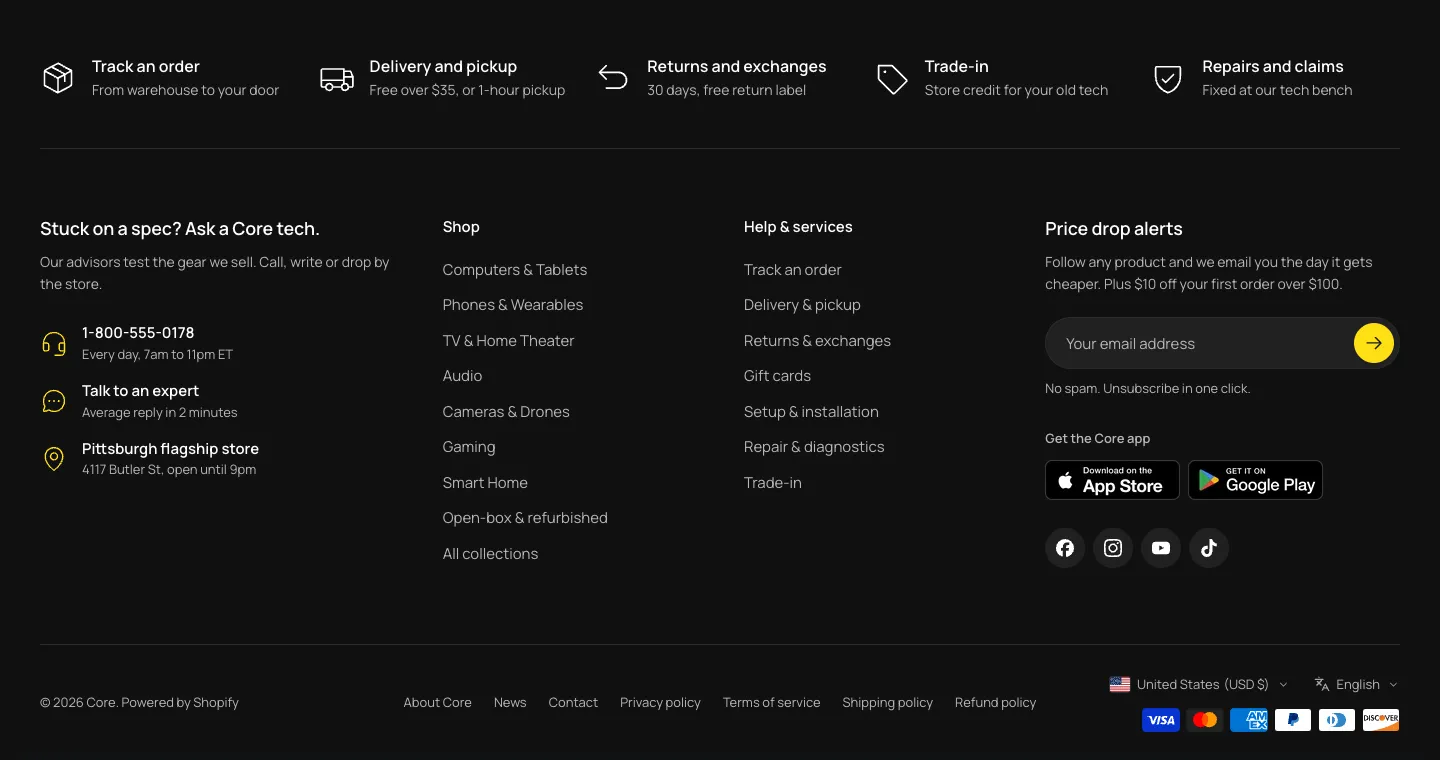
The icons appear only where a store has a social block. Each block has its own look, so you can place and style them separately.
| Where | Block |
|---|---|
| Header | Add Social media icons to a header row. |
| Footer | Add Social media icons to a column. Its Style sets the look of the icons. |
| Mobile menu | Add Social media icons to the Mobile drawer. |
If you add a block with no links here, the editor reminds you and your store shows nothing.
These links go to your profiles. The share buttons on a product page, in its Share and compare block, are a separate feature.
All settings: Social media
| Setting | What it does |
|---|---|
| YouTube | |
| TikTok | |
| X | |
| Snapchat | |
| Threads | |
| Telegram | |
| Discord | |
| Twitch |