
Product compare settings
Let shoppers pick up to four products and read them side by side, from collection, search and product pages.
Product compare lets a shopper tick a few products and see them in one table. It helps most when people choose on specifications, such as laptops or sofas. If your products are chosen by look, as in fashion, you can turn it off. Hanger does.
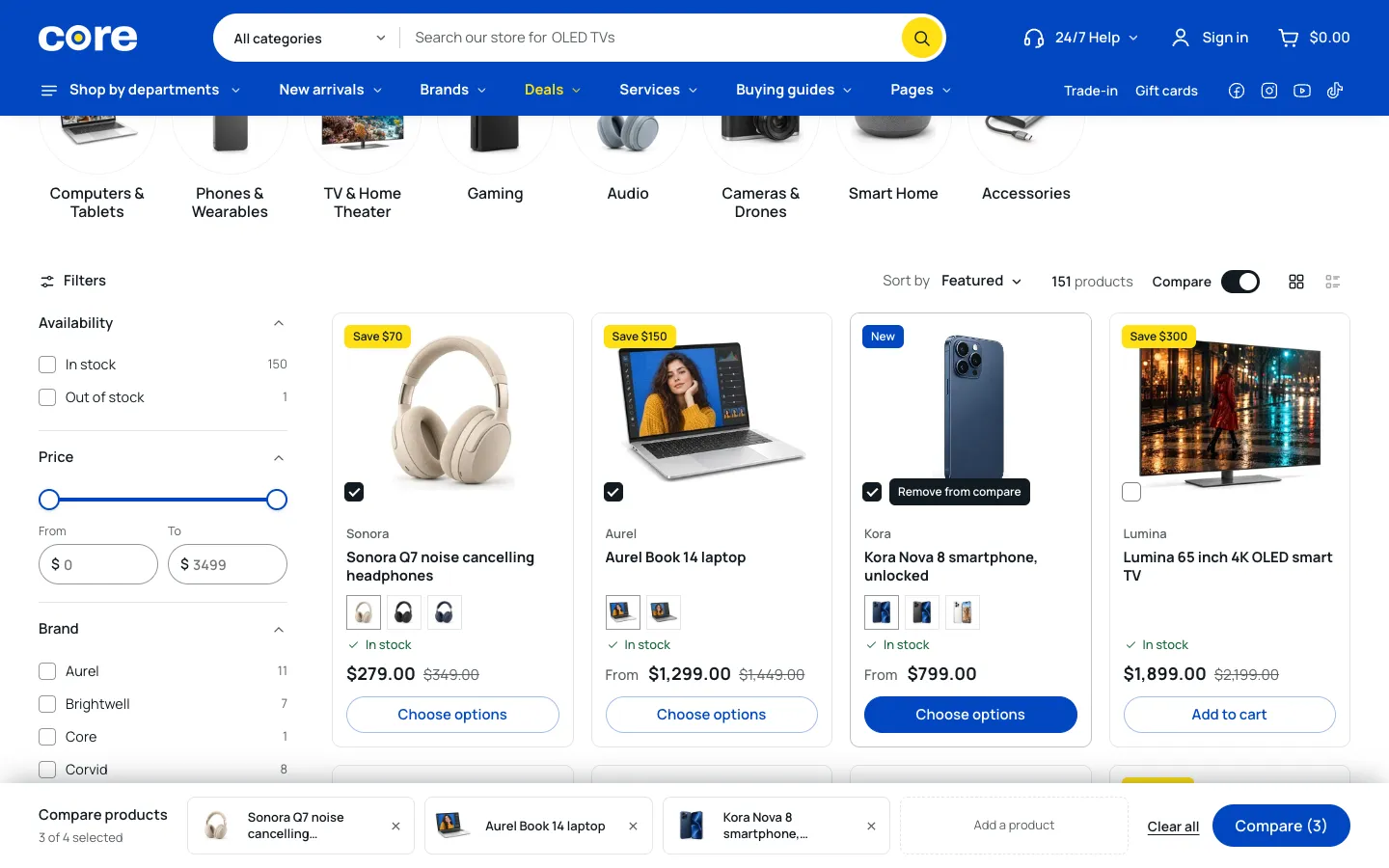
Seen in the Core demo
How shoppers use it
Collection and search pages show a Compare switch in the toolbar. Turning it on adds a checkbox to each product card. As they tick products, a bar appears at the bottom of the screen. Once they have two, the button in the bar opens the table. Highlight differences marks the rows where the products differ.
A product page can offer the same through a Compare button in its Share and compare block.
On phones, a tab on the bottom edge opens the bar as a sheet. A shopper's picks stay in their browser while they move around your store.
Set it up
Turn it on
Check Show product compare in Theme settings > Product compare. Set Products to compare at once from 2 to 4. Four is the default, and three is easier to read on smaller screens.
Place the checkbox
Checkbox position puts it Bottom left or Top right on the product image. Choose Top right if your cards show the Add to cart button On the image, so the two do not overlap. Mantel and Ridge do this.
Choose the rows
The table's rows are set in the Product compare section under Overlays, in the section list of the editor. Product compare section explains them, including how to fill specifications.
To turn the feature off, uncheck Show product compare. The switch, checkboxes, bar and product page button all go away, and your rows stay for later.
Hiding or removing the Product compare section under Overlays also takes the switch and the button away. Removing it loses your rows, so prefer the setting.
This feature is different from Compare similar items, a table you set up on the product page that compares the current product with similar ones.
All settings: Product compare
| Setting | What it does |
|---|---|
| Show product compare | Adds a Compare switch to collection and search pages (a checkbox on each product card) and a Compare button to the product page (Share and compare block). The rows are set in Overlays > Product compare. |
| Products to compare at once | |
| Checkbox position | Where the compare checkbox sits on the product image while comparing is on. Top right keeps it clear of an Add to cart bar shown over the image. |