
Quick order list
A table of every variant of one product, each with its own quantity, so buyers can order many sizes or colors at once.
Quick order list shows every variant of a product in one table, each with its own quantity box. A buyer can order three of one size and ten of another without going through the options again and again.
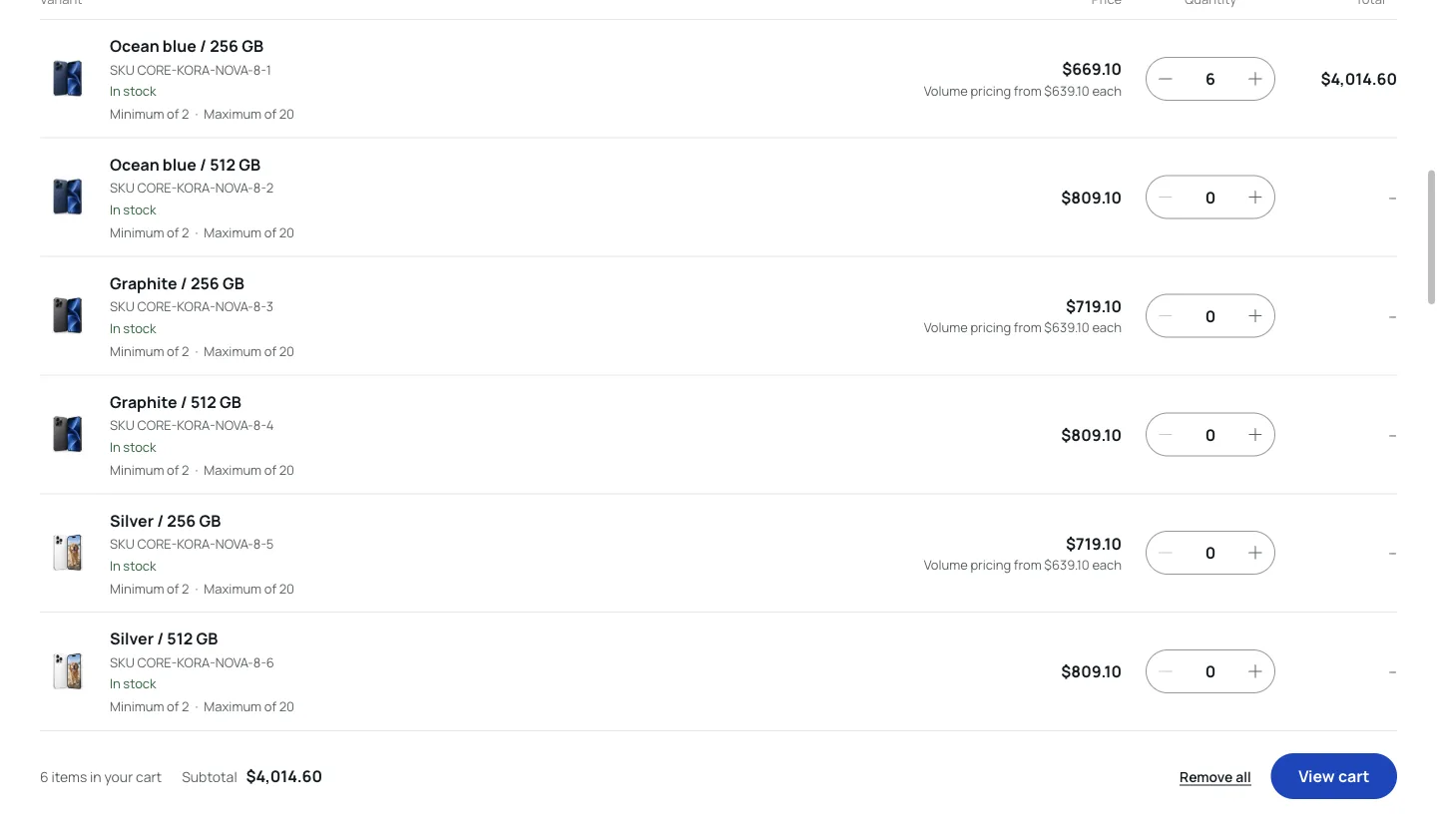
Seen in the Core demo
Use it for wholesale, workwear, or anything people buy in mixed quantities, such as a case of each flavor. For regular retail shoppers buying one at a time, the normal Buy buttons are simpler.
It works on one product at a time. Ordering across a catalog by SKU or from a spreadsheet needs an app. For the full wholesale setup, see Wholesale and B2B.
Add it
The section works on product templates only. Open a product template in the theme editor, click Add section under the product information, and choose Quick order list. It applies to every product on that template.
We recommend one of two places. If you sell to both retail and trade, keep it on your main template with Show to set to B2B buyers only. If only some products have many variants, create a template for them with the list on it.
Core and Burrow ship with it on the product page, set to B2B buyers only. So it does not show to a shopper who is not logged in with a company account.
Who sees it
Show to is the main choice.
- B2B buyers only shows it to shoppers logged in to a company account (Customers > Companies in the Shopify admin). Retail shoppers keep the page as it was. Use this if you sell to both.
- Every shopper shows it to everyone. Use it if your whole store sells this way, or if you sell multi-packs to the public.
How it behaves
The quantity in a row is the amount in the cart. Changing it updates the cart right away, along with the cart drawer and the header count, so there is no extra Add to cart step. A bar at the bottom of the screen stays in view while the table is on screen. It shows the items and subtotal for this product, Remove all, and a link to the cart. Remove all asks for confirmation first. While the list is on screen, the product page's sticky add to cart bar steps aside. Pressing Enter in a quantity box moves to the next row.
For a buyer in a company account, the table follows their B2B catalog. A minimum, maximum or increment sets the steps of the quantity box and is written under the row. Price breaks show the price each at the quantity in the cart. Shopify explains these rules in its quick order list help.
Choose the columns
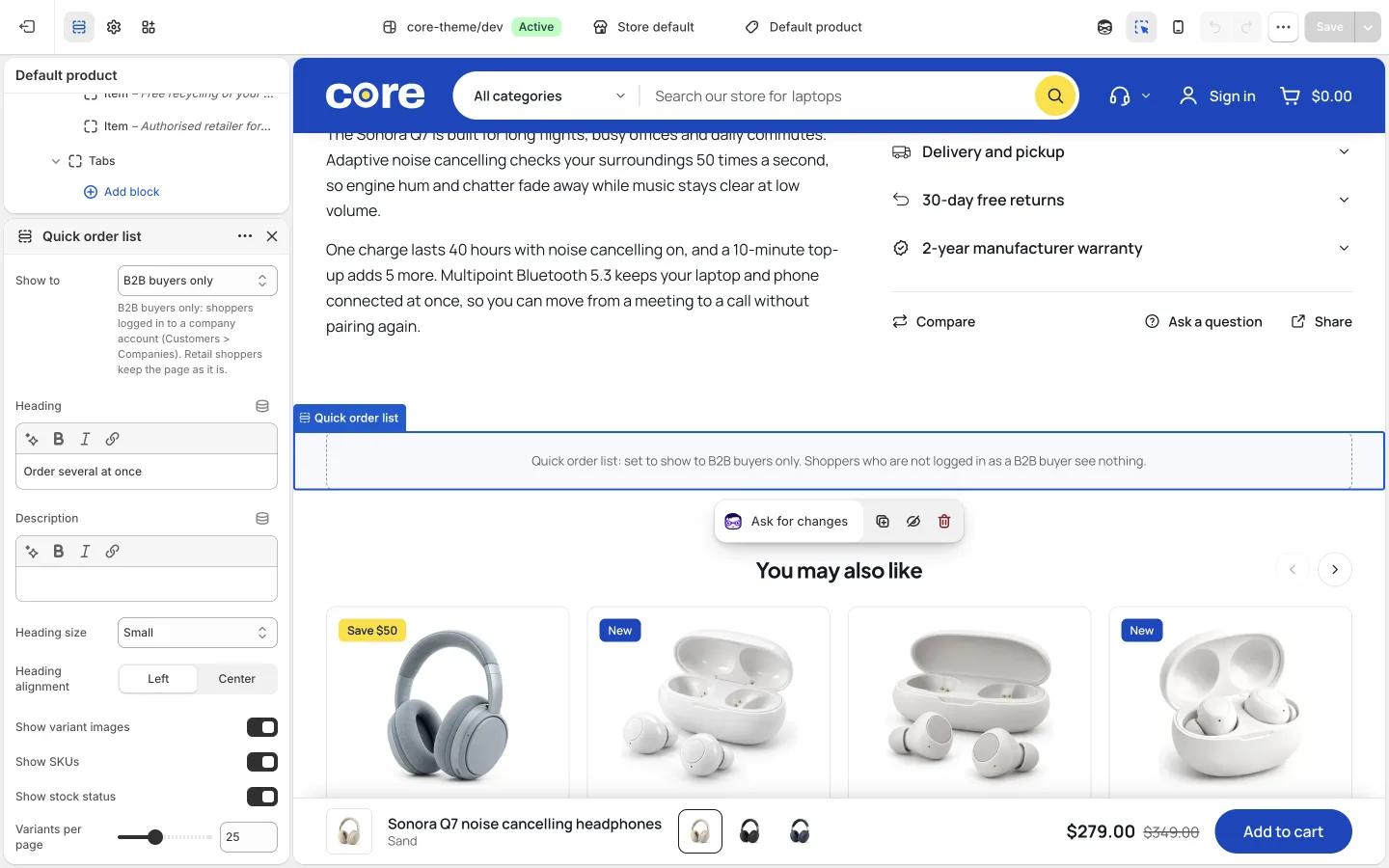
Show variant images, Show SKUs and Show stock status each add a line to a row. Keep the SKU if your buyers order by code, and turn it off if they do not know your codes.
Variants per page splits a long list into pages. Keep it at the default unless your products have many variants.
On phones
Each variant becomes a small stacked row, with its label beside each value, so the table does not need to scroll sideways.
Something not working?
The section does not show. There are two usual reasons. The product has one variant, in which case the Buy buttons do the job and nothing shows. Or Show to is set to B2B buyers only and you are not logged in as one. The theme editor preview tells you which.
All settings: Quick order list
| Setting | What it does |
|---|---|
| Show to | B2B buyers only: shoppers logged in to a company account (Customers > Companies). Retail shoppers keep the page as it is. |
| Heading | |
| Description | |
| Heading size | |
| Heading alignment | |
| Show variant images | |
| Show SKUs | |
| Show stock status | |
| Variants per page | |
| Color scheme | |
| Top padding | |
| Bottom padding |