
Gift cards
Sell gift cards with their own product template, and let buyers send one to someone by email on a chosen date.
Gift cards get their own product template: denominations as buttons, a form for sending the card to someone, and rows explaining how it works. Every preset has one.
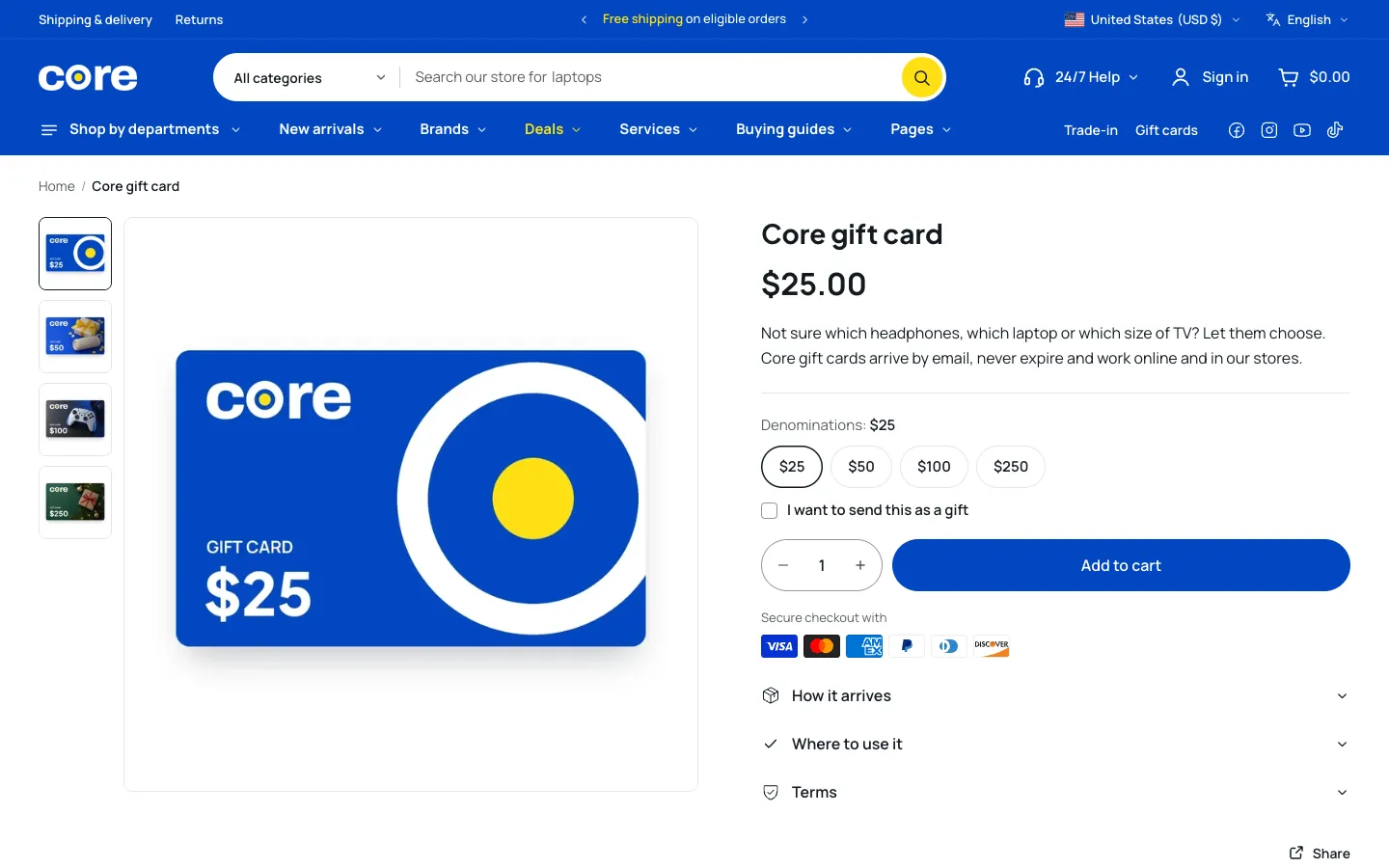
What to prepare
- One picture per denomination, or one for them all. See Prepare your images.
- Your terms: where the card can be used, and whether it expires.
Set it up
Create the gift card product
Gift cards have to be activated on your store first. Then go to Products > Gift cards and add a gift card product. Shopify makes its denominations the variants.
Assign the template
On the product, under Theme template, choose gift-card and save. Until you do, it uses your default product template.
Rewrite the rows
In the theme editor, switch to the gift-card template. The rows How it arrives, Where to use it and Terms hold sample wording, and it is written for the demo store. How it arrives describes the email and its page, with the code, a QR code and an Add to Apple Wallet button. Change the rows to match your store, especially what they say about stores, expiry and fees.
Check it
Open the page, pick a denomination and tick the gift checkbox. Then place a test order to see the email your customer gets.
Sending to someone else
The form appears when the buyer ticks "I want to send this as a gift". Show the recipient form for gift cards, in the Buy buttons block, controls it, and it is on by default.
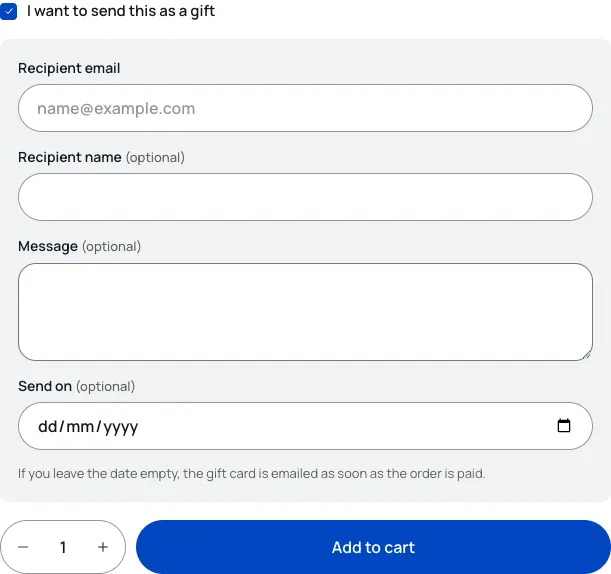
Seen in the Core demo
- Recipient email is required once the box is ticked.
- Recipient name, Message and Send on are optional. Message takes up to 200 characters.
- With no date, the card goes out by email as soon as the order is paid. The form says so.
Buy it now does not show on a gift card product while this form is on. Turn the form off if you prefer that button, but buyers then cannot send the card to someone from the page.
The gift card page
The email links to a separate page holding the balance, the expiry date if there is one, the code, a QR code and an Add to Apple Wallet button when Shopify offers one. It shows your Logo from Theme settings > Logo and favicon, or Shopify's card picture if you have none. It has no other settings. There is no sample of it on the demo stores, so buy a test card to see it.
Something not working?
The page looks like a normal product. The product is still on the default template. Set Theme template to gift-card.
No gift checkbox. The form is off in Buy buttons, or the product is not a gift card product. A normal product named "gift card" does not get the form.
All settings: Buy buttons
| Setting | What it does |
|---|---|
| Button label | Pre-order when out of stock: per variant, for a variant with tracked inventory, no stock left and Continue selling when out of stock on (product admin, Inventory). Shoppers pay at checkout as usual. |
| Show the quantity selector | |
| Show dynamic checkout buttons | Shoppers see their preferred payment method, such as Shop Pay or PayPal. |
| Show the recipient form for gift cards | Gift card products only: the buyer can send the card to someone by email, on a chosen date. |
| Show the price in the button | The selected variant's price. Not shown on a product sold by subscription: the price there depends on the plan picked in the app's widget. |