
Media gallery
Choose how product photos, videos and 3D models are laid out, how they zoom, and which ones follow the picked variant.
The gallery shows your photos, videos and 3D models, in the order you set on the product in your admin. All its settings live in the Product information section, under Gallery.
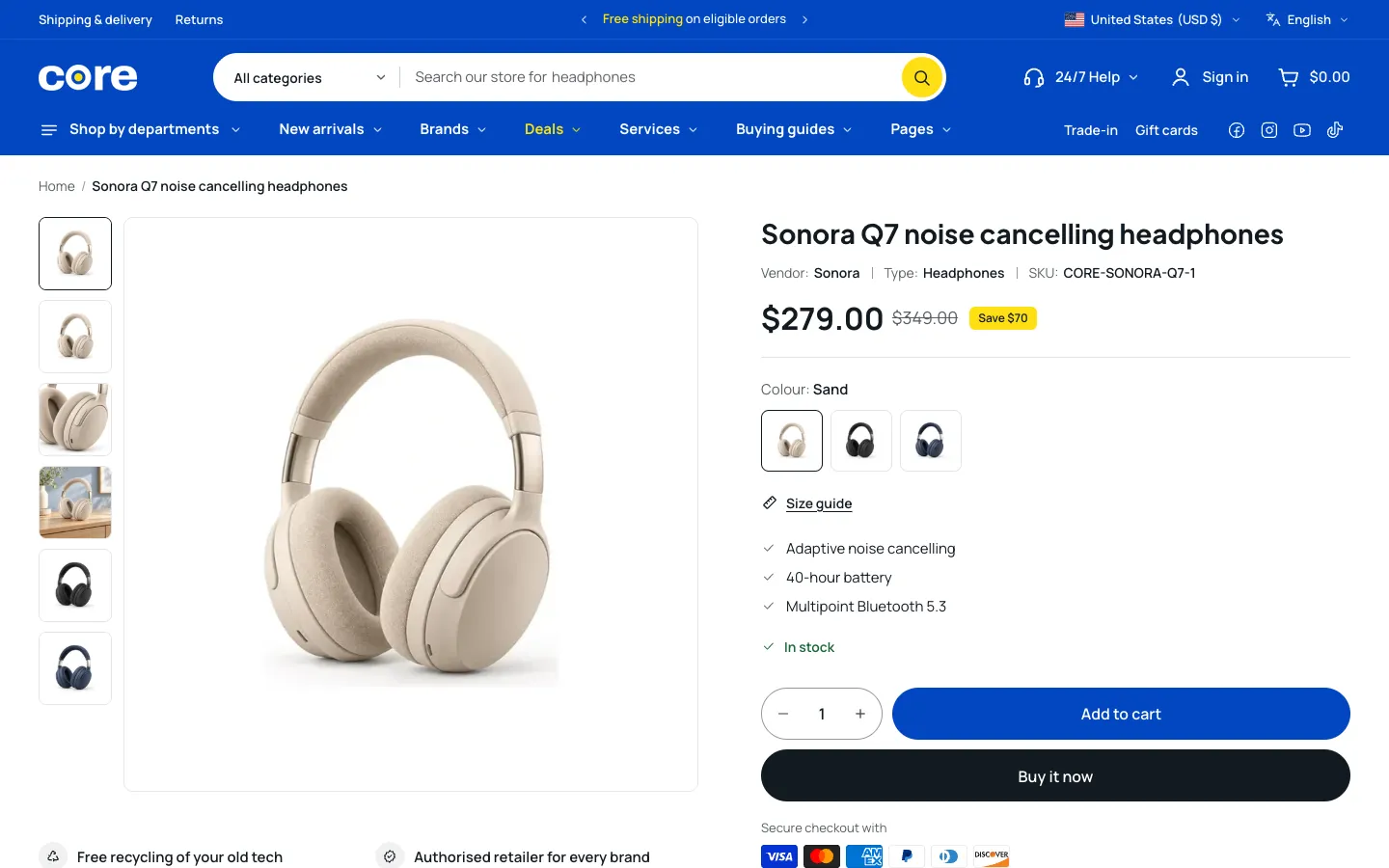
Pick a layout
Layout on desktop has four options.
- Thumbnails beside the media or Thumbnails below the media show one item at a time. They suit products with a single main view, such as electronics. Core, Burrow and Ridge use thumbnails beside the media.
- Grid, two per row shows many photos at once, and suits clothing and furniture, where shoppers want every angle. Turn on First media full width to lead with one large photo, as Mantel does.
- Stacked, one per row gives each photo the full width of the gallery. Use it with few, strong photos.
Gallery position puts it on the Left or Right. Gallery width sets its share of the page. Grids look best at Large or Extra large.
Media shape sets the frame: Square, Portrait, Landscape or As the media. Whether a photo fills the frame or shows whole follows Image fit in Theme settings > Product cards, so your cards and this page match.
On phones
Phones and tablets sets what shoppers see on small screens.
- Thumbnails and Dots show one item at a time.
- Part of the next media shows a slice of the following photo and a thin bar under the row. It tells people there is more to swipe, and Hanger uses it.
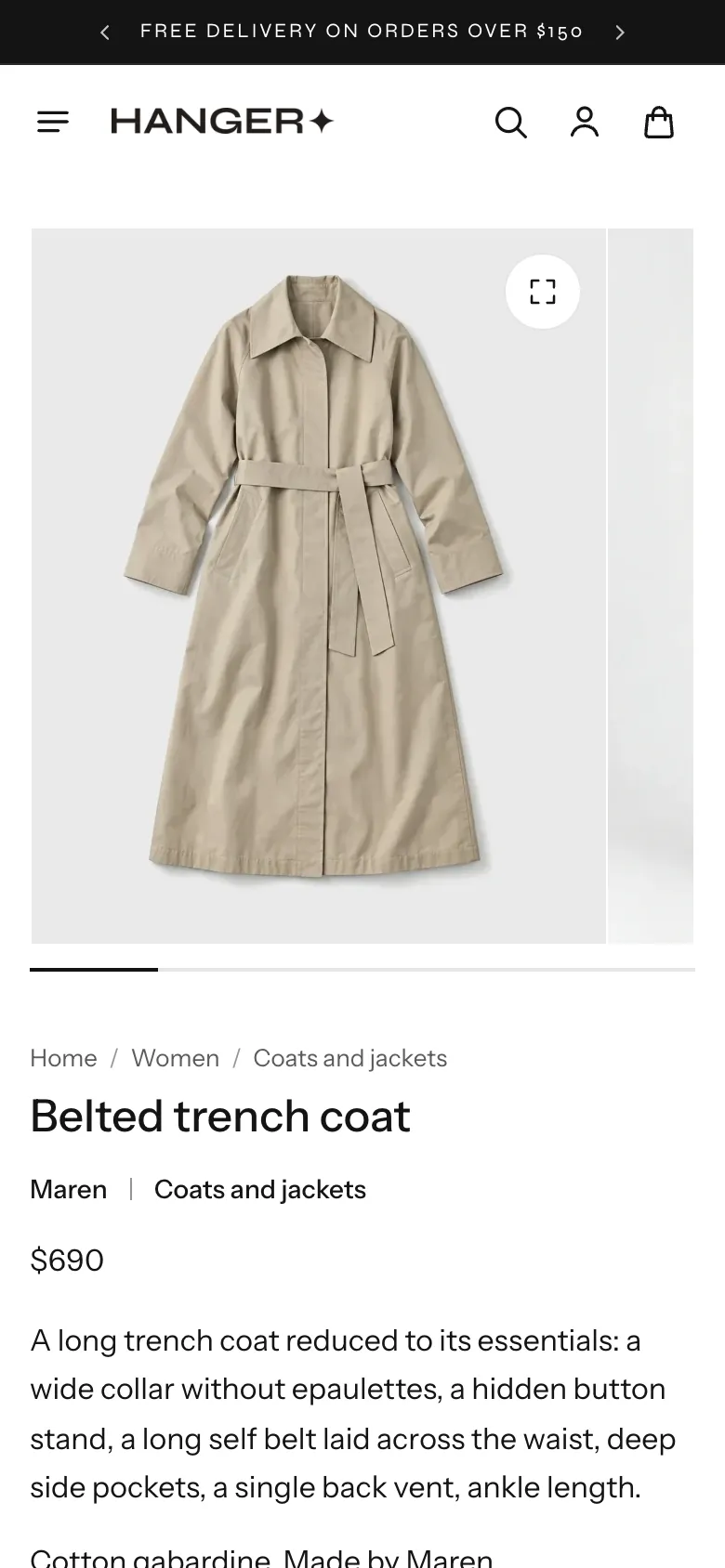
Seen in the Hanger demo
Zoom
Image zoom has three options.
- Open full screen opens a viewer with every image, with arrows and thumbnails. It is the safe default.
- Magnify on hover enlarges the image under the pointer, on screens with a mouse. Touch screens open the viewer instead. Use it when shoppers care about fine detail, such as fabric.
- None turns zoom off.
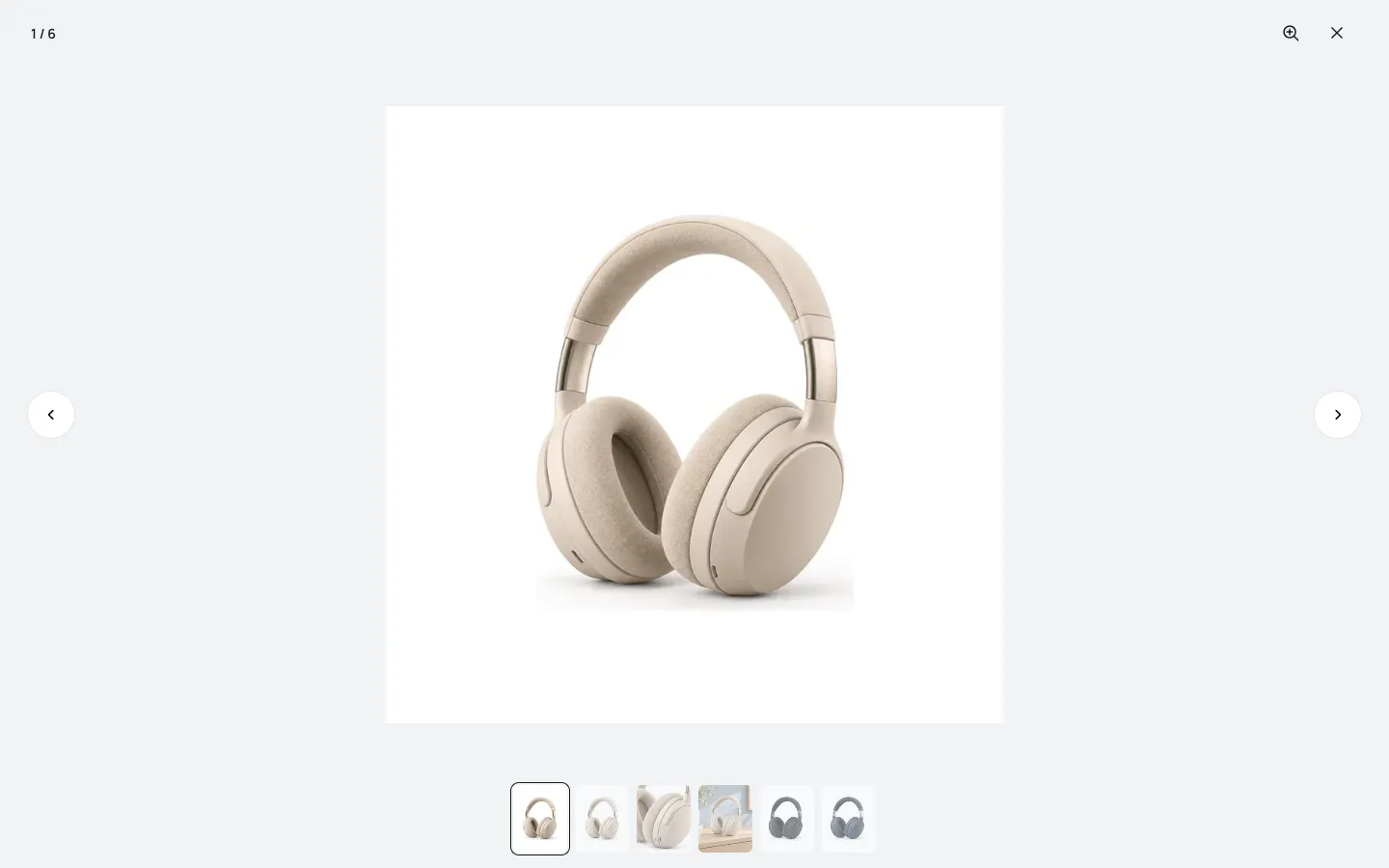
Seen in the Core demo
Show only the photos of the picked color
By default, all photos stay in the gallery and the picked variant's photo comes first. To hide the others, turn on Show only the picked variant's media. This needs a photo assigned to each variant in your admin. Media no variant uses stays, and a variant without its own photo shows everything.
That setting hides only the one photo set on each variant. If each color has several photos, also turn on Keep the media after a variant's photo with it, then order the media in your admin like this:
- Any photos that should always show.
- The first color's variant photo, followed by the rest of that color's photos.
- The next color's variant photo, followed by the rest of its photos.
Hanger and Ridge work this way, so a shopper who picks a color sees only that color.
Videos
Videos and 3D models show their preview image with a play button. Play videos by themselves starts a video without sound when it is on the screen. Shoppers who have turned off animations on their device press Play instead. Loop videos repeats a video you uploaded. YouTube and Vimeo videos do not loop.
For sizes and crops, see Prepare your images.
The full settings list is in Product page layout.