
Why your store looks different from the demo
The demo shows a preset filled with products and photos. Here is what arrives when you install it, and what you add yourself.
When you first open the theme, you see the layout of the demo with drawings where the photos were. That is expected. Nothing is broken and nothing is missing.
Shopify themes cannot carry products, photos or pages. The demo store has all of those because we added them to that store, the same way you will add yours.
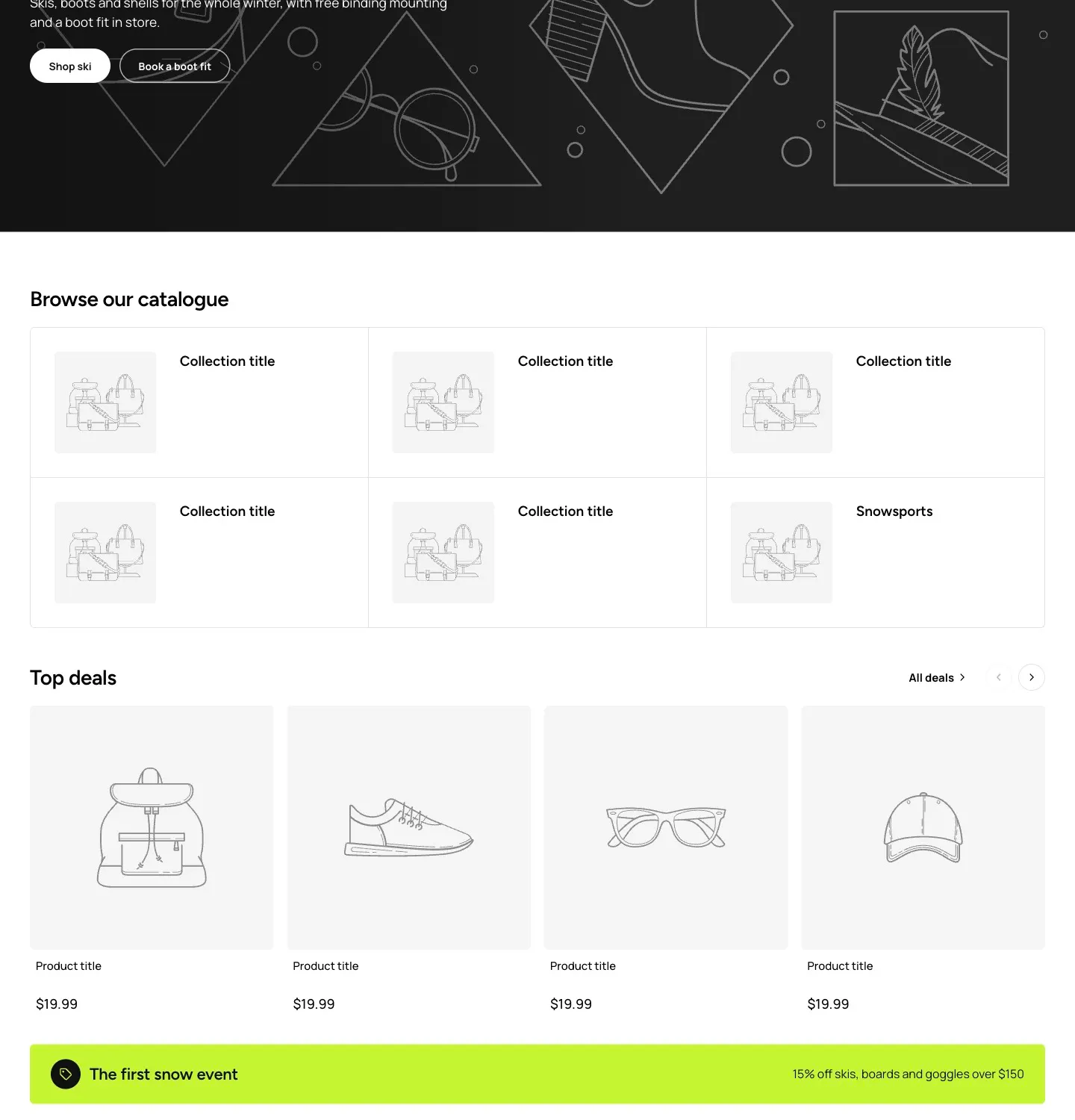
Seen in the Ridge demo
What you get
| Arrives with the theme | You add it |
|---|---|
| Colors, fonts and all design settings | Your logo and favicon |
| The homepage layout and page templates | Your photos and videos |
| Sample headings and text, ready to overwrite | Your products and collections |
| Placeholder drawings that show where images go | Your menus, other than Shopify's main menu and footer menu |
| Every section and feature | Your pages, such as About or FAQ |
Sample text stays in place until you change it, so read each section before you publish. Offers, delivery terms and contact details are yours to state, and we leave those general on purpose.
Bring it to life
Connect your collections and products
Click a section that shows placeholders, such as Featured collection, and pick a collection in its settings. The drawings are replaced by your products straight away.
Add your photos
Click each slide, card and banner and choose an image. Prepare your images covers sizes and cropping.
Fix the links
A button in a new store points to a safe default, such as all products. Point each one at the right place, then build your menus.
Create the pages you need
Page templates only appear once a page uses them. Add a page in Online Store > Pages and choose its template under Theme template. That list shows your published theme's templates, so during a trial, set up the template in the theme editor and choose it after you publish.
Questions we hear often
Can I get the demo's photos and products? No. They belong to our demo stores, and a theme cannot include them.
Can you import the demo for me? No. A theme has no way to do that, and Core adds no import app. Your store is better off with your own photos from the start.
My homepage has sections I do not need. Should I delete them? Hide them first with the eye icon in the section list. You can delete them once you are sure.
Why does a section stay empty after I pick a collection? The collection has no products yet, or the products are not available on your Online Store sales channel. Check the collection in your admin.