
Collection templates
Give departments, brands and campaigns a different page from your other collections, and assign each collection the right template.
A template is the layout a collection uses. Core comes with four, so a brand page can differ from a department page. You change a template once, and every collection on it follows.
Which one to use
| Template | Name in the list | Use it for |
|---|---|---|
| Default | Default collection | Any collection. New collections start here. |
| Department | department | Your top-level collections, with a photo beside the text. |
| Brand | brand | A collection of one brand's products, with its logo. |
| Full banner | full-banner | Campaigns and large collections with a strong photo. |
The default, department and full banner templates hold the same kinds of sections and differ most in the banner. In a preset's demo they can differ more. See each preset guide for what it uses.
Brand
The brand template has no row of sub collections, and its banner is set up for a logo and short highlights.
The logo comes from a collection metafield. Add a definition with the key custom.logo and the type File, images, as in Where the photo comes from. Then connect the banner's Logo setting to it in the theme editor. Brands without a logo show their name.
Replace the highlight words with your own. They show on every brand, so they must be true for all of them.
Full banner
This template needs a good photo on each collection that uses it. A collection without an image shows as text only. Export the photo at the width in Prepare your images.
Assign a template to a collection
Open the collection
In your admin, go to Products > Collections and click the collection.
Pick the template
Under Theme template, choose the template and click Save.
Check it
Open the collection in your store.
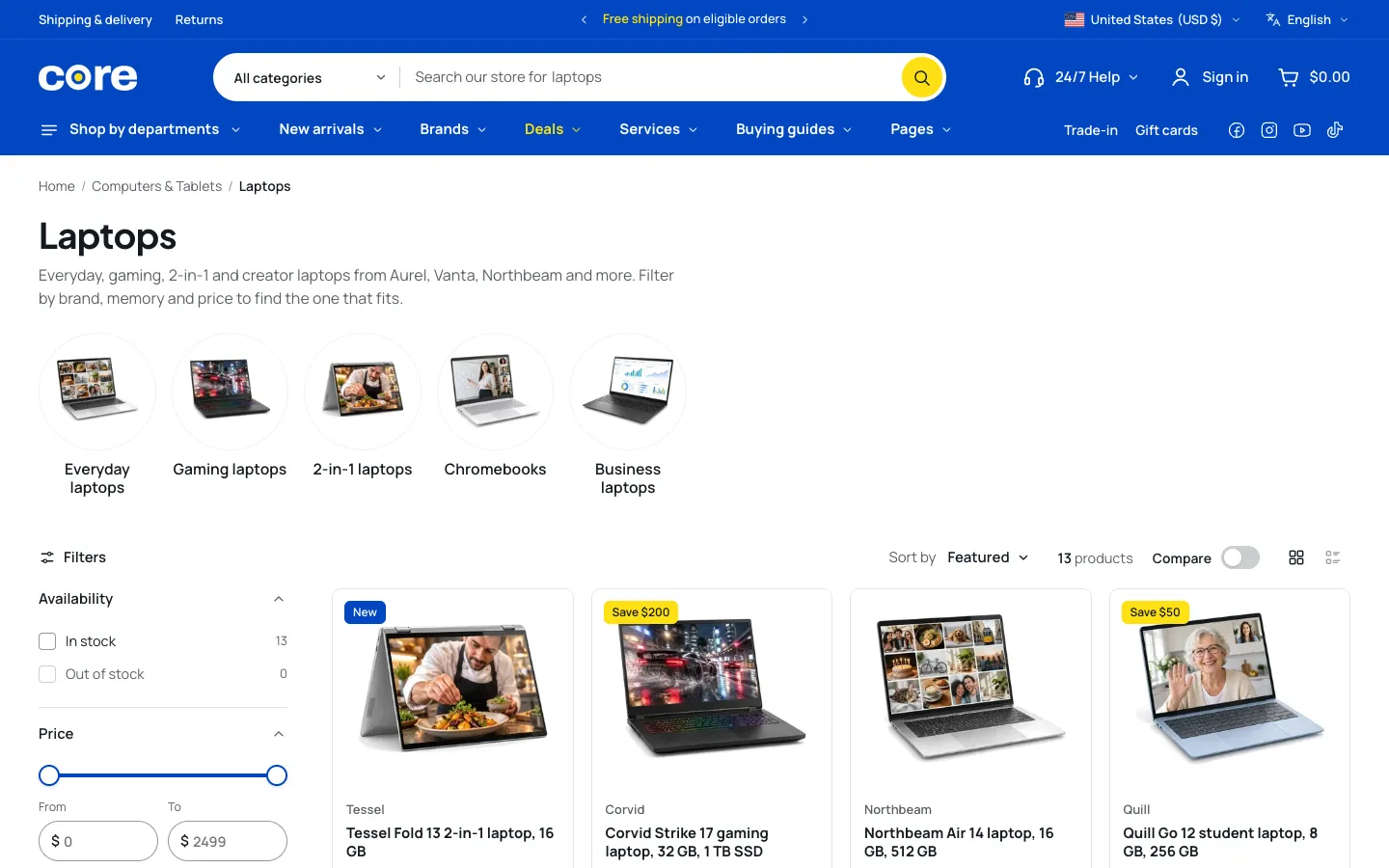
The list shows the templates of your live theme only. While you work on an unpublished theme, its templates are not offered there. Open the theme's preview instead, and add ?view= and the template's name to a collection's address, such as /collections/laptops?view=brand. Assign it once the theme is live.
Make your own
Make a new template when one collection needs its own content, such as a banner for one department. It is better than changing a template that other collections share.
In the theme editor, open the page list at the top, choose Collections, then click Create template. Give it a name and choose an existing template under Based on. Add the sections you need, save, and assign it as above. Shopify's guide to templates has more.
Something not working?
A template is missing from the list. The theme is not your live theme, or the template was made in another theme.
A change showed up on collections you did not mean to change. They share that template. Make a new template for the one that should differ.
The sub collection row is missing. The section needs a menu. See Sub collections.