
Metafields used by the theme
Every metafield the theme reads, with its namespace, key and type, and what it powers on your store.
A metafield holds extra information about one product or collection, such as its specifications or its own banner photo. The theme reads the ones listed here, and each product or collection shows its own.
The theme cannot create them for you. Shopify only lets a store owner or an app add definitions. So create the ones you want in your admin, then fill in the values.
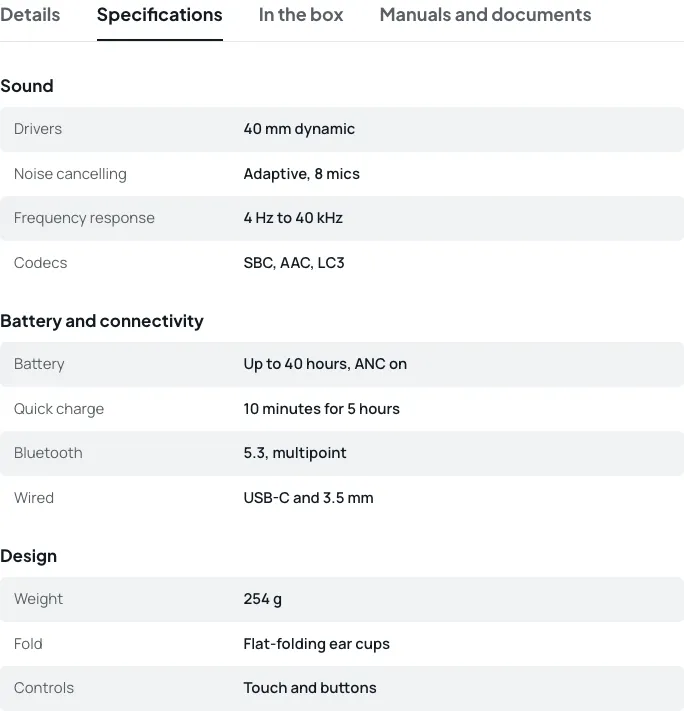
Seen in the Core demo
Create a metafield
Add the definition
Go to Settings > Metafields and metaobjects, and choose Products or Collections. Add a definition with the namespace and key from the tables below, and the same type. See Shopify's guide to definitions.
Fill in the values
Open a product or collection in your admin, and go to its metafields near the foot of the page. On a product that is Product metafields. Only pinned ones show there, so click View all to see the rest, or pin a definition you use often. For many products at once, use the bulk editor.
Connect it, if needed
The first table below works by itself. The others depend on a block or section in your template, and you connect those yourself in the theme editor.
Read by the theme directly
Fill these in and they show. The key is fixed.
| Namespace and key | On | Type | What it powers |
|---|---|---|---|
reviews.rating | Product | rating | Stars on cards, the Rating block and comparison tables. Usually filled by a reviews app. |
reviews.rating_count | Product | number_integer | The number of reviews beside the stars. With none, no stars show. |
custom.key_features | Product | list.single_line_text_field | Show key features on product cards. |
custom.logo | Collection | file_reference (image) | Brand logos in the Collections mega menu, in the brand directory and in Collection spotlight. |
custom.banner | Collection | file_reference (image) | The photo in the Collection banner, ahead of the collection's own image. |
custom.banner_mobile | Collection | file_reference (image) | The same banner's photo on phones. |
shopify--discovery--product_recommendation.related_products | Product | list.product_reference | Compare similar items, with Related, set by hand only. Set it in the Search & Discovery app. |
Connected by you in the editor
A new store has none of these definitions, so the theme arrives without these connections. Create the definition first. Then select the block in the theme editor, click the connect icon beside the setting and choose the metafield. Until you do, the block shows nothing.
| Namespace and key | On | Type | What it powers | Setting to connect |
|---|---|---|---|---|
custom.size_chart | Product | page_reference | The Pop-up block for a size guide. A product with none shows no link. | Page |
custom.products | Blog post | list.product_reference | The Products block on a blog post. | Products |
custom.logo | Collection | file_reference (image) | The logo on the brand collection template. | Logo |
Typed into a setting
A setting holds these as text, such as custom.specs. You can type any key of your own there. These are the ones the demo stores use. Create the definition with the same key, or type your own.
| Namespace and key | On | Type | What it powers | Used by |
|---|---|---|---|---|
custom.specs | Product | json | A Tab or Collapsible row of specifications, and rows in Compare similar items and Product compare. | All presets |
custom.key_features | Product | list.single_line_text_field | The Icon list block, which uses this key unless you change it. | All presets |
custom.highlights | Product | list.single_line_text_field | An Icon list beside the price. | Burrow |
custom.in_the_box | Product | list.single_line_text_field | The "In the box" tab. | Core |
custom.documents | Product | list.file_reference | A tab listing manuals and guides. | Core, Burrow |
custom.ingredients | Product | json | The Ingredients tab. | Burrow |
custom.feeding_guide | Product | json | The Feeding guide tab. | Burrow |
custom.long_description | Collection | rich_text_field | The Collection text section, at the foot of the page. | Mantel, Ridge |
How the theme draws a product metafield
Set a Tab or Collapsible row to Product metafield, and type the namespace and key. The theme draws it by its type.
| Type | Shoppers see |
|---|---|
| Rich text | Formatted text |
| List of single line text | A list |
| Multi-line text | Text, with your line breaks |
| One file, or a list of files | A list of documents to open. A single image file shows as a picture. |
| JSON in the shape below | A table |
| Anything else | The value as Shopify prints it |
The table's JSON has groups of rows. A row with an empty label becomes a line of text across the table, which suits an ingredient list.
[
  { "group": "Sound", "rows": [
    { "label": "Drivers", "value": "40 mm dynamic" },
    { "label": "Codecs", "value": "SBC, AAC, LC3" }
  ]},
  { "group": "Battery", "rows": [
    { "label": "Battery", "value": "Up to 40 hours" }
  ]}
]
With one group, the heading is left out. A plain list of label and value rows works too.
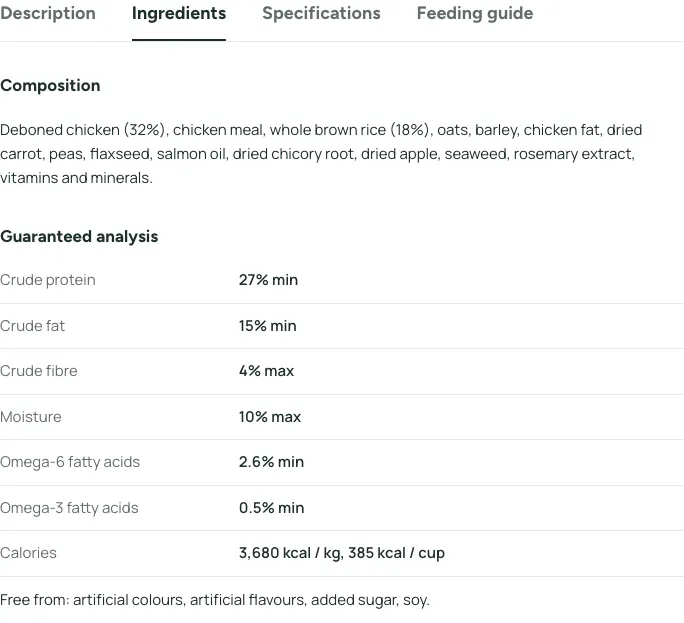
Seen in the Burrow demo
For a list of files, the row's label is the file's alt text, or its file name made readable. So name a file care-guide.pdf and it reads "Care guide".
Filters on the demo stores
Some demos use metafields as filters only, such as custom.pets, custom.rooms and custom.activities. The theme does not read these keys. Shopify's Search & Discovery app builds those filters, and you can use any metafield of your own there.
Something not working?
The admin refuses my JSON. The value must be valid JSON. Check for a missing comma or quote.
A tab does not show. The tab is left out when this product has no value. Check the key for typing mistakes, and that the metafield is on this product.
Stars do not show. The stars need both reviews.rating and reviews.rating_count, with a count above zero.