
Pre-order and coming soon
Take orders before stock arrives, or collect emails for a product that is not on sale yet, with two ready-made templates.
Two product templates cover products that are not on your shelf yet. Every preset has both. Assign one to a product and its page changes.
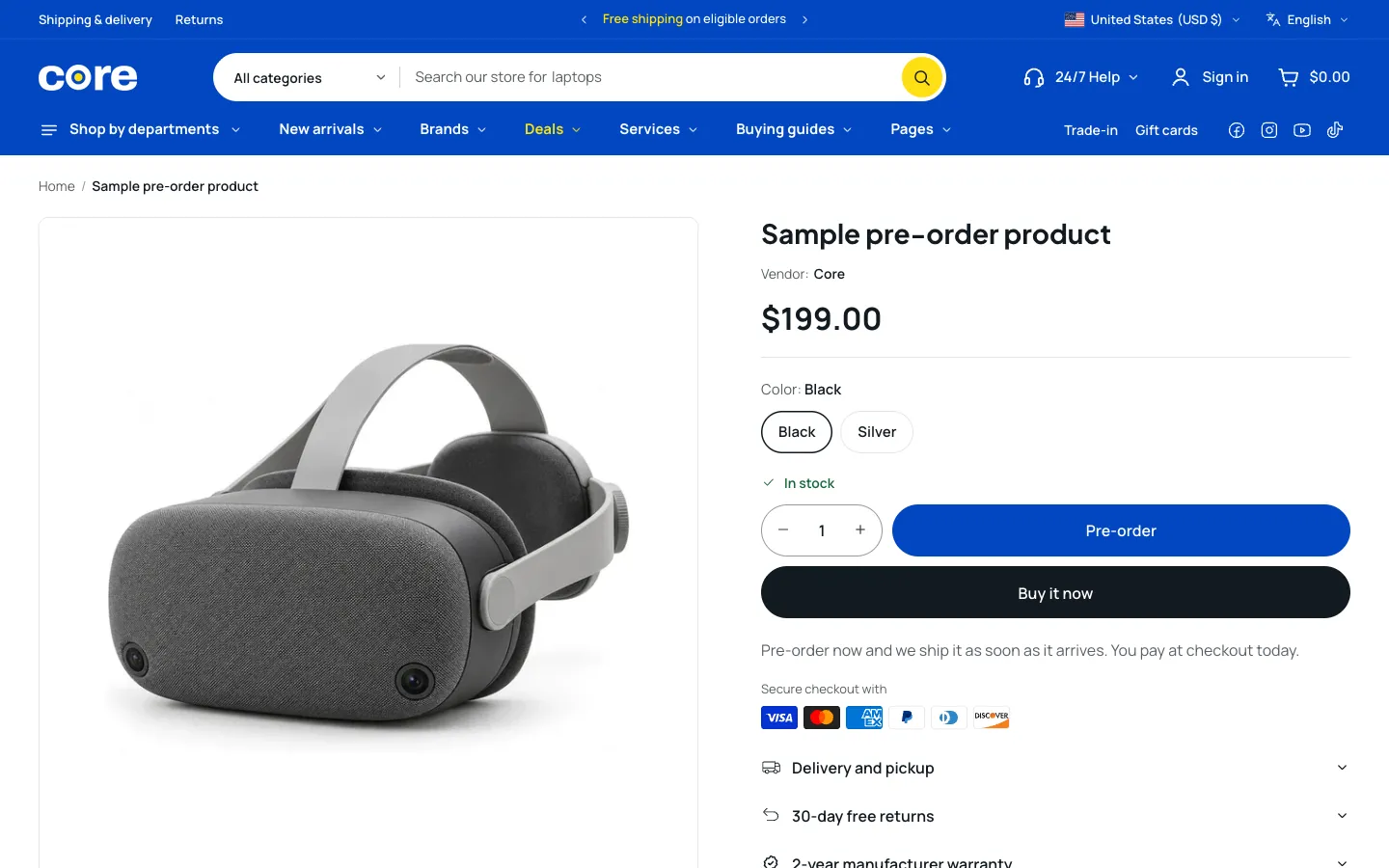
| Template | Shoppers can | Use it when |
|---|---|---|
| preorder | Buy now, and pay at checkout | You know the product is coming and are happy to take payment today |
| coming-soon | Leave their email | You want to measure interest, or cannot take orders yet |
Set up a pre-order
Assign the template
Open the product in your admin. Under Theme template, choose preorder and save.
Allow selling with no stock
For each variant at zero, turn on Sell when out of stock in its Inventory settings. Without this the button says Sold out, whatever the template.
Edit the wording
In the theme editor, switch to the preorder template. The Text block under the buttons says "Pre-order now and we ship it as soon as it arrives. You pay at checkout today." Add your real dates. Check the delivery and returns rows too, because they are sample wording. On Ridge, these templates are Core's copies, so the rows mention Core's terms.
Check it
Open the product and add it to the cart. Then complete a test order if you have not sold this way before.
What the theme does and does not do
The theme changes the words on the button. Everything else stays a normal order:
- The shopper pays in full at checkout. The theme has no deposits and no charging later. Those need an app.
- The cart and the order do not mark the item as a pre-order. Say so in your order emails if needed, and handle fulfillment yourself.
- Buy it now stays under the button on this template, and it does not say Pre-order. Turn off Show dynamic checkout buttons in Buy buttons to have one clear button.
- Product cards and the quick view still say Add to cart. Those settings cover your whole store, so if this matters, set the product status to Unlisted and share its link directly.
- At zero stock, Inventory status says "Available on backorder". Remove that block from the template if you would rather say it only in your own words.

Seen in the Core demo
Pre-order only when stock runs out
Use this for products you normally keep in stock. You stay on the default template, and only variants at zero change.
In the Buy buttons block, set Button label to Pre-order when out of stock. A variant then says Pre-order if it tracks inventory, has no stock left and has Sell when out of stock on. Other variants keep Add to cart. The button changes when the shopper switches variant.
This changes the default template for every product. To limit it to some products, create a template for them.
Set up coming soon
Assign the template
Open the product in your admin. Under Theme template, choose coming-soon and save.
Keep it from being bought elsewhere
This template has no Buy buttons block, but product cards and the quick view can still sell the product. Set its stock to zero, with Sell when out of stock off, so they say Sold out. To keep it out of collections and search altogether, set the product status to Unlisted. The page then opens only by its link.
Edit the wording
In the theme editor, switch to the coming-soon template and select Notify me. Change the Heading, Text, Button label and Message after signing up.
Sign up once yourself
Enter your own email on the live page before you share the link. Then check that you appear under Customers.
What happens to a signup
Each signup is saved as a customer subscribed to email marketing, with two tags: notify and notify- followed by the product's handle, such as notify-sample-coming-soon. These are your marketing contacts, so tell shoppers what they are signing up for in Text.
The theme does not send the email. When the product arrives, filter Customers by the tag, and email that group from your email tool.
Then switch Theme template back to the default, set your stock, and the page sells as normal.
All settings: Notify me
| Setting | What it does |
|---|---|
| Heading | |
| Text | |
| Button label | |
| Message after signing up |
All settings: Buy buttons
| Setting | What it does |
|---|---|
| Button label | Pre-order when out of stock: per variant, for a variant with tracked inventory, no stock left and Continue selling when out of stock on (product admin, Inventory). Shoppers pay at checkout as usual. |
| Show the quantity selector | |
| Show dynamic checkout buttons | Shoppers see their preferred payment method, such as Shop Pay or PayPal. |
| Show the recipient form for gift cards | Gift card products only: the buyer can send the card to someone by email, on a chosen date. |
| Show the price in the button | The selected variant's price. Not shown on a product sold by subscription: the price there depends on the plan picked in the app's widget. |