
Social media gallery
Show photos and short videos from social media, and tag the products in them so shoppers can buy what they see.
A row of tall photos and videos from social media, with your products tagged in them. Pressing a post opens a window with the larger image, its caption and its products.
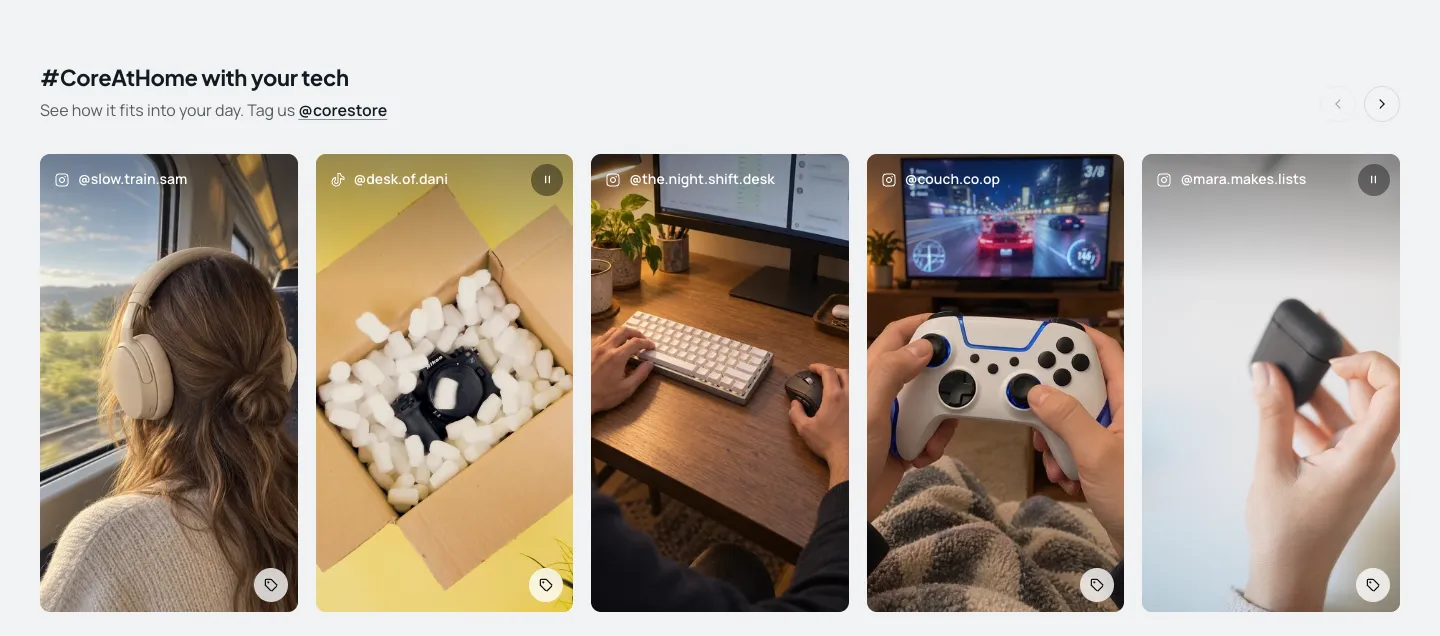
Use it to show your products in real homes and on real people. It is not a live feed. You add each post by hand, so you choose what appears and nothing shows without your approval. An automatic feed needs an app.
For one photo that you want to sell several products from, Shop the look gives you markers on the items themselves.
Add your posts
Click Add block and choose Post. You can add up to 30 to a section.
- Image is the photo, or the cover of a video.
- Video is optional. Upload the clip to your store. It plays without sound in the tile, and the post's window has a sound control.
- Social media network, Username and Profile picture say who posted it. Without a profile picture, the network's icon shows.
- Caption shows in the post's window, and Link to the post sends people to the original.
- Tagged products takes up to three products per post.
Ask the person's permission before you use their post.
Choose the layout
Carousel is the usual choice. Shoppers move the row with buttons or by swiping, and Progress bar can add a thin bar they can drag. Marquee moves the row by itself, with a pause button, and Speed sets how fast. It suits a mood rather than browsing, as in Mantel. Grid shows every post in rows.
Match Post shape to your content: Reel (9:16) for vertical video, Post (4:5) or Tall (2:3) for photos, as in Hanger. Posts per row applies on desktop.
Show products on the tiles
The post's window always lists its tagged products. Tagged products decides whether they also show before anyone opens a post.
- Behind a marker adds a tag button that lays the products over the post. It keeps the photos clean and is a good default.
- On the post adds a row over the bottom of the photo. It sells harder, as in Burrow and Ridge.
- Under the post adds small cards below each tile.
- Only in the post's window shows no products on the tile.
On the tiles, each product opens the quick view, and its button adds it to the cart.
Videos
Videos in the tiles has three choices.
- Play by themselves looks the most alive, but each video on screen is downloaded, at about 1 to 3 MB for a short clip. Keep clips short.
- Play on hover downloads less. Touch screens keep a play button.
- Play when pressed is the lightest for the page.
Videos always start without sound. Visitors who have turned off animations or who save data press play themselves.
Username, Network icon and Video button can each be set to Show, Show on hover or Hide to keep the tiles clean.
On phones
Phones show about two posts in view. With products on the tiles, tablets show three posts at most, and phones show one and a part of the next.
All settings: Social media gallery
| Setting | What it does |
|---|---|
| Heading | |
| Description | Select a word and add a link to send visitors to your profile. |
| Heading size | |
| Heading alignment | |
| Layout | |
| Layout | Carousel: visitors move the row with buttons or by swiping. Marquee: the row moves by itself, with a pause button. Grid: every post shows, in rows. |
| Progress bar | A thin bar under the row that shows how far it has scrolled; shoppers can drag it. Mobile: the full width; desktop: 75% of it, centered. |
| Speed | |
| Posts per row | On desktop. Tablets show one fewer, phones about two. |
| Post shape | |
| Width | |
| Videos in the tiles | Play on hover: a video plays while the pointer rests on its tile (or the tile has the keyboard focus); with a mouse the play button is hidden, on touch screens it stays. Play by themselves: videos play while their tile is on screen, so each video on screen is downloaded (about 1 to 3 MB for a short clip). Always without sound; visitors who turned off animations or save data press play. |
| On the tiles | |
| Tagged products | The post's window always lists them. On the tiles each product opens the quick view, its button adds it to the cart. Tablets then show three posts at most, phones one and a part of the next. |
| Username | Show on hover: shown while the pointer rests on the tile; touch screens always show it. The post's window shows the username and the network either way. |
| Network icon | |
| Video button | The play and pause button of a video tile. Hidden with Play when pressed, a video plays in the post's window. |
| Section | |
| Color scheme | |
| Top padding | |
| Bottom padding | |