
Newsletter popup
A popup that asks visitors for their email, or features one promotion. You control when it opens and who sees it.
A few seconds after someone lands on your homepage, a box opens with your offer and an email form. After they close it, it stays away for the number of days you set. After they sign up, it does not open by itself again.
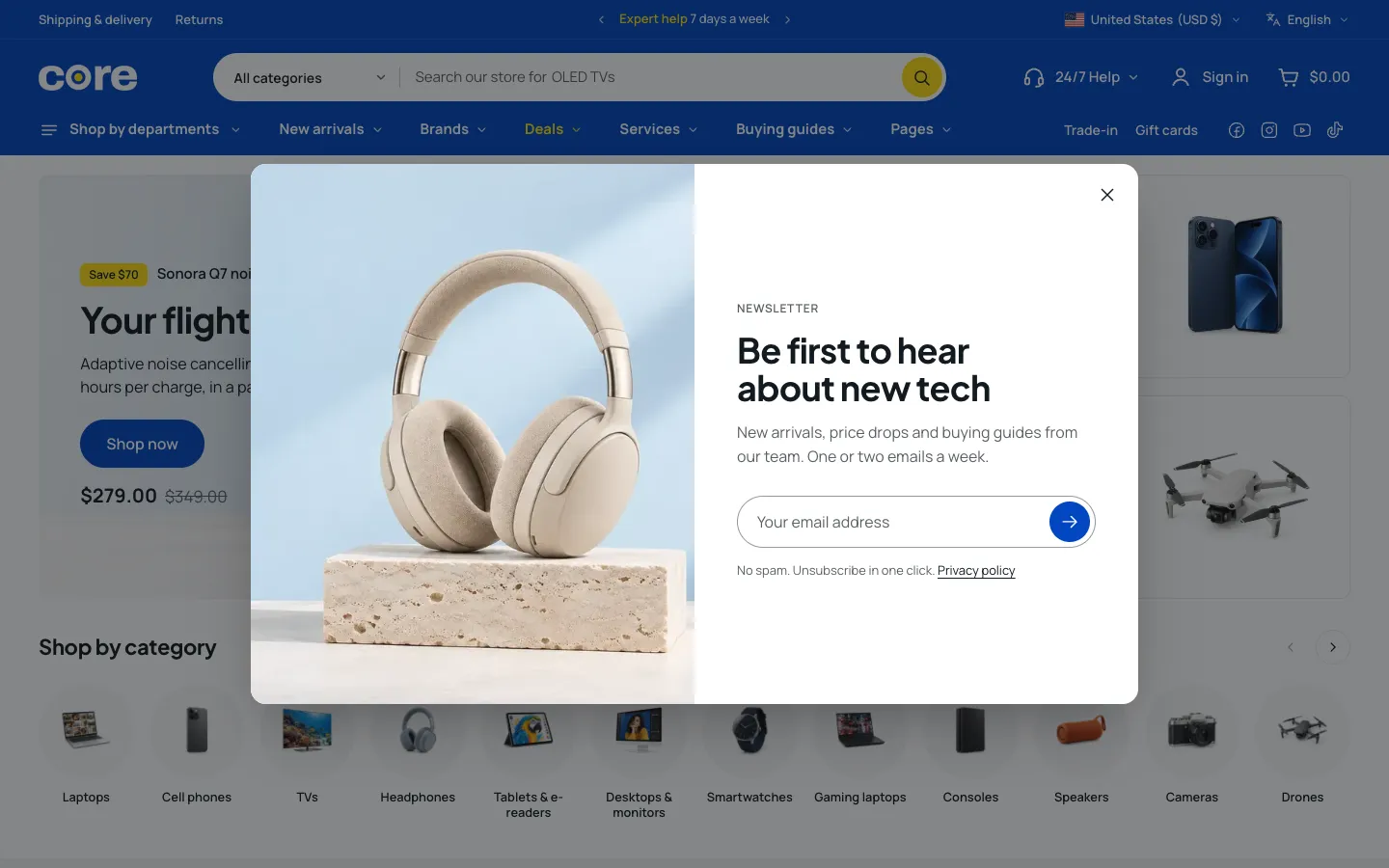
The settings are in the theme editor:
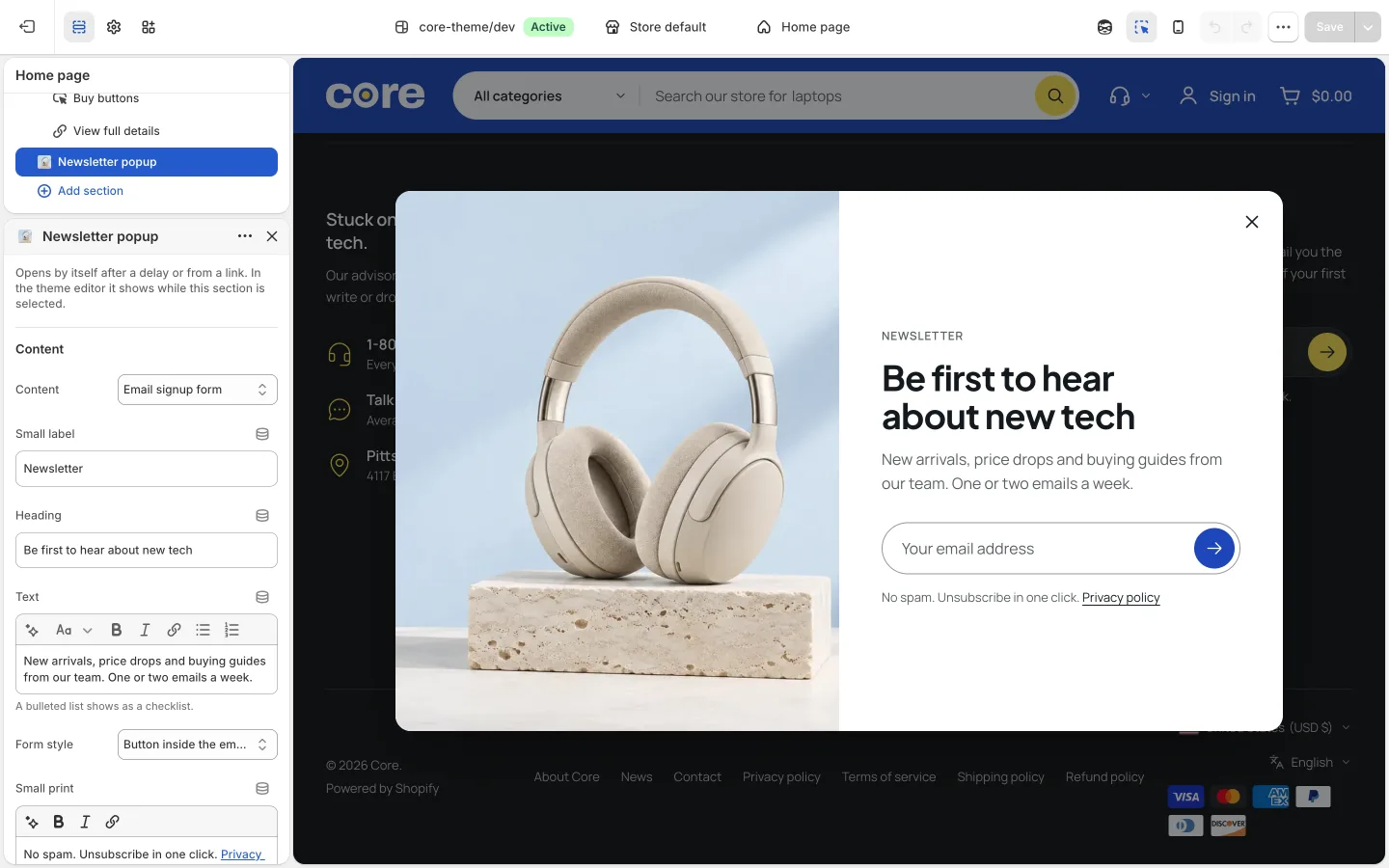
All five presets include one. To turn it off, click the eye icon beside Newsletter popup at the end of the section list. It only shows in the editor while selected, and a click on another section hides it.
If you already use an email app with its own popup, turn this one off, so visitors do not get two.
Choose what it says
Content is the first decision.
- Email signup form collects addresses. Signups go to Customers in your admin as email subscribers, tagged
newsletter. - Button shows a heading, text and one link, with no form. It suits a sale or a new collection. A bulleted list typed into Text shows as a checklist.
Say plainly what people get and how often. Form style puts the Button inside the email box, under the email box, or uses an Underlined email box. Small print is a good place for your privacy link.
Ask a question (optional)
Fill in Question and Answers to sort subscribers as they join. Burrow asks about the shopper's pet, and Hanger asks who they shop for. The answer is added to the customer's tags: Dog adds the tag dog. You can then email each group about the right products.
Visitors can pick offers One answer, One answer from a list or Several answers. A list suits more than a few answers. First line of the list is what the list shows before a choice. Left empty, it repeats the Question.
Offer a discount (optional)
Create the code first, in Discounts in your admin. Then type it into Discount code. It appears only after signing up, with a copy button.
It is the same code for everyone. To stop it being shared around, set it to one use per customer in the discount. A unique code for each person needs an email app.
Without a code, people see your Heading and Text under After signing up, and a button.
Choose the look
Layout is Image beside the text or Text only. With an image, Small print at the bottom moves your Small print to the bottom of the panel on larger screens. Choose Position next:
- Center dims the page behind it. Visitors must close the box to carry on. It gets the most attention.
- Bottom left and Bottom right leave the page usable. It suits stores that want a lighter touch.
Each preset ships with Image beside the text at Center.
On phones, the popup is always a panel along the bottom. The image stays off unless you turn on Show the image on phones, and we recommend leaving it off. Google can rank a page lower if a popup covers the content for visitors on a phone.
Decide when it opens
Opens has two options.
By itself after a delay uses these settings:
| Setting | What it does | Presets |
|---|---|---|
| Delay | Seconds before it opens, up to 60 | 10 |
| Show again after | Days after someone closes it, up to 90 | 14 |
| Only on the home page | Keeps it off every other page | On |
| Not for customers who are logged in | Hides it from people signed in to their account | On |
It never opens by itself on the cart page, while a drawer or quick view is open, or while the visitor is typing in a box. The form also stays away from signed-in customers who already accept email marketing.
Only from a link waits for a click. Any link to /#newsletter opens it: a button, a menu item or a link in a text. Link name changes the word after the #. This link also works when the popup opens by itself, and on every page, even with Only on the home page on.
Two popups
You can have a newsletter popup and a promotion popup. In the section list, use Add section after the existing one and choose Newsletter popup again. Only one opens by itself per page view: the first one in the list that is due. Give the second a different Link name if you open it from a link.
Check it
The delay and the "show again" rule do not run in the editor. To see them work, open your store in a private window, wait for the delay, and close the popup. It should stay away when you reload.
For a real test of the form, sign up with your own address, then look in Customers. Shopify may show a security challenge on the form. It appears above the popup.
Something not working?
It does not open for me any more. Your browser remembers that you closed it or signed up. Use a private window.
It only opens on the homepage. Turn off Only on the home page.
All settings: Newsletter popup
| Setting | What it does |
|---|---|
| Content | |
| Content | |
| Small label | |
| Heading | |
| Text | A bulleted list shows as a checklist. |
| Form style | |
| Button label | |
| Button label | |
| Button link | Without a link the button closes the popup. |
| Small print | |
| Question | |
| Question | Optional. The answer is added to the customer's tags, for example Your pet: Dog adds the tag dog. |
| Answers | Separate them with commas. |
| Visitors can pick | |
| First line of the list | |
| After signing up | |
| Heading | |
| Text | |
| Discount code | Optional. Create the code in Discounts first. It is shown only after signing up, with a copy button. |
| Button label | |
| Button link | Without a link the button closes the popup. |
| Layout | |
| Layout | |
| Image | |
| Image position | |
| Show the image on phones | Off by default: a large popup that covers the page on phones can lower search ranking. |
| Small print at the bottom | |
| Position | Center dims the page behind. In a corner the page stays usable. Phones always show a panel at the bottom. |
| Text alignment | |
| Color scheme | |
| Corner radius | |
| Opening | |
| Opens | |
| Delay | |
| Show again after | Days after a visitor closes it. After signing up it does not open by itself again. |
| Only on the home page | |
| Not for customers who are logged in | |
| Link name | Any link to /#newsletter opens the popup (with your link name after the #): a button, a menu item, a link in a text. |