
Blog page
Set the look of your blog's list of posts, with its tag links, featured posts, cards and page numbers.
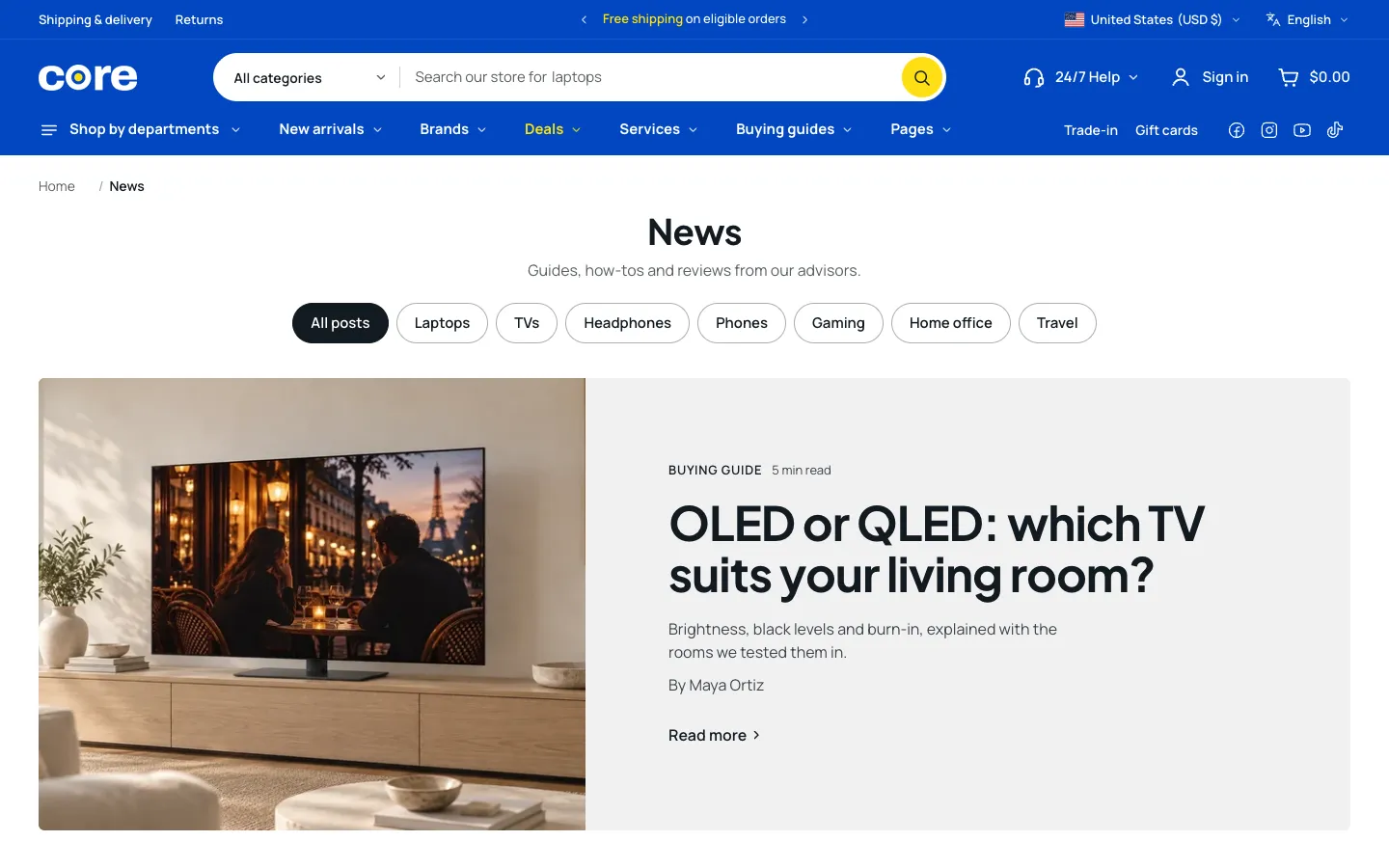
The blog page lists your articles, with a row of topics at the top and page numbers at the bottom. One template sets the look of every blog in your store.
To show posts on another page, use the Blog posts section instead.
Before you start
Create the blog and its posts in your Shopify admin under Content > Blog posts. To edit the page, open a blog in the theme editor with the template menu at the top.
Shopify has no page that lists all your blogs, so link to each blog from your menu. A store with one blog needs one link: see Menus and mega menus.
Write the header
Description shows under the blog's title. Type it in the section, because a Shopify blog has no description of its own. It applies to every blog that uses the template.
Choose your topic links
Tags are how Shopify groups posts in a blog, and each tag has its own page. There are two ways to show them. Both start with an All posts link.
- Show all tags as links lists every tag automatically. It works for a few tags. Stores with many tags get a long, untidy row.
- Tag blocks let you pick the ones you want. Type a tag exactly as it is written on your posts. Label shows a different word, such as Home office for the tag Work from home. You can add up to 24.
We recommend Tag blocks, as all five presets use them. Pick the six to ten topics people look for most.
Add an Image to any Tag block, and the tags become round image tiles, as in Burrow and Ridge. Give every tag a picture when you do. Image for All posts sets the first tile. Image fit set to Fit suits product photos on a white background.
Without images, Tag link style sets Buttons or Text.
Feature your newest posts
Featured posts makes the newest posts larger at the top. It shows on the first page only, and not on tag pages.
| Choice | Good for | Used by |
|---|---|---|
| One, image beside the text | One article you want read | Core, Mantel |
| One large and two small | Strong photos and regular posting | Burrow, Ridge |
| Three in a row | Large, similar photos | Hanger |
| None | A plain list |
Featured posts count toward Posts per page and are taken out of the list, so the first page lists fewer cards than the next ones. That is normal.
Choose the cards
Card layout sets Image at the side or Image on top. Image at the side fits more text and is good for guides. Image on top gives photos more room, and Cards per row sets two to four. All posts share one Image ratio, so prepare post images in that shape.
The Show tag, Show date, Show reading time, Show excerpt, Show author and Show number of comments settings choose the lines on each card. The number of comments shows only when the blog allows comments, under Blog posts > Manage blogs in your admin. Heading size and the details line are in Blog post cards.
Add more below
The template can hold other sections. Core adds a row of products, and Burrow and Ridge add Media with content inviting people to ask an expert. They show on every blog and every page of the list.
Something not working?
A Tag block does not show. No post in this blog has that tag. Check the spelling. The editor shows a message for this, and shoppers see nothing, so they never reach an empty page.
The tag on a card is not the one I wanted. A card shows the post's first tag, and Shopify sorts tags from A to Z. You cannot choose it per post. Change the post's tags or turn off Show tag.
The breadcrumb does not show. Turn on Show on blogs and blog posts in Theme settings > Layout > Breadcrumbs.
All settings: Blog
| Setting | What it does |
|---|---|
| Header | |
| Description | Shows under the blog's title. |
| Heading alignment | |
| Show all tags as links | Every tag of the blog, each a link to its posts. To show only some tags, turn this off and add Tag blocks. |
| Tag link style | Text shows the tags as small labels (Theme settings > Typography > Small label case), the current one underlined. Tag blocks with an image always show as round tiles. |
| Image for All posts | When the Tag blocks show as image tiles, the first tile is "All posts", a link to the whole blog. Without an image it shows an icon. |
| Image fit | Fill: the image covers the tile (photos). Fit: the whole image sits inside a tinted tile (product photos on a white background). On dark color schemes use images with a transparent background. |
| Featured posts | |
| Featured posts | The newest posts, on the first page only. They are taken out of the list, so the first page lists fewer cards. |
| List | |
| Heading of the list | |
| Heading size | |
| Posts per page | Featured posts count toward the first page. |
| Card layout | |
| Cards per row | |
| Image ratio | A card with its image at the side is at least as tall as this ratio. |
| Card | |
| Show tag | The post's first tag. Shopify sorts tags from A to Z. |
| Show date | |
| Show reading time | |
| Show excerpt | |
| Show author | |
| Show number of comments | Only when the blog allows comments (Shopify admin > Blog posts > Manage blogs). |
| Color scheme | |
| Top padding | |
| Bottom padding | |