
Password and 404 pages
Set up what visitors see before your store opens, and what they see when a link leads nowhere.
These two pages appear by themselves, so there is nothing to assign. Both are worth a few minutes, since both can stop a visitor from leaving for good.
The password page
Visitors see this page while your store is private. It can collect emails from people who want to hear when you open.
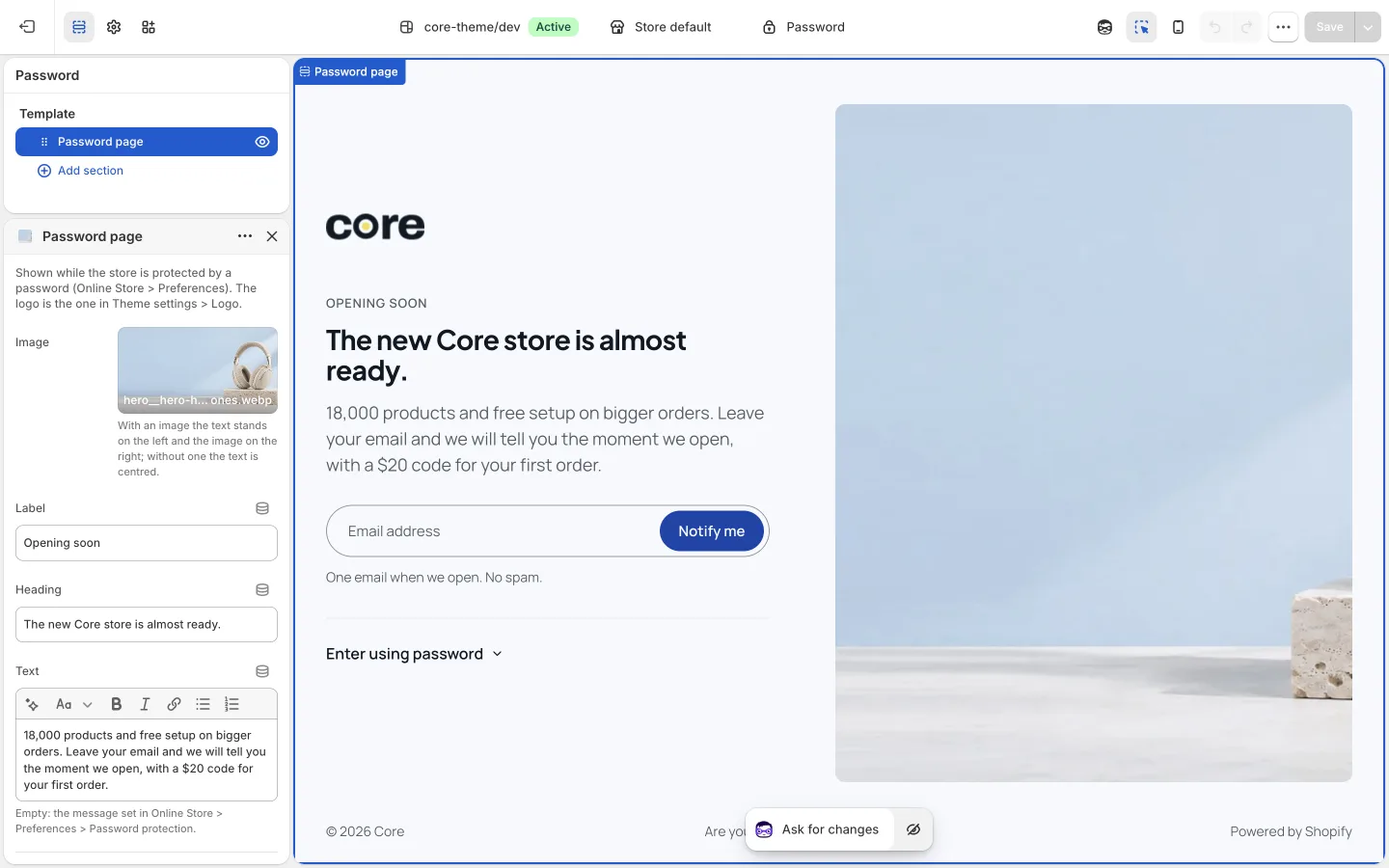
Open it in the editor
In the theme editor, open the template menu at the top and choose the password page.
Choose what it says
The logo comes from Logo and favicon. Label and Heading come first. Each preset's template has sample words, so replace them, including any opening date.
Text is optional. Leave it empty to show the message you set in Online Store > Preferences.
Image puts the text on the left and your image on the right. Without one, the text is centered.
Collect emails
Turn on Show email signup. Visitors who sign up are added to your customers with the tags newsletter and password page, so you can find them later. Button label, the line under the box and Message after signing up are yours to change.
The page also has an Enter using password link, for you and anyone you give the password to.
Turn it on and off
The page is controlled in your admin, in Online Store > Preferences under Store access. Turn on Private mode to show it, or turn it off to open your store. Shopify's guide has the details, including what must be in place before you can remove it.
All settings: Password page
| Setting | What it does |
|---|---|
| Image | With an image the text stands on the left and the image on the right; without one the text is centered. |
| Label | |
| Heading | |
| Text | Empty: the message set in Online Store > Preferences > Password protection. |
| Email signup | |
| Show email signup | Visitors leave their email to hear when the store opens. They are added to your customers with the tags newsletter and password page. |
| Button label | |
| Text under the field | |
| Message after signing up | |
| Color scheme | |
The 404 page
Shoppers land here from an old link, a typed address or a removed product. A good 404 page gets them back to shopping.
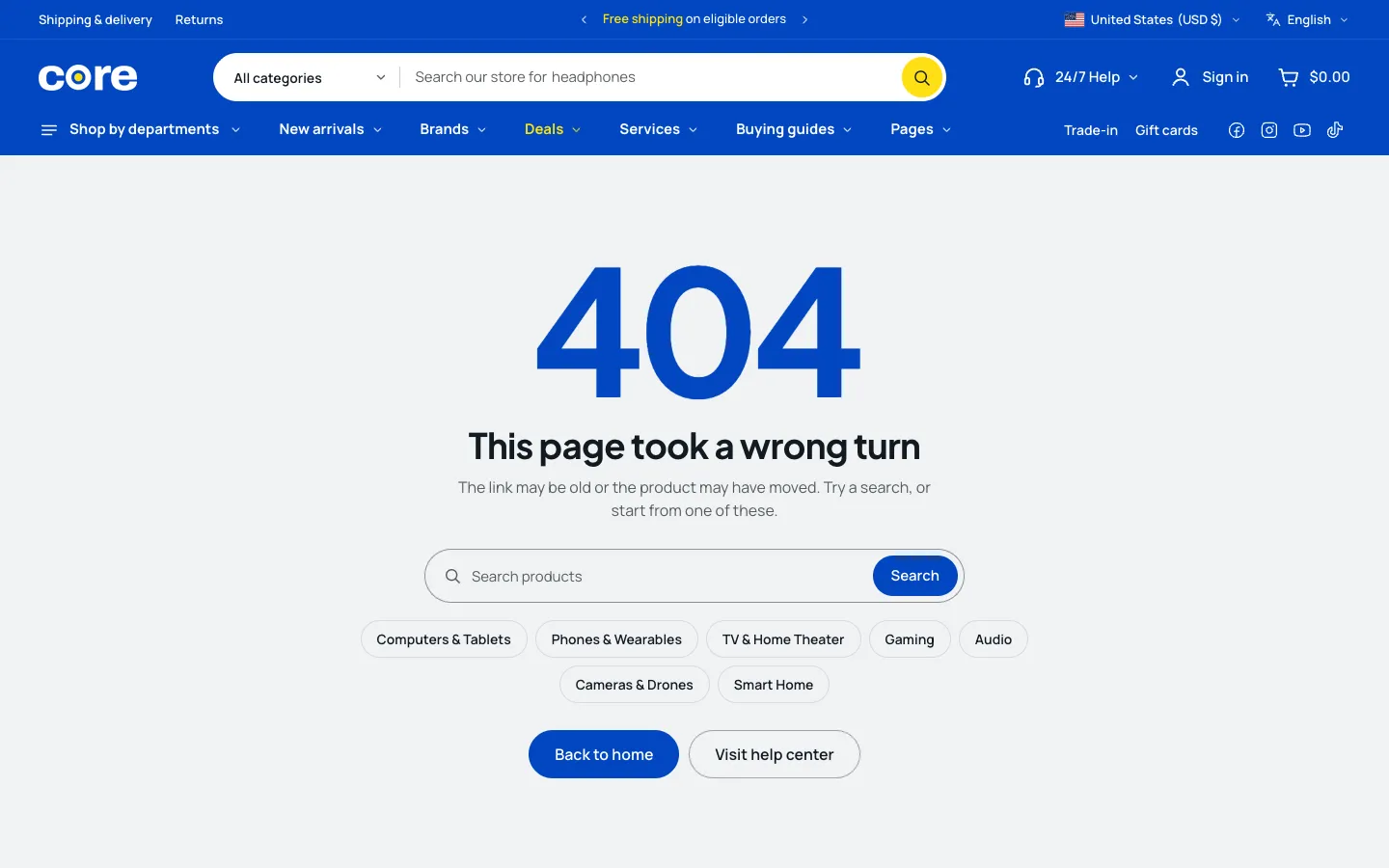
To see yours, add any address that does not exist to your store's address, or choose the 404 page from the template menu in the editor.
Keep them moving
Each of these is optional, and together they give a lost shopper several ways forward.
- Show search box comes first, because someone who followed an old link often still knows what they want. Search box placeholder suggests what to type.
- Quick links shows a menu as small buttons. Pick a short menu, because the template points at the demo's own menu, and your store may not have one with that name.
- Button label and Second button label add two main links, such as back to home and your help page. Check where they lead.
Label is the large 404 by default. Label style can turn it into a Small line above the heading. Image moves the text beside your image.
Every preset adds a Featured collection under it. Pick a collection of your best sellers, because the template names one from the demo.
All settings: Page not found
| Setting | What it does |
|---|---|
| Image | With an image the text stands beside it; without one the text is centered. |
| Label | |
| Label style | |
| Heading | |
| Text | |
| Show search box | |
| Search box placeholder | |
| Quick links | A menu shown as small buttons under the search box, for the pages people look for most. |
| Button label | |
| Button link | |
| Second button label | |
| Second button link | |
| Color scheme | |
| Top padding | |
| Bottom padding |