
Sell in other markets
Sell to other countries in their own currencies. Shopify's markets set it up, and the theme adds the selector and localized amounts.
Shoppers choose their country and see prices in their own currency across your store. You set up the countries and prices in Shopify, and the theme follows.
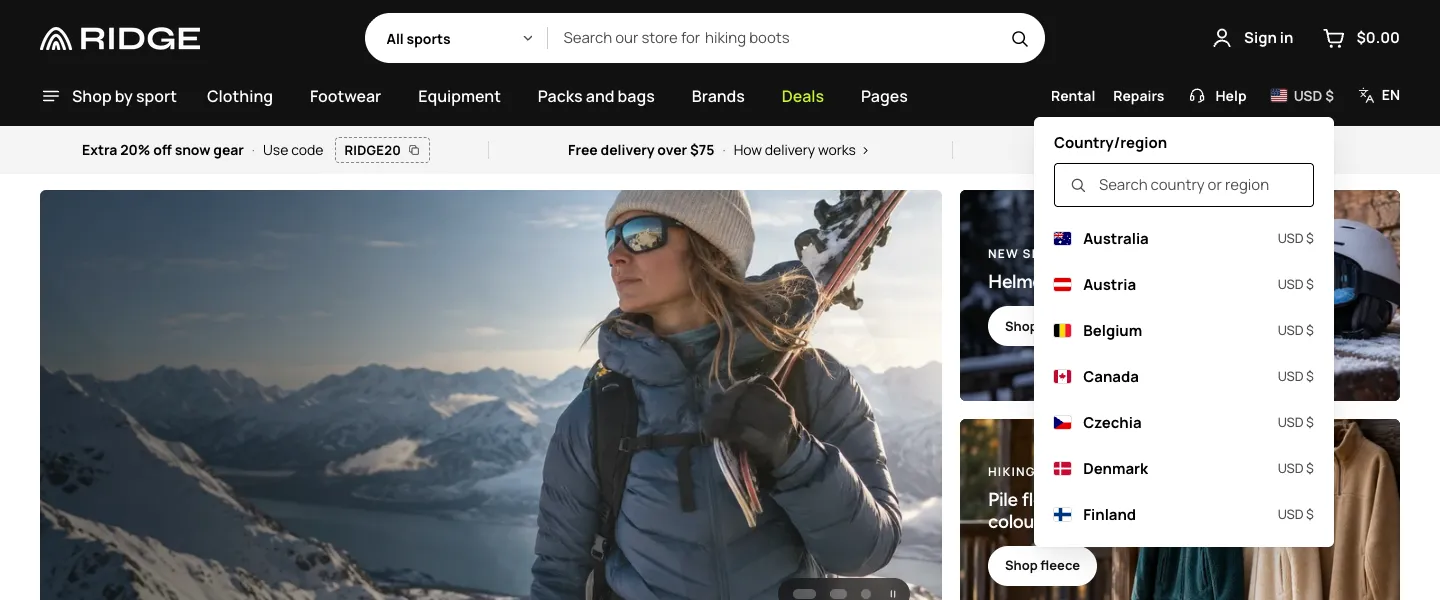
Seen in the Ridge demo
What to prepare
Decide which countries you sell to, and check what shipping costs there. Full local currency pricing needs Shopify Payments. See Pricing in local currencies.
Set it up
Create your markets
In Settings > Markets, add a market for a country or a group of countries. See Shopify's Markets guide.
Set the prices
Shopify converts prices at the market rate unless you set your own. You can set a rate, round prices, or use fixed prices through catalogs.
Add shipping
Add delivery rates for the new countries in Settings > Shipping and delivery. A country without a rate cannot complete a checkout.
Set your free shipping amounts
If you use a free shipping bar, add the amount for each currency. See below.
Check it
Pick the new country in the selector. Look through a product page, the cart and a checkout.
What the theme does
The selector appears by itself once your store sells to more than one country. It lists your countries with flags and currencies, and offers a search box when there are more than eight. See Country and language.
Every price follows the shopper's market, because Shopify supplies it: product cards, product pages, the cart and quick view.
Typed amounts need your attention
Text you type stays as you typed it, so "$50" reads "$50" in every country. Two theme settings solve this.
Free shipping from, in Theme settings > Cart, takes one amount for each currency:
USD:50, EUR:45, GBP:40A currency you do not list gets no bar. Each amount should match your real rate in Settings > Shipping and delivery, because the theme cannot read that for you. See Free shipping bar.
[free_shipping] shows that same amount in text. Type it in an announcement, icon box or promo strip, such as Free delivery over [free_shipping]. For a currency you did not list, it reads "a set amount", so the sentence still works.
Check your other text for amounts too: slideshow headings, offers, and the popup.
Other things to check
- Discount codes typed into a popup or promo strip must work in every market you show them to. Set this in Discounts.
- Language. You can choose which languages each market uses. See Translate your store.
- Tax. Shopify decides whether prices include tax per market, and the theme shows the matching wording on product and cart pages.
Something not working?
The selector does not show. Your store has only one active country.
The free shipping bar is gone in one currency. That currency is not in Free shipping from.
A country is missing at checkout. Check its market and its delivery rates.