
Set up your store
The order to work in when you first open Core, so you only do each job once.
You can do these jobs in any order, but this order saves rework. Fonts and colors change how every section looks, and sections need your products and collections to show anything.
Your work stays private until you publish, so take your time.
Choose a preset
Pick the preset closest to how you sell and how your photos look. Compare the five. You can change colors and fonts later, but the page layouts come with the preset you start from.
Add your products and collections
Do this in your Shopify admin before you touch the theme. Sections such as Featured collection and Collection list show placeholders until they have something to show. Why your store looks different from the demo explains what to expect.
Set your brand in Theme settings
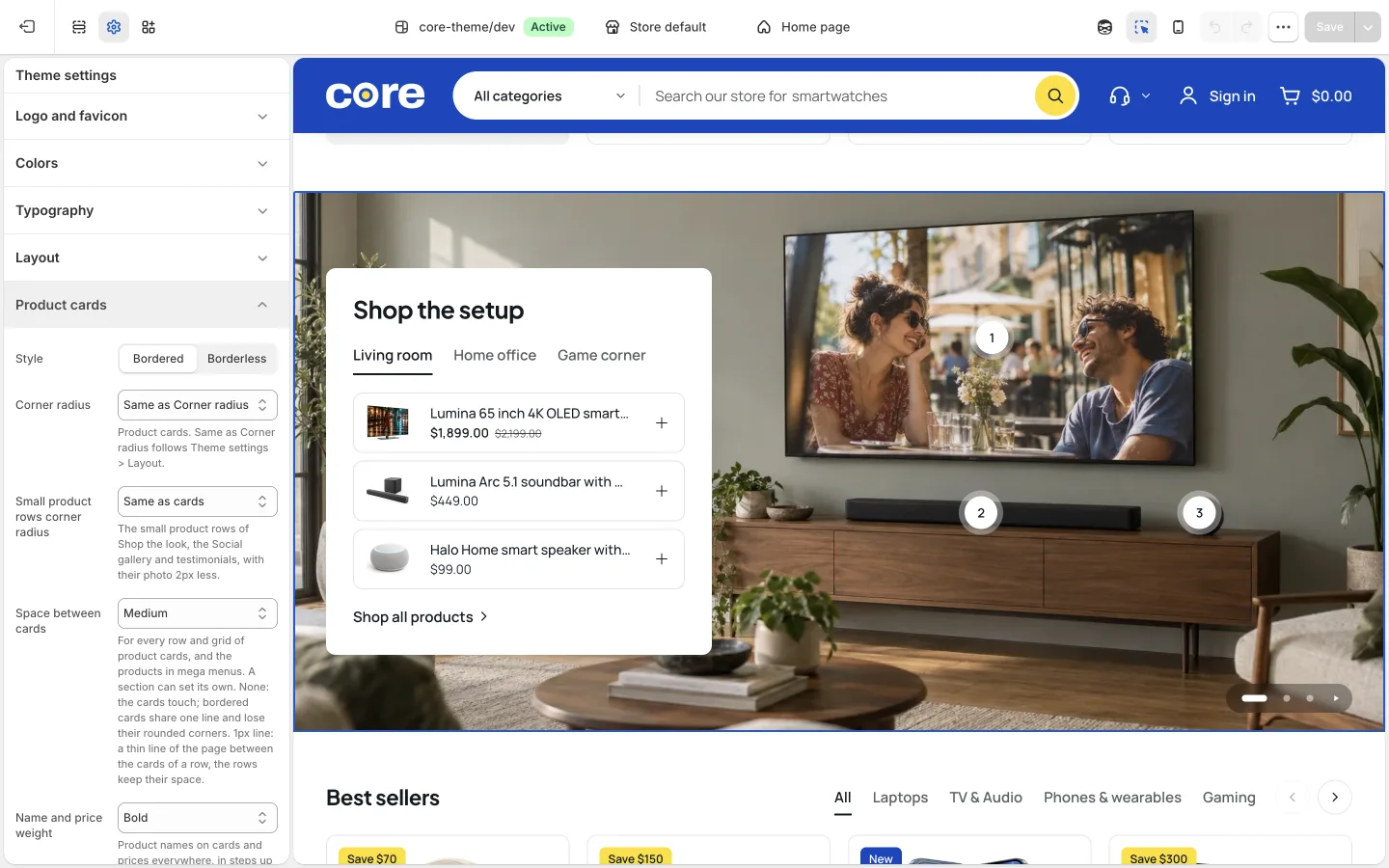
In the theme editor, click the gear icon and work down the list: Logo and favicon, Colors, Typography, then Product cards. These apply across the whole store. Getting them right first means you will not adjust sections twice.
Build your menu
Create your menus in Content > Menus in your admin, then connect them in the header. Menus and mega menus walks through it.
Fill in the homepage
Open the homepage in the editor and go through it section by section. Replace the sample text, pick your images and link each button. Hide what you do not need with the eye icon in the section list. You can bring it back later.
Your images make the biggest difference here.
Create your pages
The theme comes with templates for About, Contact, FAQ, Brands and Service pages. In Online Store > Pages, add a page. A template shows nothing on your store until a page uses it.
The Theme template list in your admin shows the templates of your published theme. While Core is still a trial, its templates are not on that list. Set up each template in the theme editor, where the pencil icon beside Preview at the top of the sidebar shows it with any page. Choose it for each page after you publish.
Check it on a phone
Use the phone icon at the top of the editor, then open the preview on your real phone. Look at the menu, a collection page and a product page, and try adding something to the cart.
Buy and publish
You can only publish a theme after you buy it. In Online Store > Themes, click Buy on your trial, then Publish. Everything you set up stays. Then choose the Theme template for your pages, products and collections that need one.