
Burrow
The preset for pets and everyday goods, with its look, the photos it needs and every section on its main pages.
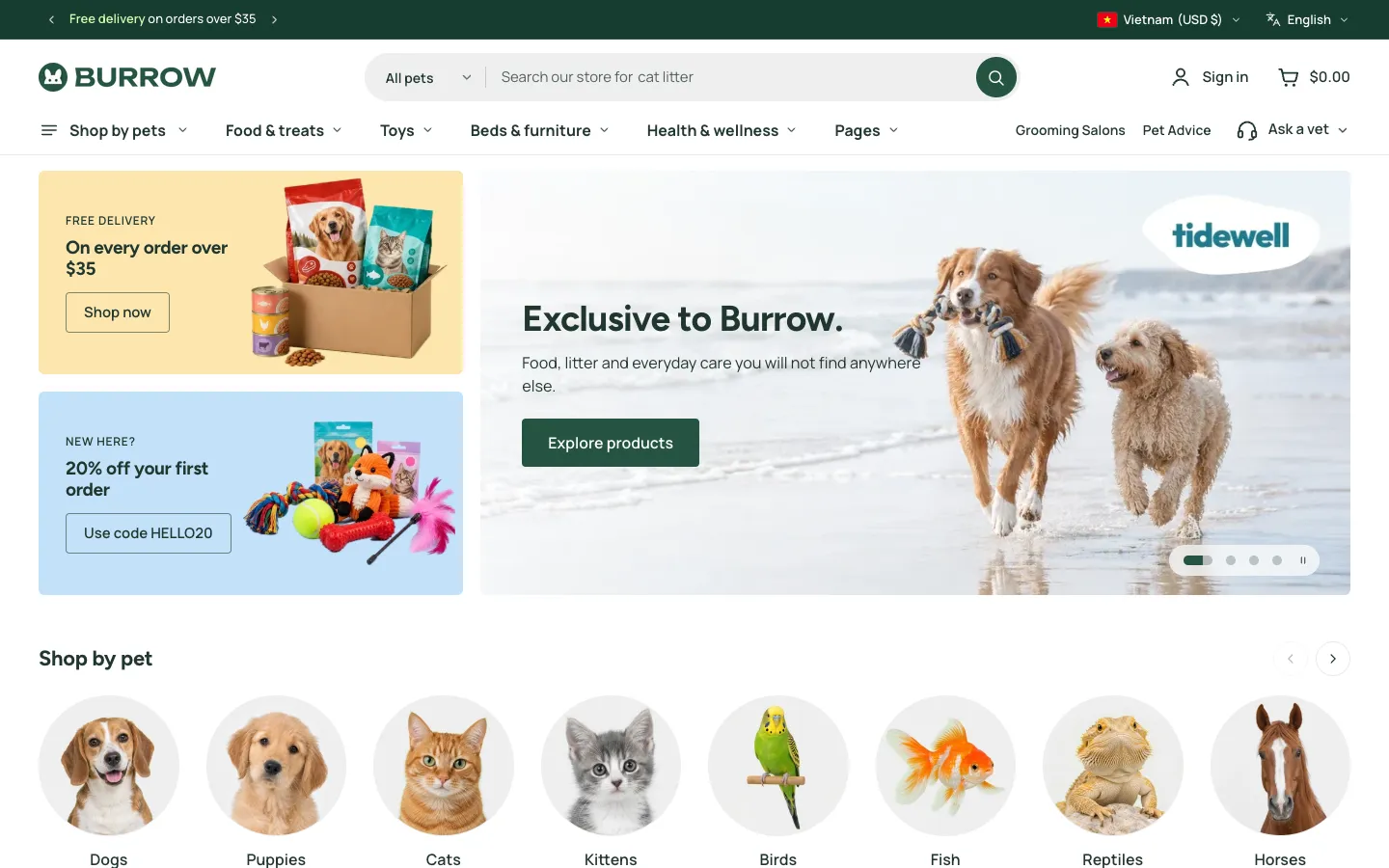
Burrow is for shops that people come back to for everyday things. It is friendly and easy to scan, with whole products on a soft tint and an Add to cart button on every card. The demo sells pet supplies, and it suits any catalog bought again and again.
Is it right for your store?
It works well if you sell consumables or household goods with product photos on a white background, such as pet food, groceries, cosmetics or supplies. Shoppers can add a product from the card without opening it.
It is a harder fit if your photos are full-frame lifestyle shots, because the tint darkens anything without a white background. Mantel or Hanger would serve those better. You can still take Burrow's colors and fonts to another layout.
How it is set up
| Setting | Burrow uses |
|---|---|
| Fonts | Figtree for headings, Manrope for text |
| Buttons and inputs | Rounded, with a 4 px radius |
| Corners | 6 px on cards and panels |
| Page width | 1400 px |
| Product photo shape | Square, with Show the whole image |
| Photo background | Blend product images on |
| Cards | Borderless |
| Add to cart | Below the price |
| Sale badge | Percentage saved |
| Rating | Five stars |
| Stock status | Hidden on cards |
| Colors | A green set: dark green top row and footer, light green highlight |
See Product cards for what each card setting does.
Photos to prepare
- Product photos on a white or very light background. The blend only works with those. Any shape fits, because the whole image shows.
- Four wide images for the opening slideshow, at Page width, plus two images for the Side cards.
- A square image for each category. The demo's Shop by pet row has 10.
- Brand logos for the Featured brands row.
- Two banner photos. One runs at Full width, so keep the subject away from the edges, and set a focal point.
- Three photos with products in them for Shop the look.
What is on each page
These are the sections as Burrow ships them, from top to bottom. Add the same ones in the same order to rebuild a page from the demo.
Homepage
- Slideshow
- Collection list
- Collection tabs
- Promo cards
- Collection links
- Featured collection
- Shop the look
- Collection list
- Media banner
- Featured collection
- Media banner
- Collection grid
- Featured collection
- Media with content
- Multicolumn
- Marquee
- Blog posts
- Social media gallery
Product page
- Product information
- Quick order list
- Product recommendations
- Feature tabs
- Compare similar items
- Testimonials
- Media with content
- Recently viewed
- Social media gallery
Collection page
- Collection banner
- Sub collections
- Product grid
- Promo cards
- Collection list
- Blog posts
- Multicolumn
- Recently viewed
Burrow also comes with three other collection layouts, department, brand and full-banner. Choose them per collection under Theme template in your admin. During a trial, this list holds only the live theme's templates, so see Getting started. Collection templates compares them.
Mega menus
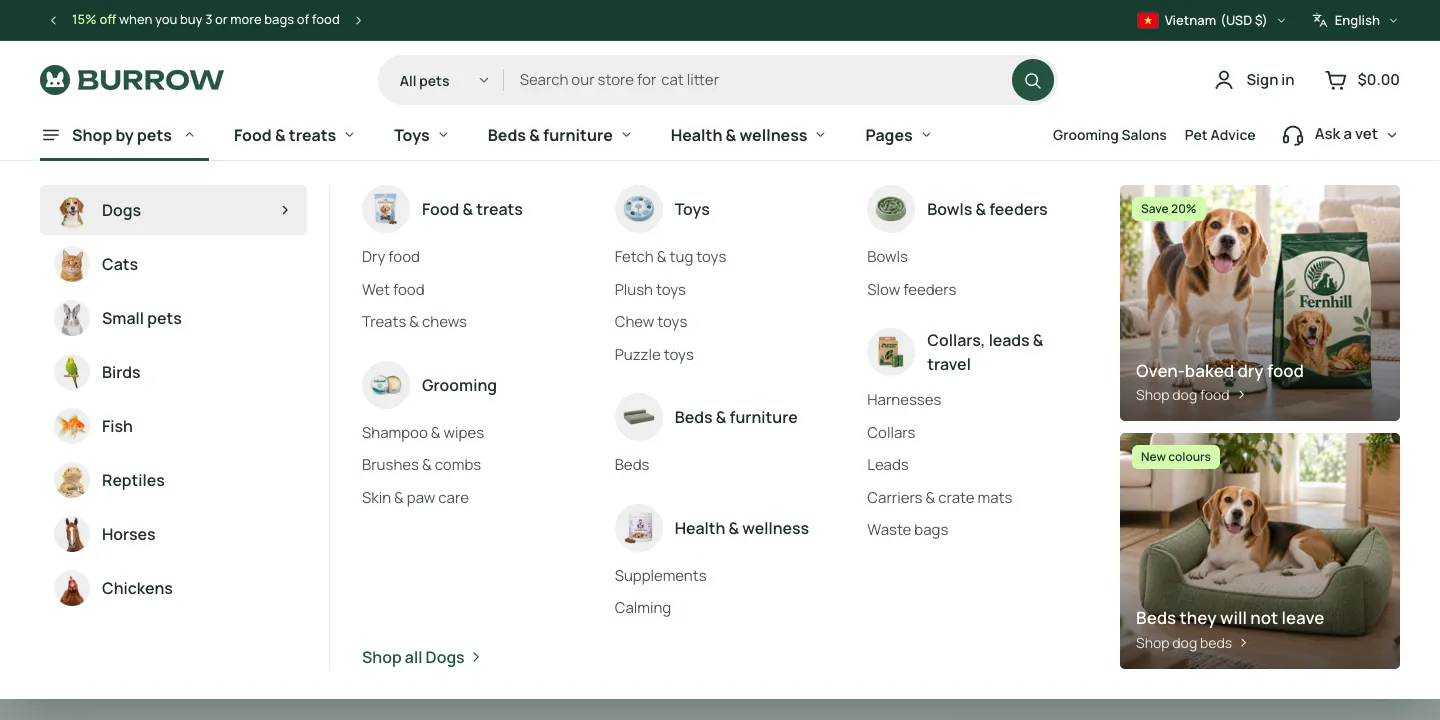
Burrow's demo has a Tabs mega menu titled Shop by pets, and Link lists titled Food & treats, Toys, and Beds & furniture. The demo's menus have the handles main-menu, mega-pets for the tabs, and header-links for the links in the mobile drawer.
The blocks arrive with Burrow, but your store does not have those menus or titles, so they show nothing until you match them. Mega menus from a preset explains your two ways forward.
Other pages in the demo
Two more demo pages are worth rebuilding. Neither needs a special template of its own.
Grooming salons
This is Burrow's service template. Add a page titled Grooming salons in Online Store > Pages, and choose service under Theme template.
The salon's name, address, opening hours and call button arrive hidden in Media with content. Type your real details, then show them with the eye icon. Service page goes through each part.
On a new store, the Grooming salons card in the homepage's Multicolumn opens your Contact page. Change its Link to your new page.
Pet advice
This is a blog, not a page. Create a blog named Pet advice under Content > Blog posts and add your posts. It takes Burrow's blog template by itself. Change the Tag blocks to the tags on your posts, and give each one an Image for the round tiles. Blog page covers those.
To show the posts on your homepage, select Blog posts, the section headed Pet advice from our team, and set Blog to your new blog. To show products inside a post, you connect the Products block to a metafield yourself. See Blog post page.