
Blog post page
Arrange the parts of an article, show products inside it, turn on comments and choose what comes after it.
This template sets the look of every article: the title, the image, the text, the products and the comments. You write the articles in your admin, and each part here is a block you can move or remove.
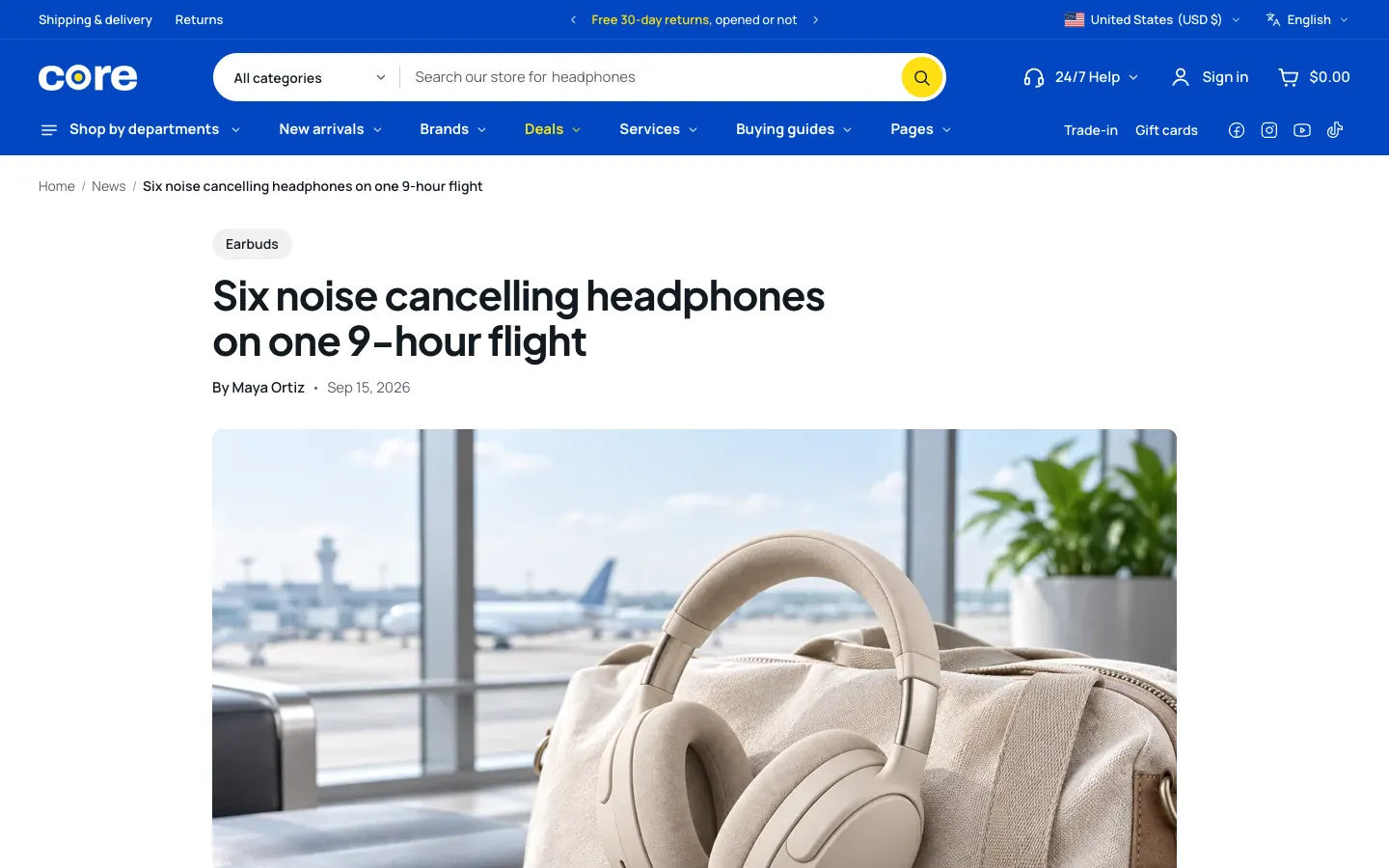
Open the template
In the theme editor, open the template menu at the top, choose blog posts and pick an article to preview. Changes apply to every post.
Set the reading width
Content width in the section sets the reading column, from 640 to 1200 pixels. Lines read best at about 700 to 900 pixels. Mantel and Hanger use 820, and Core uses 1000.
Arrange the parts
| Block | What it does |
|---|---|
| Header | The tag, title, author, date and reading time |
| Featured image | The image you set on the post |
| Content | The article |
| Tags and share | The post's tags, and share links for Facebook, X and email |
| Products | Products that go with the article |
| Post navigation | Links to the previous and next posts |
| Comments | The comment list and form |
| Custom Liquid | Your own Liquid or HTML, such as an app's snippet. See Custom CSS and Liquid |
You can use each block once, except Custom Liquid. Drag them into any order, or remove any you do not need. Apps can add their own blocks here too.
Choose the header and image
Position in the Header block can be Over the image, which puts the tag, title and date on the featured image in white. It needs a Featured image block and a post with an image. Use it only if your images are plain and dark enough for white text to read well.
Show reading time works it out from the article's length, at about 200 words a minute.
The author is the name Shopify holds for the post. Shopify gives no role, photo or bio for it, and neither does the theme.
Width in Featured image can be Reading column, Wide (260 pixels wider on large screens) or Full width. Image ratio can keep the image's own shape, or cut it to Landscape 3:2 or Wide 16:9. A post's image has no focal point in Shopify, so Crop position applies the same crop to every post. Choose Top if your images are of people.
First paragraph in the Content block can be Larger, as an introduction. It reads well in long articles.
Show products in an article
The Products block shows up to six products. There are two ways to fill it.
- The same products in every post: pick them in the block. This rarely fits, since articles differ.
- Different products per post: connect the block to a metafield of the post. This is what you want.
No preset arrives connected, because a theme cannot create the definition. In your admin, create a metafield for blog posts with the namespace and key custom.products and the type list of products. In the theme editor, select the Products block, click the connect icon beside its setting and choose that metafield. Then choose the products on each post. A post without products shows nothing. See the metafields reference.
Turn on comments
Comments belong to a blog, and they are off by default. In your admin, go to Content > Blog posts, click Manage blogs, click the blog, and choose an option under Comments. Shopify's guide explains each one.
We recommend Comments are allowed, pending moderation, so nothing appears before you have read it. The form says so to the visitor.
The Comments block sets Comments per page. Collapsed shows one line with the number of comments, and the list and form open on a click. This keeps the page short, as in Hanger.
After the article
The Related posts section shows other posts from the same blog. Posts that share a tag with the current one come first, then the newest posts, so the row stays full. It looks among the blog's newest 50 posts. Posts to show sets two to four.
All settings: Blog post
| Setting | What it does |
|---|---|
| Content width | The reading column. Lines of text read best at about 700 to 900px. |
| Color scheme | |
| Top padding | |
| Bottom padding |
All settings: Header
| Setting | What it does |
|---|---|
| Alignment | |
| Show tag | The post's first tag. Shopify sorts tags from A to Z. |
| Tag style | Text shows the tag as a small label above the title (Theme settings > Typography > Small label case). |
| Show author | |
| Show date | |
| Show reading time | |
| Position | Over the image puts the tag, title and date on the featured image, in white. It needs a Featured image block and a post image. |
All settings: Featured image
| Setting | What it does |
|---|---|
| Width | Wide is 260px wider than the reading column on large screens. Full width reaches both edges of the screen. |
| Image ratio | |
| Crop position | The part of the image kept when the shape cuts it. A post's image has no focal point in Shopify, so the same position applies to every post. |
All settings: Content
| Setting | What it does |
|---|---|
| First paragraph | Larger sets the opening paragraph a size up from the rest of the article. |
All settings: Tags and share
| Setting | What it does |
|---|---|
| Show tags | |
| Show share links | Facebook, X and email. |
All settings: Products
| Setting | What it does |
|---|---|
| Heading | |
| Products | Products picked here show in every post. To show different products in each post, connect this setting to a product list metafield of the post. A post without products shows nothing. |
All settings: Post navigation
| Setting | What it does |
|---|---|
| Lines |
All settings: Comments
| Setting | What it does |
|---|---|
| Comments per page | |
| Collapsed | Shows one line with the number of comments; the list and the form open on a click. |
All settings: Custom Liquid
| Setting | What it does |
|---|---|
| Custom Liquid | Add app snippets or other Liquid code. |
All settings: Related posts
| Setting | What it does |
|---|---|
| Heading | |
| Heading size | |
| Link label | The link goes to the blog. Leave empty to hide it. |
| Posts to show | |
| Card layout | |
| Image ratio | A card with its image at the side is at least as tall as this ratio. |
| Card | |
| Show tag | The post's first tag. Shopify sorts tags from A to Z. |
| Show date | |
| Show reading time | |
| Show excerpt | |
| Show author | |
| Color scheme | |
| Top padding | |
| Bottom padding | |