
Brand directory
A complete A to Z of the brands you sell, built from your products' vendors, so new brands appear without any work.
Brand directory lists every brand in your store, A to Z, as names or logos. It reads the Vendor of your products, so a new brand appears by itself and a store with 400 brands is still complete.
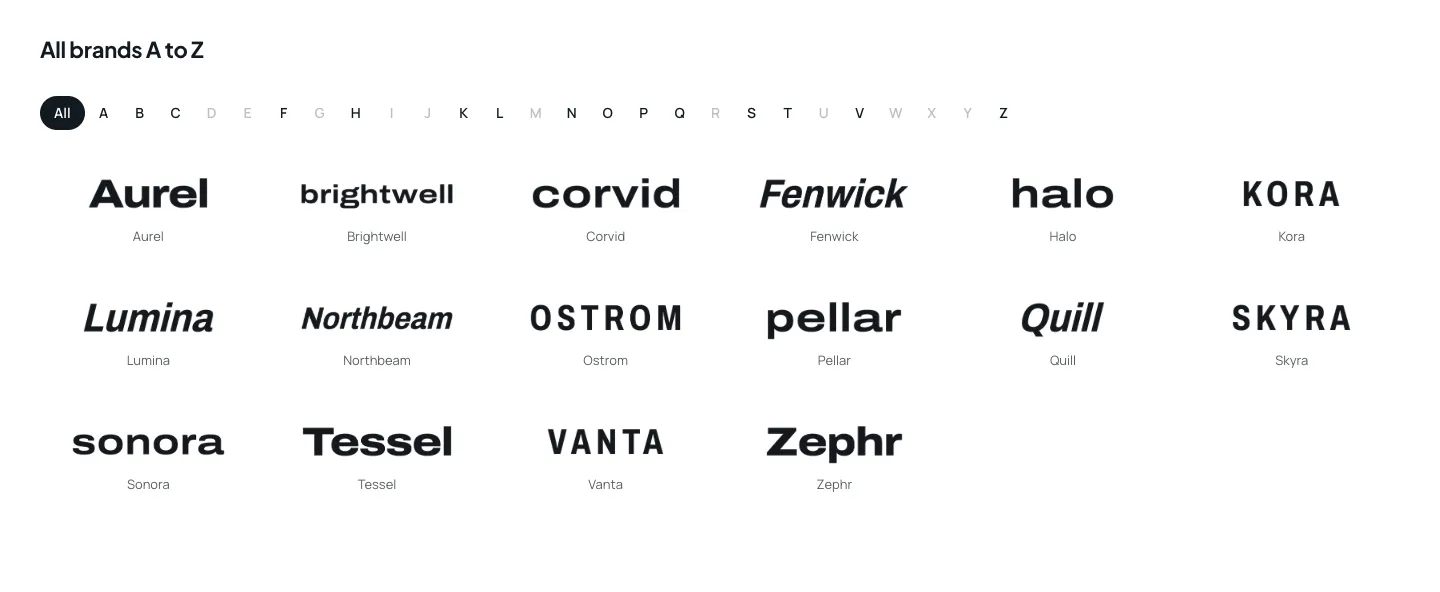
Use it on a page of its own, linked from your menu or footer. It is the place shoppers go when they look for one brand by name. If you sell only your own brand, you do not need it.
It differs from its neighbors like this:
- To feature a few brands you choose, use Collection list with logos or brand cards. All five presets place one above the directory.
- To show a brand's products and a photo, use Collection spotlight.
Add it to a page
All presets include a page template with this section, named brands. In the Shopify admin, go to Online Store > Pages and create a page called Brands. Under Theme template, choose brands. Then add the page to a menu.
The section can also go on any other page through Add section.
How brands are found
Each brand is a Vendor on a product published to your online store. A product in draft does not count.
A brand links to the collection with the same name, such as vendor Aurel and collection Aurel. Without one, it links to the page Shopify makes for every vendor, showing all its products. So create a collection for your main brands, because you can give that page a banner and a description.
Vendor names need to match exactly, or one brand shows twice. Fix this on the products in the Shopify admin.
Leave some out
- Hide your store's name is on by default, because Shopify makes your store's name the vendor of your gift cards. Turn it off if you also sell products under your store's name.
- Brands to leave out takes vendor names separated by commas. Use it for a supplier name that means nothing to your customers.
Names or logos
Show brands as has three options.
| Option | Use it when |
|---|---|
| Names grouped by letter | You have many brands, or no logos. It needs no preparation. |
| Logos | You have logos for most brands. All five presets use this. |
| Logos grouped by letter | You have many brands and their logos, and want the letter groups too. |
Logos come from each brand's collection, in the metafield custom.logo. A brand with no logo shows its name, so the list is never incomplete. See Metafields.
With logos, Logos per row, Logos per row on phones, Show brand name and Tile frame set the look of the grid.
The letter bar
Show letter bar adds A to Z above the list. It helps from about 20 brands, so turn it off below that. Letters with no brand are grayed out.
With names, a letter jumps to its group. With Logos, a letter filters the grid. On large screens, the bar for names stays under the header as shoppers scroll.
Something not working?
A brand is missing. Check that it has a published product, and that its name is not under Brands to leave out.
Your store's name appears as a brand. Check Hide your store's name.
A logo does not show. The brand needs a collection with the same name as the vendor, with its logo in custom.logo.
All settings: Brand directory
| Setting | What it does |
|---|---|
| Heading | |
| Description | |
| Heading size | |
| Heading alignment | |
| Show the number of brands | |
| Brands | |
| Hide your store's name | Shopify makes your store's name the vendor of your gift cards. Untick it if you also sell products under your store's name. |
| Brands to leave out | Vendor names separated by commas, for example a supplier name that is not a brand to your customers. |
| Show brands as | Logos come from each brand's collection: its Logo (custom.logo). A brand without one shows its name. |
| Show letter bar | Names: links to each letter. Logos: filters the logos by letter. Helpful from about 20 brands. |
| Logos per row | |
| Logos per row on phones | |
| Show brand name | |
| Tile frame | |
| Color scheme | |
| Top padding | |
| Bottom padding | |