
Ridge
The preset for outdoor and sports stores, with its look, the photos it needs, its Rental page and every section on its main pages.
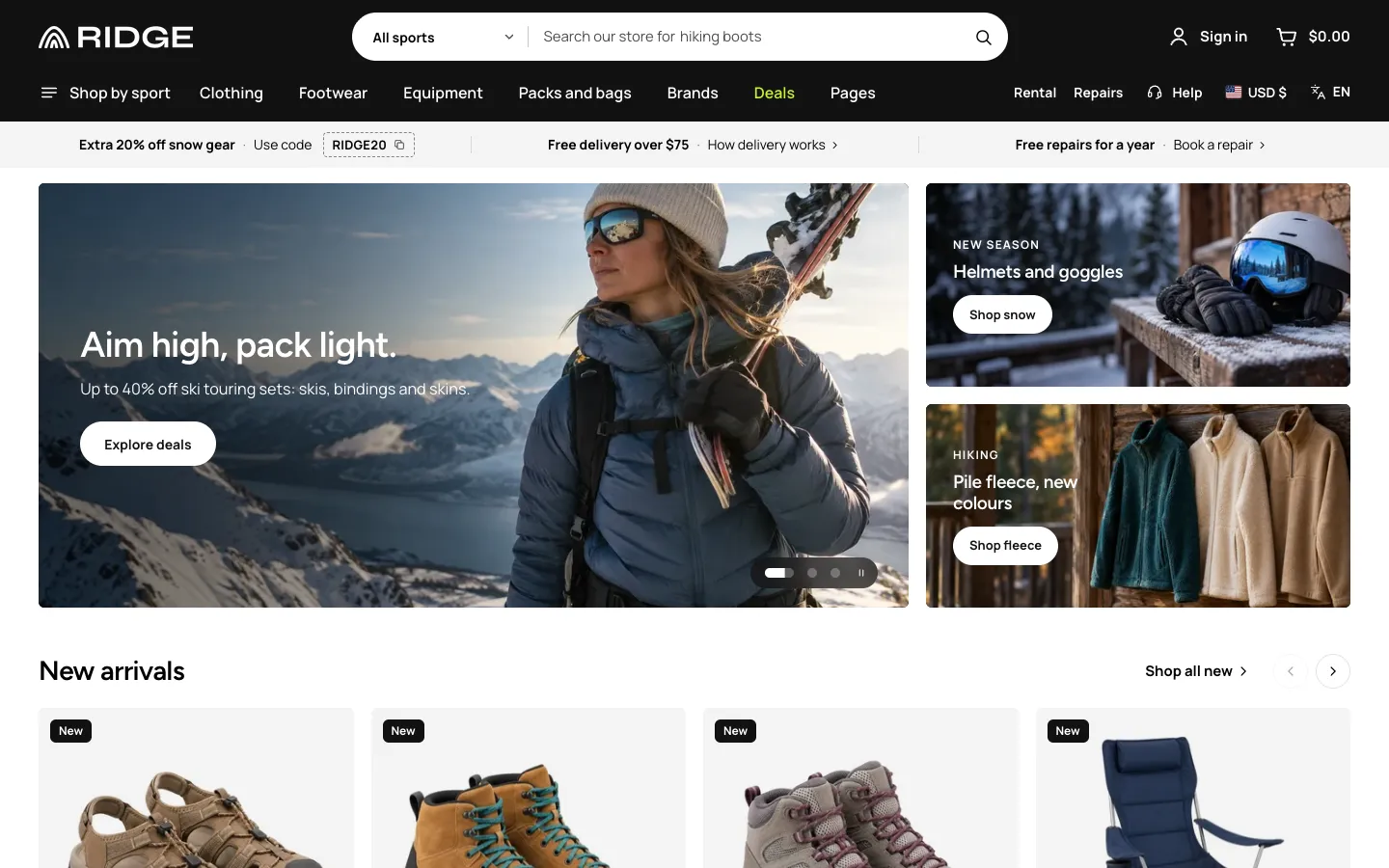
Ridge is for outdoor, sports and adventure gear. A dark header and big landscape photos set the mood, while the cards stay clean and technical, with whole products on a soft tint. Shoppers browse by activity and by brand.
Is it right for your store?
It works well if you sell gear for specific activities across several brands, and you have strong outdoor photos alongside product shots on white. It also suits stores that offer services such as rentals or repairs.
It is a harder fit if you have one brand with few products, or no landscape or action photos. Core suits a plainer large catalog, and Hanger suits clothing shot on models. You can still take Ridge's colors and fonts to another layout.
How it is set up
| Setting | Ridge uses |
|---|---|
| Fonts | Figtree for headings, Manrope for text |
| Buttons | Pill, at Medium size |
| Inputs | Rounded, with a 4 px radius |
| Corners | 6 px on cards and panels |
| Page width | 1500 px |
| Product photo shape | Square, with Show the whole image |
| Photo background | Blend product images on |
| Cards | Borderless, with the price Under the name |
| Hover image | Slideshow |
| Swatches | Variant image, Fit on white, Above the vendor |
| Add to cart | On the image, with the Light button |
| Sale badge | Percentage saved |
| Rating | Five stars in the text color |
| Stock status | Hidden on cards |
| Compare checkbox | Top right, clear of the button on the image |
See Product cards for what each card setting does.
Photos to prepare
- Product photos on a white or very light background, because the blend only works with those. A photo for each color makes the swatches work.
- A second photo of each product, because cards let shoppers swipe through them.
- Three wide landscape images for the opening slideshow, at Page width, plus two images for the Side cards.
- A photo for each activity in the Collection showcase. The demo has 8.
- A wide photo for the seasonal banner at Full width. Keep text space on one side, and set a focal point.
- Three action photos with products in them for Shop the look.
What is on each page
These are the sections as Ridge ships them, from top to bottom. Add the same ones in the same order to rebuild a page from the demo.
Ridge also has a Promo strip under the header on every page. It lives in the Header group of the section list.
Homepage
- Slideshow
- Featured collection
- Promo cards
- Collection showcase
- Collection tabs
- Collection list
- Collection spotlight
- Media banner
- Collection links
- Featured collection
- Countdown bar
- Shop the look
- Testimonials
- Marquee
- Media with content
- Blog posts
- Social media gallery
Product page
- Product information
- Product recommendations
- Feature tabs
- Multicolumn
- Testimonials
- Compare similar items
- Media with content
- Recently viewed
Ridge has no pre-order or coming soon templates of its own. It uses the same two as Core. See Pre-order and coming soon.
Collection page
- Collection banner
- Sub collections
- Product grid
- Collection text
- Promo cards
- Collection list
- Blog posts
- Multicolumn
- Recently viewed
Ridge also comes with three other collection layouts, department, brand and full-banner. Choose them per collection under Theme template in your admin. During a trial, this list holds only the live theme's templates, so see Getting started. Collection templates compares them.
Rental page
Only Ridge comes with this template. It explains a rental service: what you can rent, how it works and how to book.
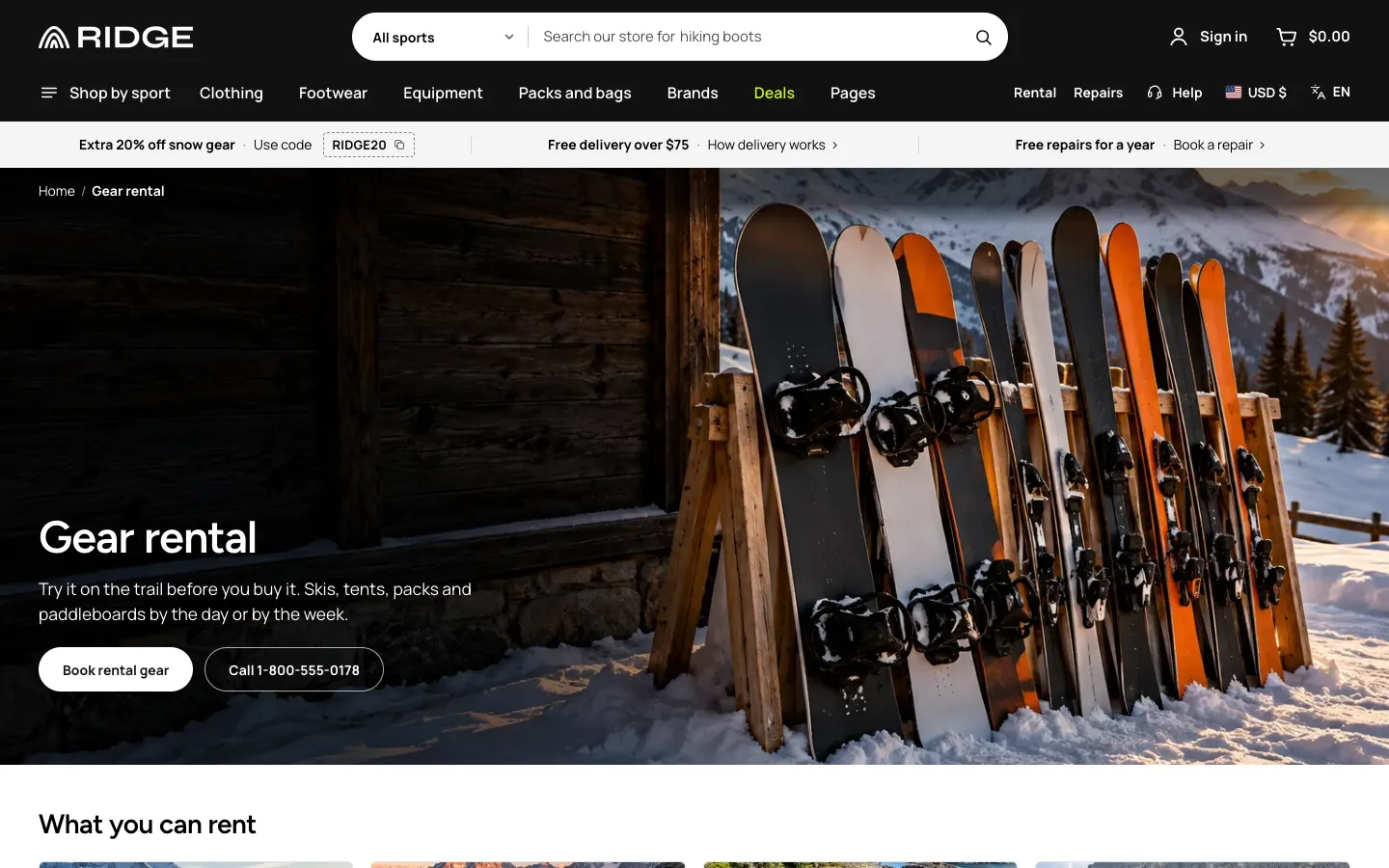
To use it, add a page in Online Store > Pages and choose rental under Theme template.
The page describes your service and does not take bookings. Its buttons go to your contact page and a phone number, so shoppers send you a request. Replace the sample store location, hours and phone number with your own. Rental page goes through each part.
Mega menus
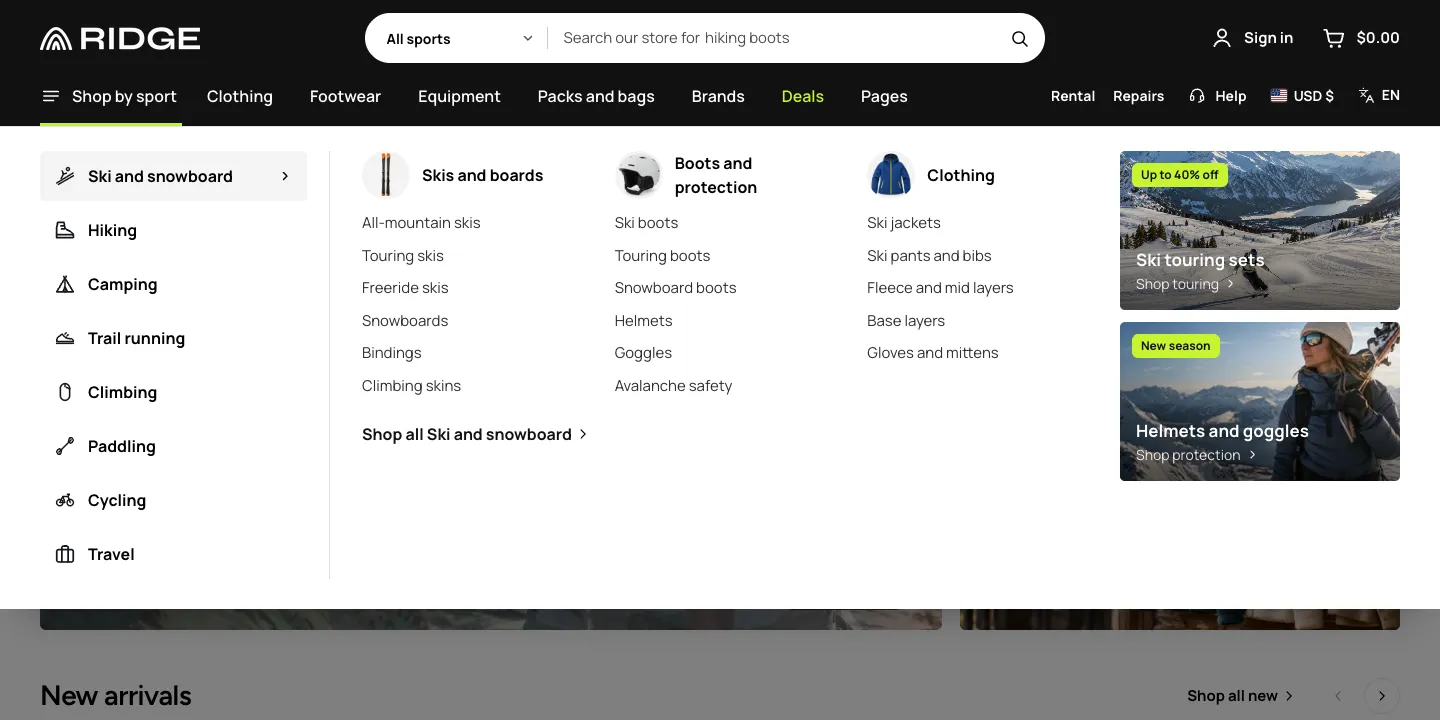
Ridge's demo has a Tabs mega menu titled Shop by sport, Link lists titled Clothing, Equipment, Packs and bags, and Deals, and Collections titled Footwear and Brands. The demo's menus have the handles main-menu, sports for the tabs, and header-links for the links in the mobile drawer.
The blocks arrive with Ridge, but your store does not have those menus or titles, so they show nothing until you match them. Mega menus from a preset explains your two ways forward.
Other pages in the demo
Repairs
This is Ridge's service template. Add a page titled Repairs in Online Store > Pages, and choose service under Theme template.
The workshop's name, address, opening hours and call button arrive hidden in Media with content. Type your real details, then show them with the eye icon. Service page goes through each part.
On a new store, links that lead to this page open your Contact page instead. Once the page exists, change the Link of the repair offer in the Promo strip, the Custom card in the mega menu, the box in the footer, and the button in the homepage's Media with content. Rewrite any promise you do not make, such as "Free repairs for a year".