
Try, buy and publish
How Shopify's theme trial works, what you keep when you buy, and how to make the theme live for your customers.
You can set up the whole theme before you pay, and your customers see nothing until you publish. Shopify runs this process the same way for every paid theme in its Theme Store. Shopify's guide to adding themes has the full rules.
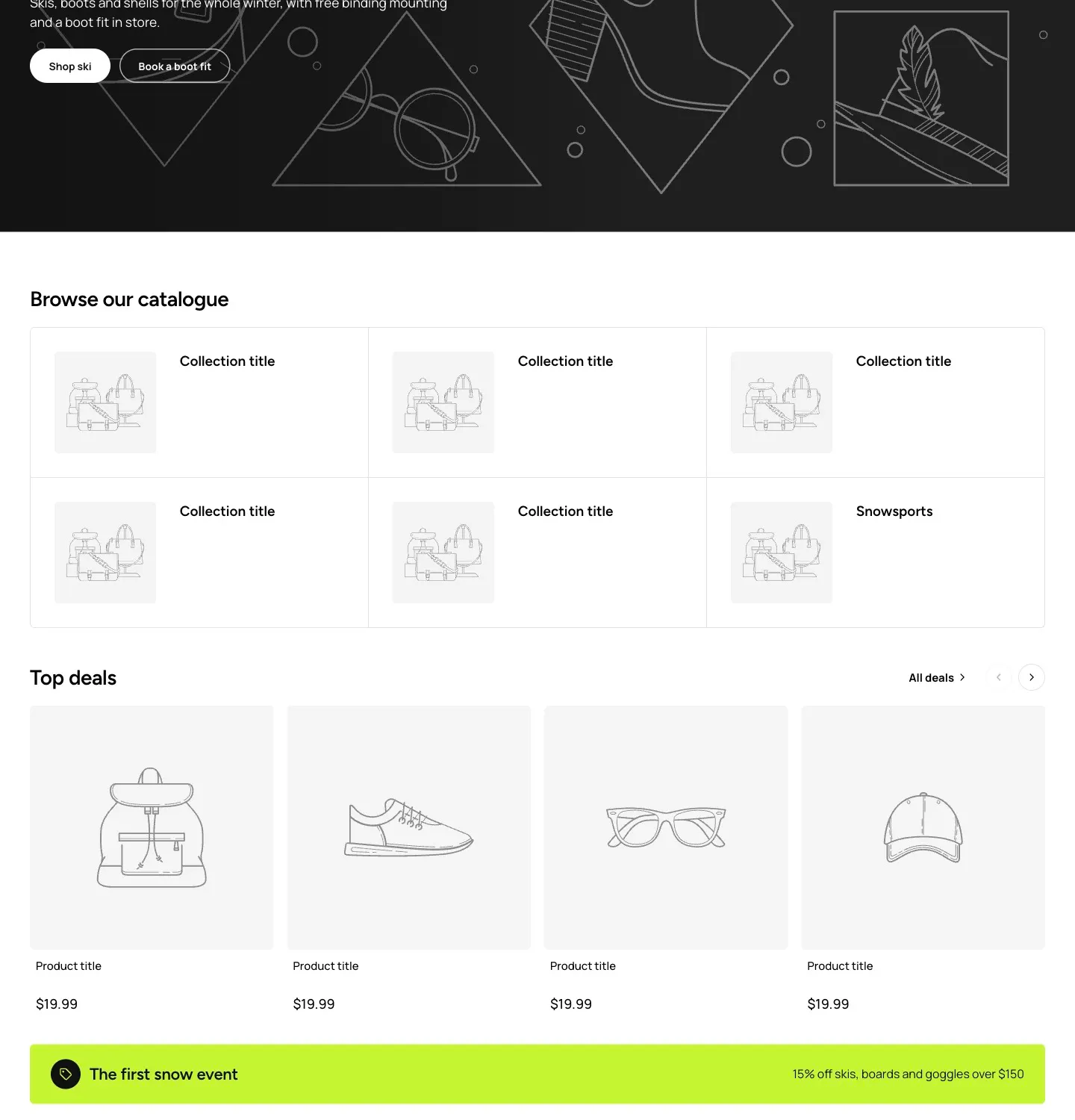
A new trial looks like this before you add your own content. Why your store looks different from the demo explains the drawings and sample text.
Try the theme
In the Shopify Theme Store, open the theme and click Try theme. It arrives in your admin under Online Store, in the Draft themes list, with a Theme trial label. Start from the preset closest to your store. Compare the five.
Set it up
Click Edit theme to open the theme editor. Work through Set up your store. Your changes are saved with the trial.
Buy it
Under Draft themes, click Buy on the theme. Everything you set up during the trial stays.
Publish it
Click Publish on the theme, in the same list or at the top of the theme editor. It now shows to your customers. Your previous theme moves to Draft themes with its changes intact, so you can go back to it.
What Shopify limits
| Rule | What it means for you |
|---|---|
| Only a purchased theme can be published | The trial is for preparing and previewing. |
| No code editing during a trial | Theme editor changes work. Code edits wait until you buy. |
| Up to 19 paid themes on trial at once | You can try several presets side by side, within your store's theme limit. |
| A license covers the store you bought it for | Another store needs its own purchase. |
| Purchases are final sale | Set the theme up with your real photos before you buy. |
Your store also needs the staff permissions Shopify lists for buying themes. If Buy does not work for you, ask the store owner to check them.
Publishing and your store password
Publishing changes which theme customers see. It does not change who can reach your store. If your store is private, it stays private after you publish, and Shopify tells you so in the confirmation window. See Shopify's guide to publishing.
Before you publish
- Open the preview on your real phone and add something to the cart.
- Read every section for sample text. Sample offers and delivery terms must match what you really offer.
- Check that the free shipping amount in Theme settings > Cart matches your real shipping rate.
- Replace the sample links in Theme settings > Social media.