
Service page
Explain a service such as repairs, grooming or design help, with steps, promises, questions and a way to ask for a time.
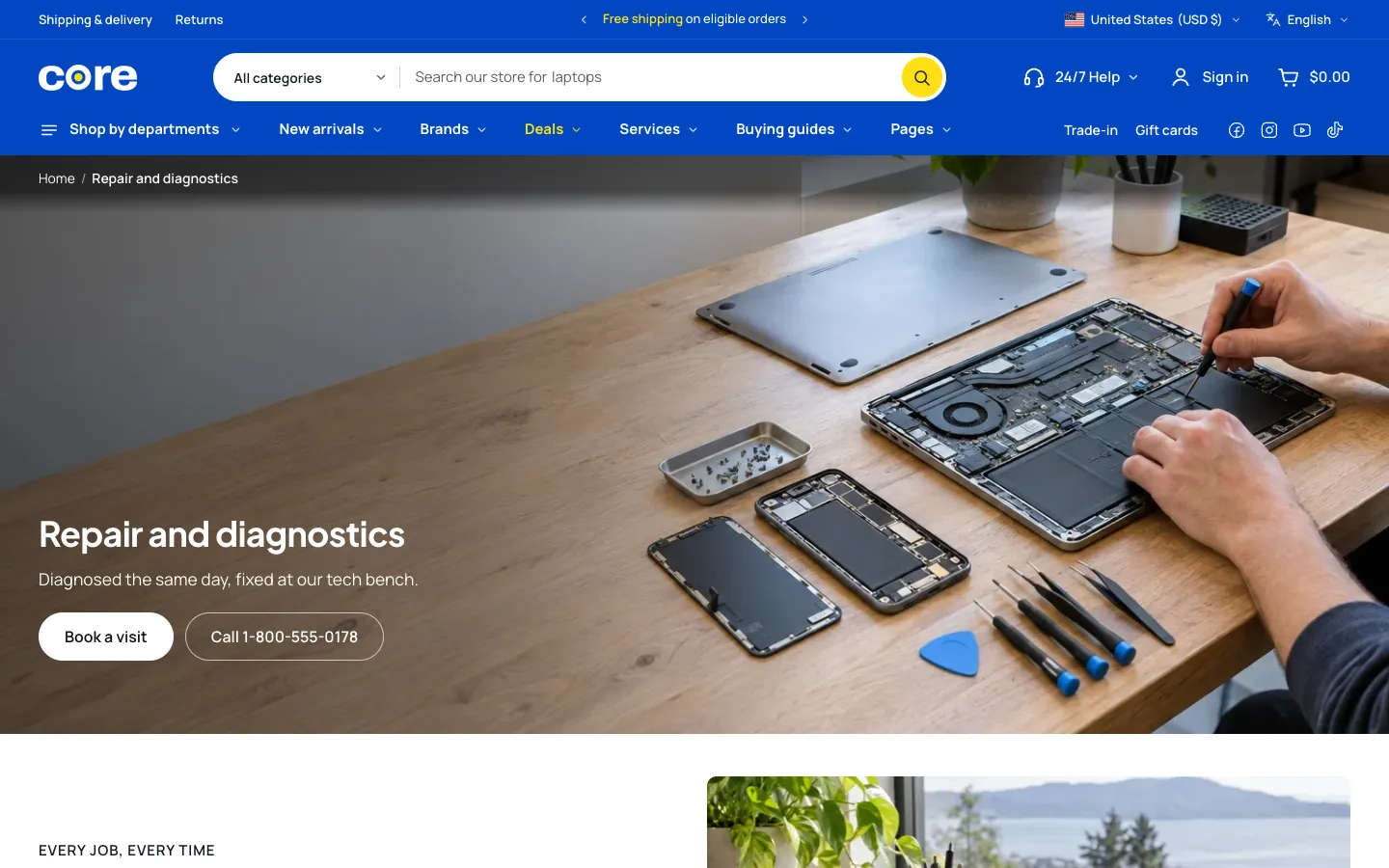
The service template explains what you do, how it works and how to ask for it. Each preset fills it with its own example: tech repairs, pet grooming, room design, ski repairs and clothing alterations.
Set it up
Create the page
Add a page named after your service, such as Repairs, and choose service under Theme template. Give a page a template has the steps.
Write the banner
The Media banner holds the page title. With its Heading empty, it shows the page's own title. Add one line on what the service does, and a button.
Explain the steps
Feature tabs walks people through what happens. Mantel uses a row of Multicolumn cards instead, which shows every step at once.
Answer the questions people have
Change the questions under FAQ in the Multicolumn section near the end. Prices, wait times and warranties in the sample text belong to the demo. Replace them with your own.
Add the products that go with it
The Featured collection at the end links the service back to what you sell. Pick your own collection, or delete it.
How people ask for a time
The theme has no booking calendar and takes no payment for a service. The buttons on this page link to your Contact page or to your phone number, so a request reaches you as a normal message.
To take real appointments or payment, use a booking app, or sell the service as a product. You can also put a form on this page: add a Contact form block to a Multicolumn section, with a dropdown for the service you offer.
Make sure you have a Contact page, because the buttons in this template expect one.
More than one service
Pages that share a template share its text. To give each service its own page, make one template per service, each based on service. The Core demo has two pages made this way: Setup and installation, and Repair and diagnostics. What to expect from a template explains how.