
Change your preset
Changing preset swaps your colors, fonts and design settings. Your sections, menus and content stay where they are.
You can change preset at any time in Theme settings > Theme style. It changes how your store looks. It does not rearrange your pages.
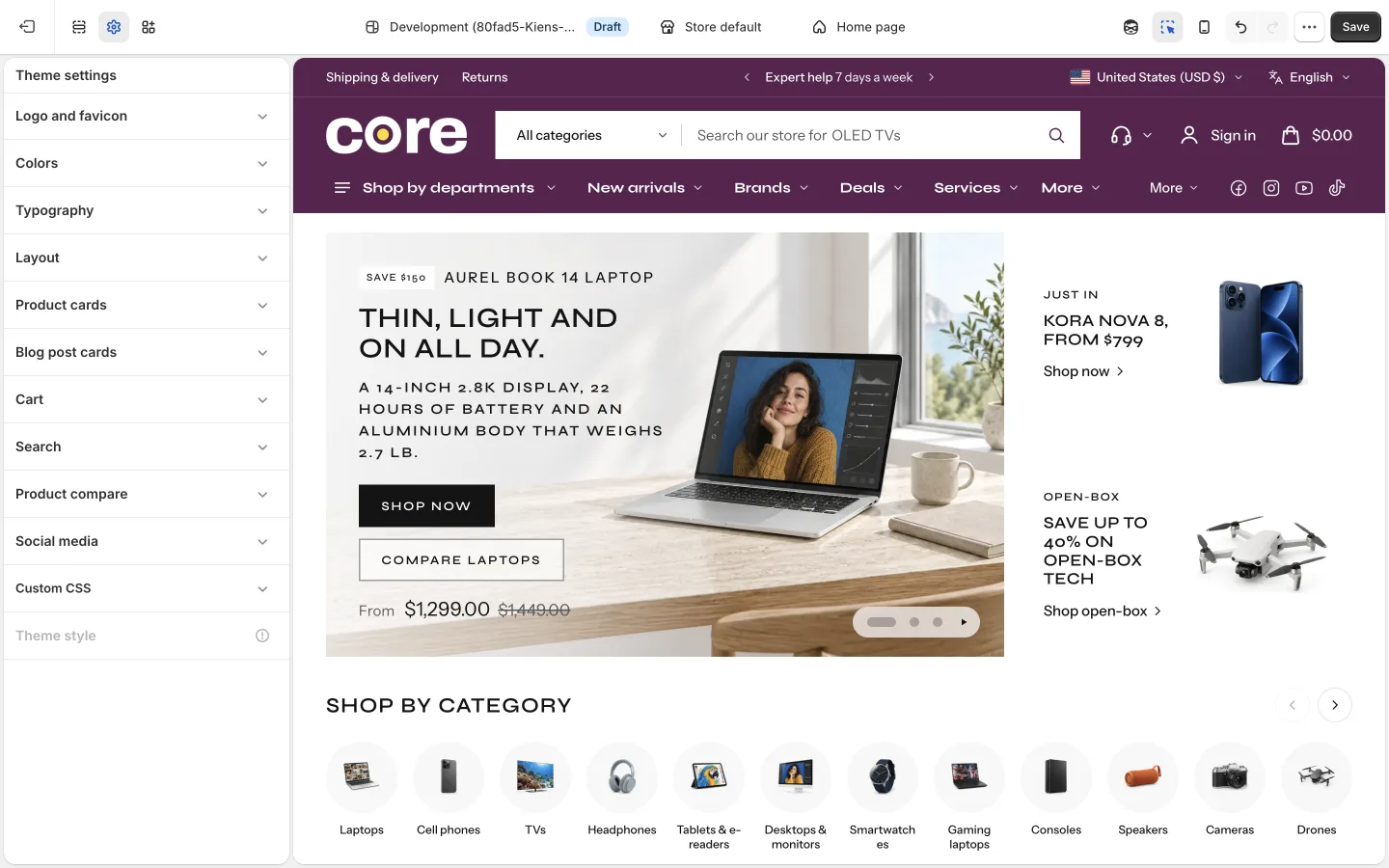
The picture below is the Core homepage after changing to the Hanger style. The purple header, the capital letters and the square buttons all come from Hanger. Every section is still Core's, with Core's text and photos.
What changes and what stays
| Changes | Stays as it is |
|---|---|
| Colors and color schemes | The sections on every page, and their order |
| Fonts and text sizes | The header and footer layout |
| Button and input shapes | Your menus and pages |
| Page width | Your text, images and products |
| Product card style, such as image shape and swatches | Popular searches, the free shipping amount and social links |
Your own changes to the settings on the left are replaced. Anything you typed into a section stays.
Duplicate your theme first
Theme settings you have changed are overwritten. In Online Store > Themes, open the ... menu on your theme and click Duplicate. It takes a few seconds and gives you a copy to go back to.
Change it
Open Theme style
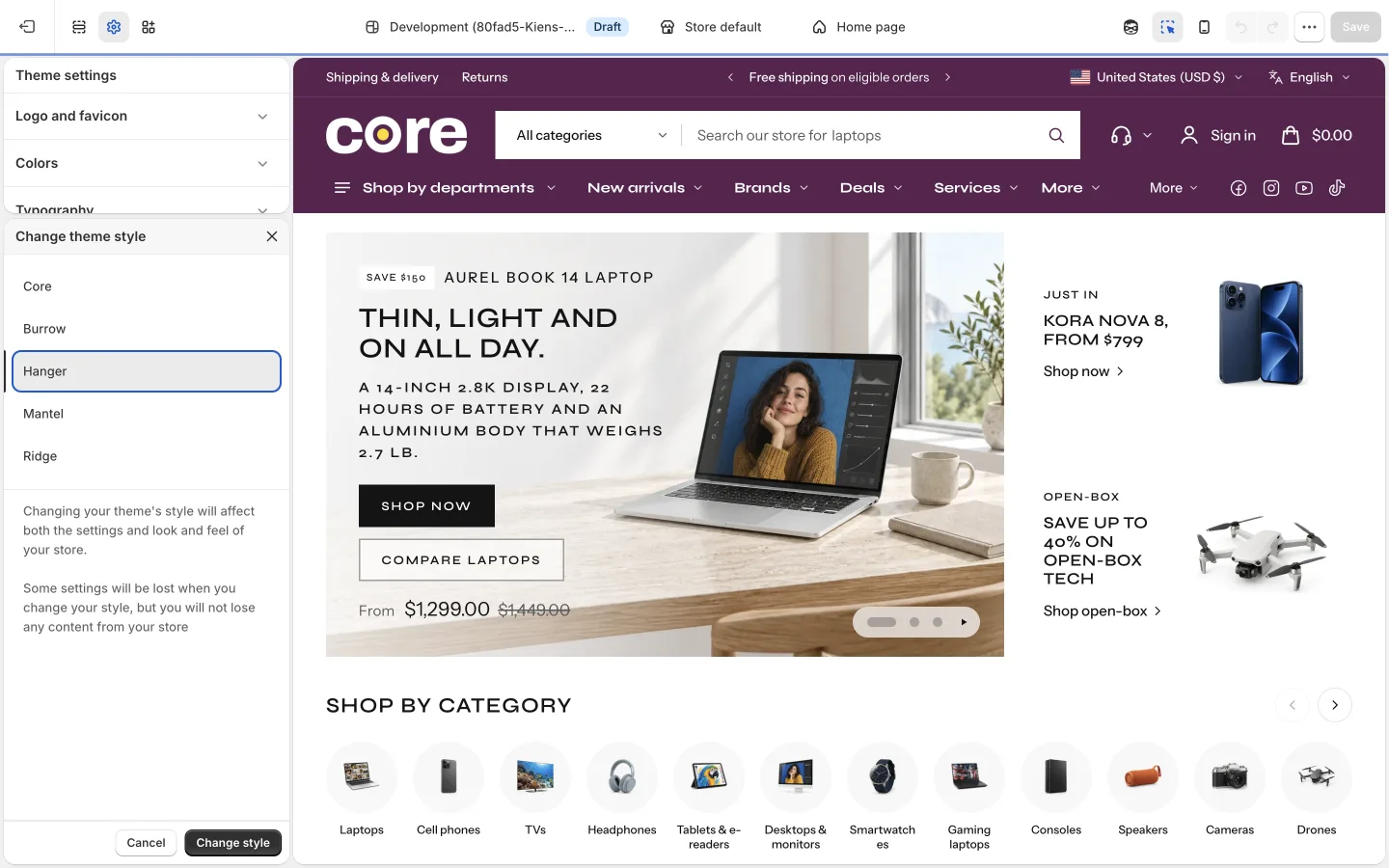
In the theme editor, click the gear icon, then Theme style at the bottom of the list.
Try a preset
Click a name in the Change theme style panel. The preview shows the new look, and nothing is applied yet. Click through as many as you like, or Cancel to leave things as they were.
Apply it
Click Change style, look through a few pages, then click Save. If you change your mind before saving, use the undo arrow at the top of the editor.
After you change
Theme style writes its own values into your theme settings. Your templates, sections and menus are left alone. That gives you two jobs: redo the settings you had made your own, and check that what stayed still suits the new look.
Redo your own settings
- Colors and fonts. If you had changed a color scheme or picked your own font, the preset's values have replaced them. Set them again.
- Product cards. Choices such as Sale badge shows, Badge style and the image shape are the preset's now. Go through Product cards.
Check what stayed
- Your logo. A logo drawn for a dark header can disappear on a light one. Add the other version under Logo on dark backgrounds in Theme settings > Logo and favicon. Presets also set their own logo size, so check Logo width on desktop and Logo width on mobile.
- Your product photos. Each preset has its own image shape, so a crop that worked before may not work now.
- Sections on a color scheme. A section keeps its scheme, such as Accent, and that scheme now has the new preset's colors. Look at each page for text that has become hard to read.
- Custom backgrounds. Custom background and Custom text color on a Countdown bar or a Slideshow's Side cards belong to the section, so they stay and may clash with the new colors.
- Section sizes. Settings such as a slideshow's Width and height stay as they were, so they may not match the new preset's demo.
- Words from your first preset. Sample text stays until you change it, such as grooming on Burrow's service template or the header's search box hints. Read each page for wording that no longer fits your store.
- Your mega menus. They stay as they were. See Menus and mega menus.
Templates only one preset has do not arrive by changing style. Hanger's lookbook and Ridge's rental come only with those presets.
I want the demo's layout too
Theme style cannot do that, because layouts are not part of it. You have two ways to get there:
- Rebuild the parts you like. Every section is available in every preset. The preset guides list what each page uses, in order. Start with Hanger.
- Start from that preset. Add it from the Theme Store as a new theme in your library, and set it up from there. Your products and collections are safe, because they belong to your store and not to the theme.