
Brands page
List every brand you sell from A to Z, with a few favorites at the top. The list builds itself from your products.
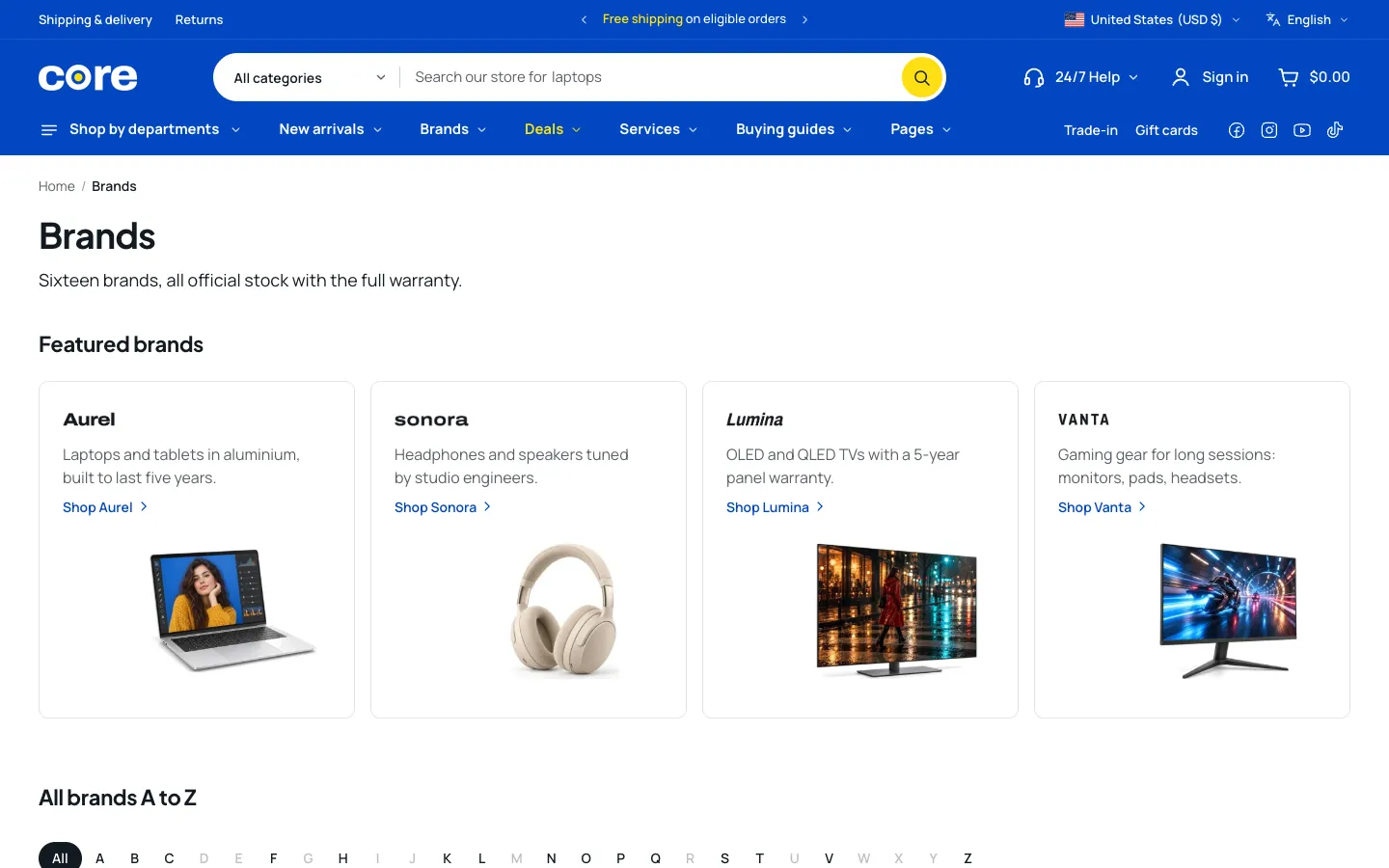
The brands page shows a few featured brands, then every brand you sell, A to Z. Shoppers who know what they want can get there in a click.
Use it if you sell several brands. If you make everything yourself, you do not need this page.
Set it up
Add a page, for example Brands, and choose brands under Theme template. Give a page a template has the steps. Then add the page to your menu.
The page has two working sections: Collection list for the featured brands, and Brand directory for the full list.
The A to Z list fills in by itself
Brands come from the Vendor of your products, so a new vendor appears without any setup. A brand opens its collection when a collection has the same name, for example vendor Aurel and collection Aurel. Otherwise it opens a page of all that brand's products.
So for each brand that matters, make a collection with exactly the vendor's name.
To show logos instead of names, set Show brands as. A logo comes from the brand collection's custom.logo metafield, and a brand with no logo shows its name. The list reads the metafield by itself, so you connect nothing in the editor. See the metafields reference.
The brand collection template is different: on a new store, its banner's Logo is not connected, and you connect it once in the editor.
Choose your featured brands
The featured brands are cards you pick by hand in Collection list. Each one takes a collection, and its name, image and link come from there. What you type on the card replaces them. Logo is an image you add to each card, and it does not read custom.logo.
On a new store the cards show drawings in place of brands, so your first job is to fill each card. Delete the section if you would rather show only the list.
Something not working?
My own store's name is in the list. Turn on Hide your store's name. It is on by default and covers the gift card's vendor too.
A vendor that is not a brand appears. Add it to Brands to leave out.
A brand opens a plain page of products. No collection has the same name as the vendor. Make one, or check the spelling.