
Countdown bar
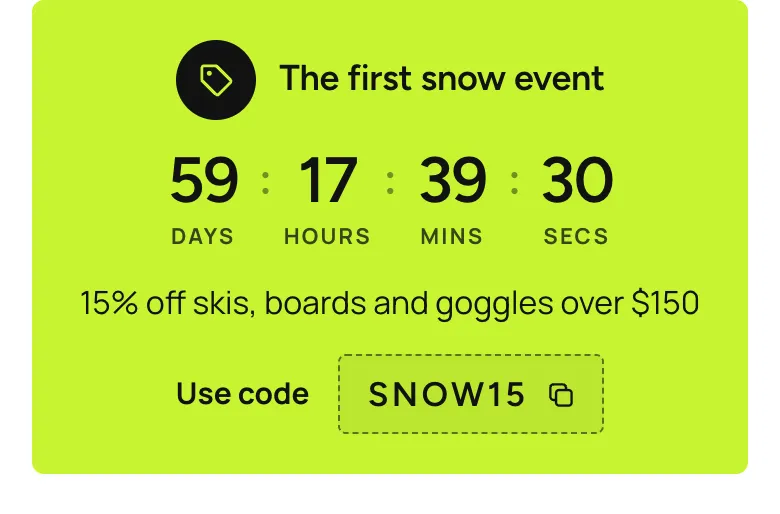
Show a bar with a live timer to a real end date, a short offer line, a discount code to copy and a button.
A bar counts down to the date you set, beside a line about the offer. Shoppers can copy your discount code with one click.

Use it for a sale that really ends on a date. For offers with no end date, use Promo strip, which also holds up to six offers. To keep the same sale visible in a line on every page, use Announcements.
Set the end date
Shopify has no date setting for themes, so you type it.
- End date is year-month-day, such as 2026-12-31.
- End time is 24-hour time in your store's time zone, such as 17:00.
Shoppers in other time zones see the correct time left. The timer counts once to your date and never restarts, because a timer that resets would mislead shoppers.
Leave End date empty for a bar with no timer.
When the time is up
When the time is up set to Hide the section removes the bar, even for a shopper who has the page open. This is usually right, because you do not have to remember to take it down.
Show a message replaces the timer, text and offer with your Message, such as "This sale has ended". Use it if you want shoppers to know the sale is over.
The theme editor always keeps the bar in view, with a message saying what shoppers see. To check that it has gone, open your store itself.
Add the offer
Discount code adds a box that copies the code when clicked. Create the code first in Shopify's Discounts, because the theme cannot check that it exists. The bar copies the code only, and shoppers paste it at checkout.
A button needs both a Button label and a Button link. Button style set to Surface makes the button stand apart from the bar.
Choose the look
Width set to Page width gives a rounded bar on the page's background. Full width gives a band from edge to edge.
The bar takes its colors from Color scheme, which defaults to your accent. If a sale needs its own color, set Custom background. The text turns black or white by itself, whichever reads better. To choose the text color yourself, set Custom text color, which shows once a custom background is set.
Text style and Numbers font match the words and numbers to your preset's type.
On phones
The parts stack, with the timer under the heading.
Something not working?
The bar is gone from the store. The end date has passed and When the time is up is set to Hide the section. Set a new date, or remove the section.
There is no timer. End date is empty, or it is not in year-month-day form. The bar does not guess at a date it cannot read, and the theme editor tells you what to fix.
The code does not work at checkout. Check it in your admin under Discounts. It must be active and spelled the same.
All settings: Countdown bar
| Setting | What it does |
|---|---|
| Heading | |
| Icon | |
| Text | |
| Text style | |
| Timer | |
| End date | Year-month-day, for example 2026-12-31. Leave empty for a bar without a timer. |
| End time | 24-hour time in your store's time zone, for example 17:00. |
| Numbers font | |
| When the time is up | |
| Message | |
| Offer | |
| Discount code | Visitors copy it with one click. Create the code in Discounts first. |
| Button label | |
| Button link | |
| Button style | Surface fills the button with the color scheme's surface color, so it stands apart from the band. |
| Section | |
| Width | |
| Color scheme | |
| Custom background | Optional. Replaces the color scheme on this bar. |
| Custom text color | Left empty, the text turns black or white, whichever reads better on the custom background. |
| Top padding | |
| Bottom padding | |