
Size guide
Add a Size guide link that opens the right chart in a dialog for each kind of product, using one page per chart.
You get a Size guide link under the variant picker. It opens a dialog with the chart for that product, and products without a chart show no link.
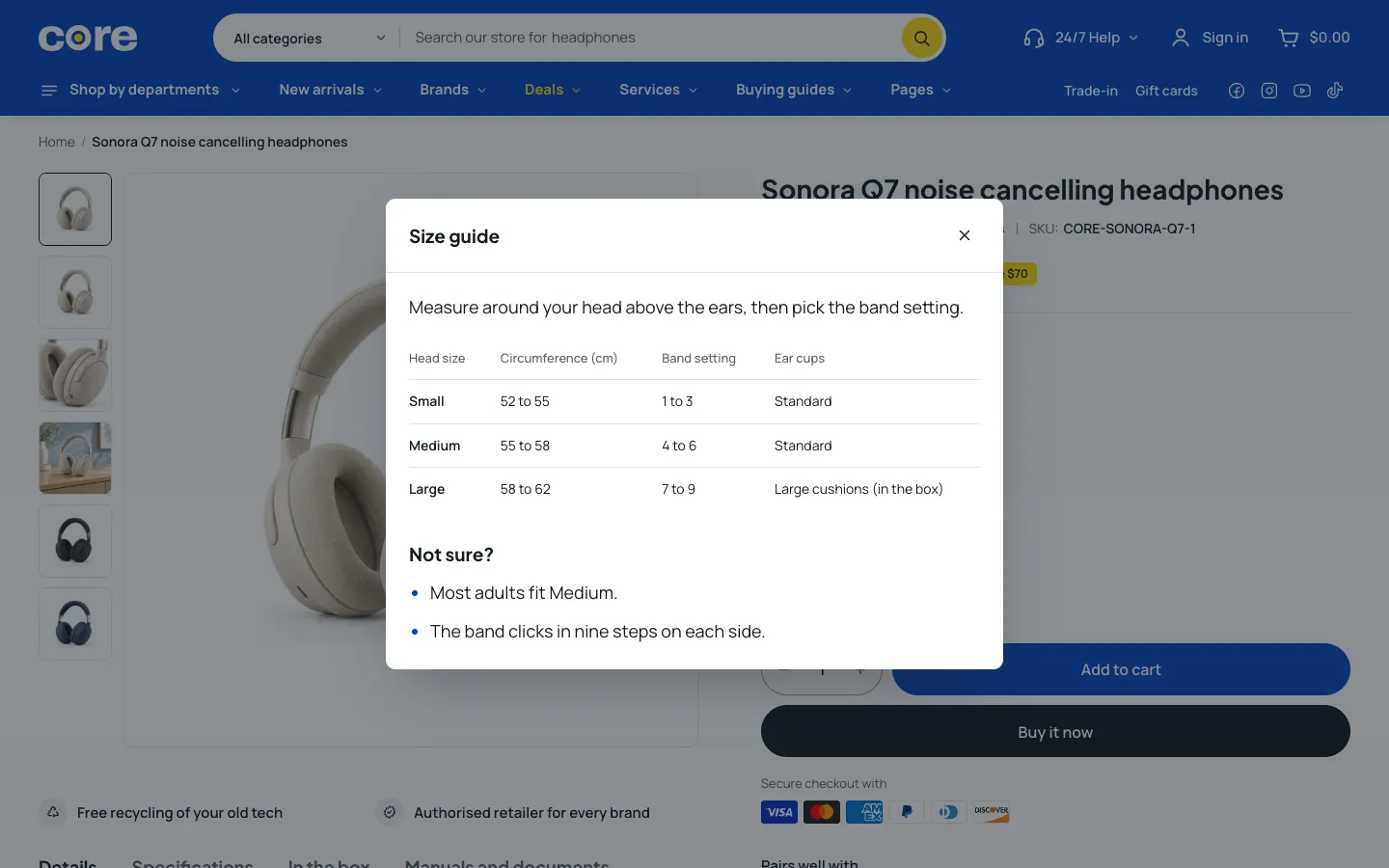
The guide is a Pop-up block whose page comes from a product metafield. Core, Burrow, Hanger and Ridge have this block on their product template. Mantel does not, so add one under the Variant picker if you sell by size.
What to prepare
- One chart per kind of product, such as Tops, Trousers and Shoes. Hanger uses four pages and Ridge seven.
- If one chart fits everything you sell, you can skip the metafield. Add the block and pick the page directly.
Set it up
Create a page for each chart
In Online Store > Pages, add a page with your measuring help and a table. The first row of the table becomes its heading in the dialog. Shoppers do not see the page title in the dialog, so a clear admin name such as "Size guide: Tops" is fine.
Create the metafield
On the Metafields page of your admin, add a product metafield definition named Size chart, with the type Page and the namespace and key custom.size_chart. The templates read exactly this key.
Pick a page on each product
Open a product, go to Product metafields, click View all if yours is not pinned, and choose its page. For a whole range at once, use the bulk editor in your admin. Leave it empty on products with no sizes, such as bags.
Check the block
In the theme editor, open a product and select the Pop-up block. Click the connect icon beside Page and choose your Size chart metafield. The theme arrives without this connection, because a new store does not have the definition until you create it.
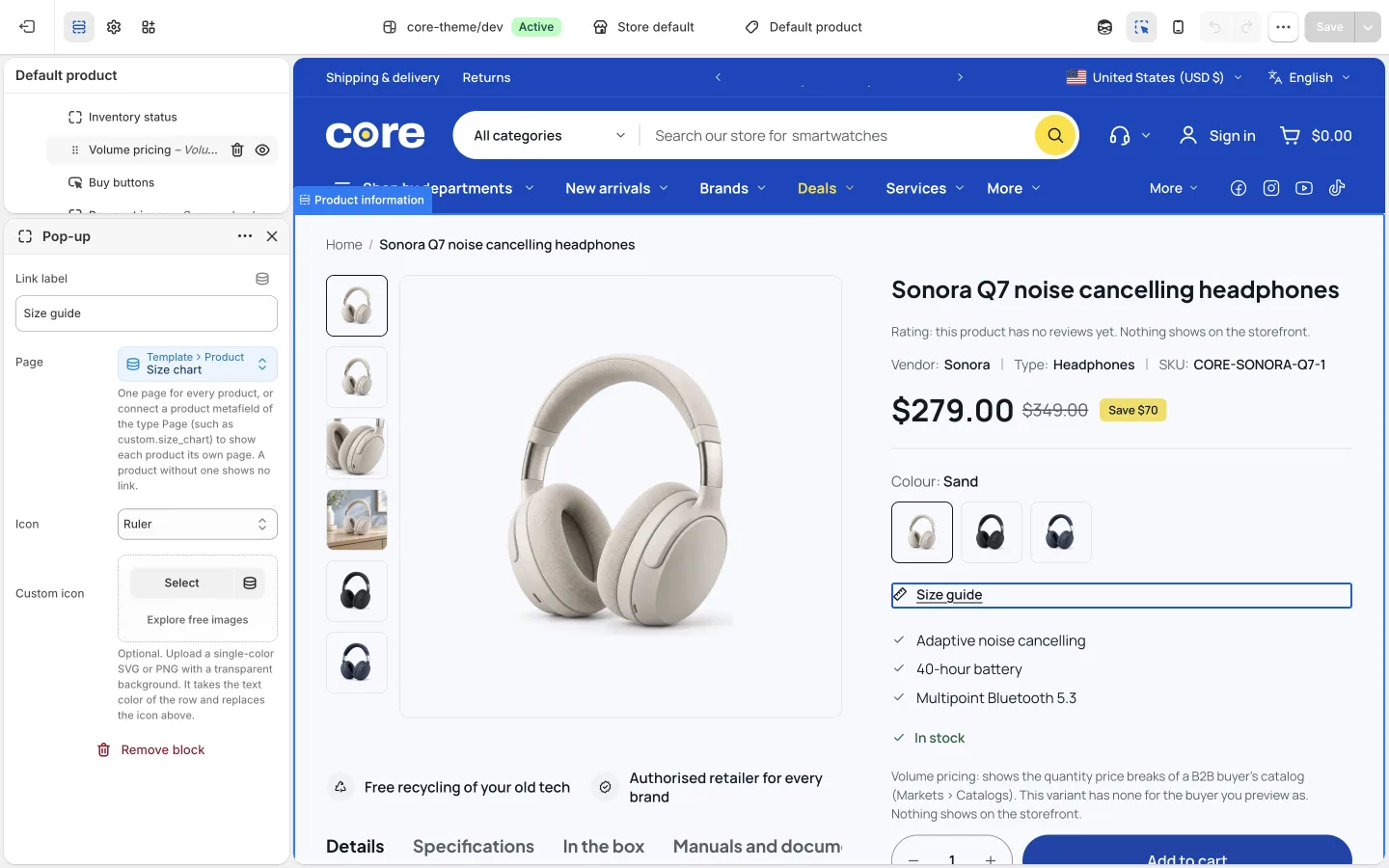
How to check it
Open a product with a chart and click Size guide. Then open one with no page set and confirm there is no link.
How the dialog behaves
The dialog's title is the Link label. A wide table scrolls sideways in its own frame, and the first column stays in view. On phones the dialog opens as a sheet from the bottom.
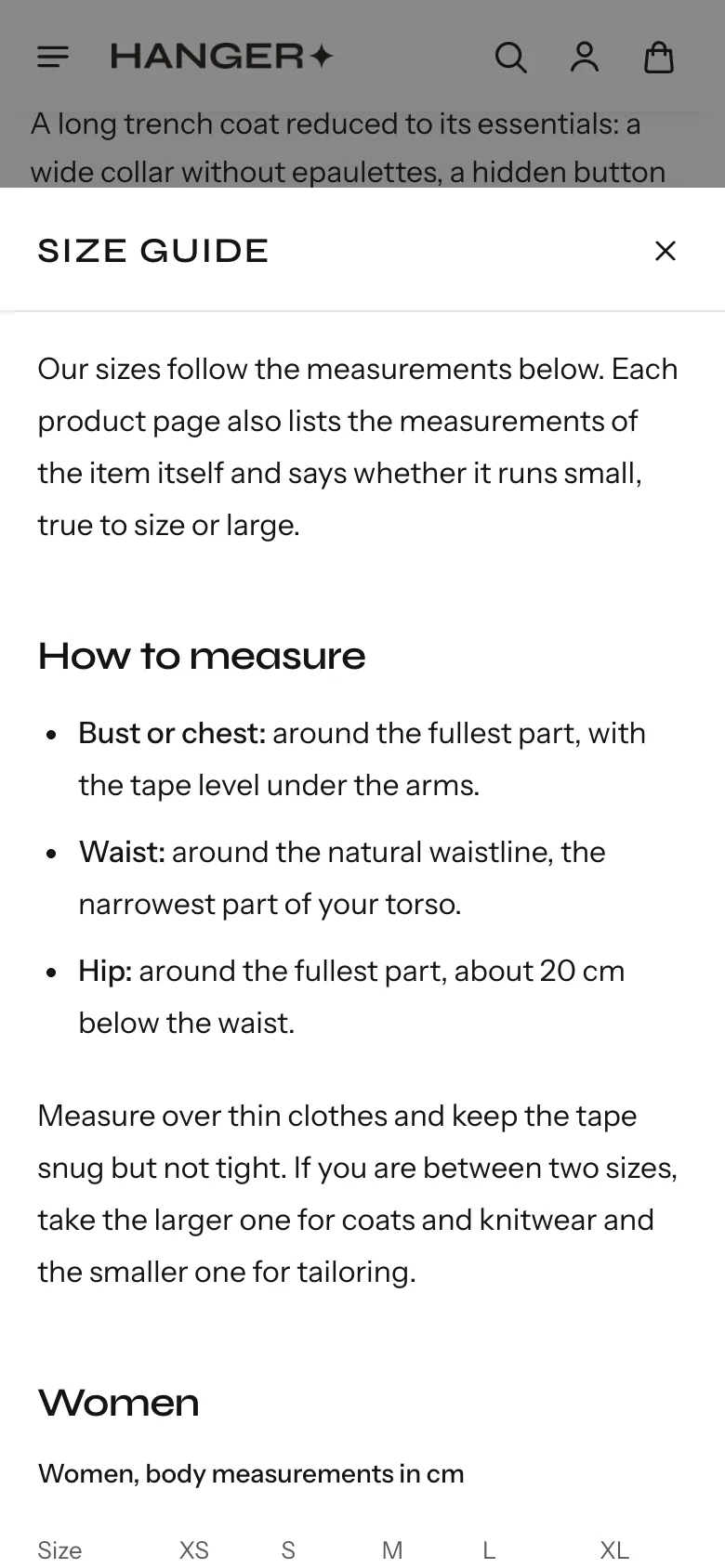
Seen in the Hanger demo
The chart is still an ordinary page, so keep it out of your menus unless you want shoppers to find it there. Without JavaScript, the link opens that page.
Pop-up works for other things too, such as delivery details or care instructions. Change the Link label, Icon and Page.
Common problems
No link on a product. The product has no page in Size chart, or the block's Page is not connected, or Link label is empty.
The same chart on every product. Page is set to one page in place of the metafield. Connect it to the metafield.
The wrong chart. Each product shows the page chosen on that product. Check it in the admin.
All settings: Pop-up
| Setting | What it does |
|---|---|
| Link label | |
| Page | One page for every product, or connect a product metafield of the type Page (such as custom.size_chart) to show each product its own page. A product without one shows no link. |
| Icon | |
| Custom icon | Optional. Upload a single-color .svg or .png with a transparent background. It takes the text color of the row and replaces the icon above. |